

C# Winform 使用 UpdateLayeredWindow 实现透明动画界面

很多开发者在美化.NET Winform窗体时,常遇到标准控件无法直接支持复杂透明效果的难题。本文将详细介绍如何利用Win32 API UpdateLayeredWindow 实现任意透明度显示,并提供完整的C#代码封装。我们将探讨三种处理上层控件的方案(双层窗体、DrawToBitmap缓存、DirectUI),并解析API调用的关键步骤与性能优化技巧,帮助你在保持系统低要求的同时,实现不卡不闪烁的高性能透明动效。
实现透明界面的核心思路
UpdateLayeredWindow 能够实现窗体的任意透明渲染,且不会出现毛边,但其代价是窗体不再响应普通的Paint消息,也无法直接使用常规控件。针对这一限制,有三种常见的解决策略:
- 双层窗体法:底层窗体应用
UpdateLayeredWindow作为背景层,上层覆盖普通窗体。利用上层的TransparencyKey或Region属性裁剪掉重叠区域,使上层控件可见,从而实现背景透明与控件交互共存。 - 图像快照法:在单层窗体中,尝试通过
Control.DrawToBitmap将上层控件绘制到底层 Bitmap 上。这种方法效率较低,且存在兼容性缺陷(如TextBox无法显示光标,WebBrowser内容丢失),不建议用于复杂交互场景。 - DirectUI 技术:完全重绘所有基础控件,放弃传统 Windows 控件依赖。这是效果最佳但开发成本极高的路径。

此外,WPF 虽然自带强大的图形渲染能力,但 Winform 凭借更低的系统要求和上手难度,在许多传统项目中依然具有优势。关键在于如何正确调用 UpdateLayeredWindow。
第一步:启用分层窗口样式
要使窗体支持半透明渲染,必须首先重写窗体的 CreateParams 属性,添加 WS_EX_LAYERED 扩展样式标志。这告诉操作系统该窗口需要特殊图层合成处理。
protected override CreateParams CreateParams
{
    get
    {
        CreateParams cp = base.CreateParams;
        cp.ExStyle |= 0x00080000; // WS_EX_LAYERED 扩展样式
        return cp;
    }
}
第二步:封装 SetBitmap 绘图方法
核心逻辑在于将内存中的 Bitmap 数据通过 GDI 转换后送入 UpdateLayeredWindow。以下是经过优化的完整方法实现:
public void SetBitmap(Bitmap bitmap, byte opacity)
{
    // 校验位图格式,必须是32位带Alpha通道的格式
    if (bitmap.PixelFormat != PixelFormat.Format32bppArgb)
        throw new ApplicationException("位图必须是32位包含alpha通道");

    IntPtr screenDc = Win32.GetDC(IntPtr.Zero);
    IntPtr memDc = Win32.CreateCompatibleDC(screenDc);
    IntPtr hBitmap = IntPtr.Zero;
    IntPtr oldBitmap = IntPtr.Zero;

    try
    {
        // 创建GDI位图句柄
        hBitmap = bitmap.GetHbitmap(Color.FromArgb(0));
        oldBitmap = Win32.SelectObject(memDc, hBitmap);

        Win32.Size size = new Win32.Size(bitmap.Width, bitmap.Height);
        Win32.Point pointSource = new Win32.Point(0, 0);
        Win32.Point topPos = new Win32.Point(Left, Top);
        Win32.BLENDFUNCTION blend = new Win32.BLENDFUNCTION();
        blend.BlendOp = Win32.AC_SRC_OVER;
        blend.BlendFlags = 0;
        blend.SourceConstantAlpha = opacity; // 透明度值,0-255
        blend.AlphaFormat = Win32.AC_SRC_ALPHA;

        // 执行最终混合渲染
        Win32.UpdateLayeredWindow(
            Handle, screenDc, ref topPos, ref size,
            memDc, ref pointSource, 0, ref blend, Win32.ULW_ALPHA);
    }
    finally
    {
        // 严格清理资源,防止内存泄漏
        Win32.ReleaseDC(IntPtr.Zero, screenDc);
        if (hBitmap != IntPtr.Zero)
        {
            Win32.SelectObject(memDc, oldBitmap);
            Win32.DeleteObject(hBitmap);
        }
        Win32.DeleteDC(memDc);
    }
}
第三步:配置 Win32 API 声明
调用上述方法前,必须在类中导入对应的底层函数并定义相关结构体。以下是必要的 API 映射与类型定义:
class Win32
{
    public enum Bool { False = 0, True }

    [StructLayout(LayoutKind.Sequential)]
    public struct Point { public Int32 x, y; public Point(Int32 x, Int32 y) { this.x = x; this.y = y; } }

    [StructLayout(LayoutKind.Sequential)]
    public struct Size { public Int32 cx, cy; public Size(Int32 cx, Int32 cy) { this.cx = cx; this.cy = cy; } }

    [StructLayout(LayoutKind.Sequential, Pack = 1)]
    struct ARGB { public byte Blue, Green, Red, Alpha; }

    [StructLayout(LayoutKind.Sequential, Pack = 1)]
    public struct BLENDFUNCTION { public byte BlendOp, BlendFlags, SourceConstantAlpha, AlphaFormat; }

    public const Int32 ULW_COLORKEY = 0x00000001;
    public const Int32 ULW_ALPHA = 0x00000002;
    public const Int32 ULW_OPAQUE = 0x00000004;

    public const byte AC_SRC_OVER = 0x00;
    public const byte AC_SRC_ALPHA = 0x01;

    [DllImport("user32.dll", ExactSpelling = true, SetLastError = true)]
    public static extern Bool UpdateLayeredWindow(IntPtr hwnd, IntPtr hdcDst, ref Point pptDst, ref Size psize, IntPtr hdcSrc, ref Point pprSrc, Int32 crKey, ref BLENDFUNCTION pblend, Int32 dwFlags);

    [DllImport("user32.dll", ExactSpelling = true, SetLastError = true)]
    public static extern IntPtr GetDC(IntPtr hWnd);

    [DllImport("user32.dll", ExactSpelling = true)]
    public static extern int ReleaseDC(IntPtr hWnd, IntPtr hDC);

    [DllImport("gdi32.dll", ExactSpelling = true, SetLastError = true)]
    public static extern IntPtr CreateCompatibleDC(IntPtr hDC);

    [DllImport("gdi32.dll", ExactSpelling = true, SetLastError = true)]
    public static extern Bool DeleteDC(IntPtr hdc);

    [DllImport("gdi32.dll", ExactSpelling = true)]
    public static extern IntPtr SelectObject(IntPtr hDC, IntPtr hObject);

    [DllImport("gdi32.dll", ExactSpelling = true, SetLastError = true)]
    public static extern Bool DeleteObject(IntPtr hObject);

    // 以下为拖拽、移动等辅助消息处理
    [DllImport("user32.dll", EntryPoint = "SendMessage")]
    public static extern int SendMessage(int hWnd, int wMsg, int wParam, int lParam);
    [DllImport("user32.dll", EntryPoint = "ReleaseCapture")]
    public static extern int ReleaseCapture();
    public const int WM_SysCommand = 0x0112;
    public const int SC_MOVE = 0xF012;
}
性能优化与实际效果展示
UpdateLayeredWindow 的性能表现通常优于标准的 Paint 事件重绘。为了实现流畅的动画,建议在绘制时:
- **Bitmap 缓存**:对背景进行预渲染,减少每帧重复计算。
- **剪辑区域(Clipping)**:仅更新发生变化的局部区域。
- **异步处理**:在后台线程生成 Bitmap,主线程负责投递渲染。
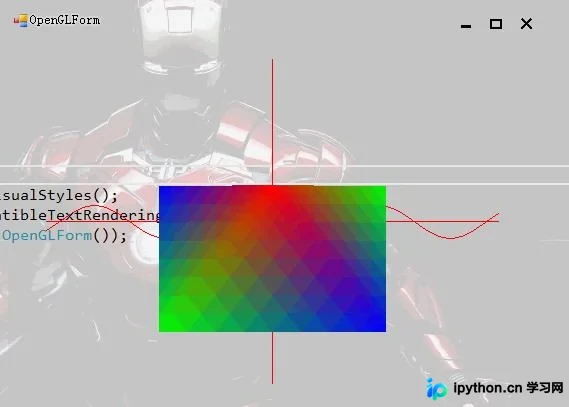
 采用上述架构编写的透明界面,不仅实现了高质感的视觉效果,还支持类似 OpenGL 这种复杂图形叠加的场景。下图展示了结合图形库渲染出的复杂动态效果:
以上就是利用 C# Winform UpdateLayeredWindow 实现透明界面的详细内容,更多关于 C# 窗体美化的资料请关注本站其它相关文章!
免责声明:本文内容仅供参考,不代表本站观点。转载或引用请注明出处。









