

Python Matplotlib基础绘图:从入门到自定义详解

发布时间:2026-10-12| 6人浏览过
本文详细介绍Python中Matplotlib库的基础绘图方法。通过分步代码示例,讲解如何绘制单线图、多线图及自定义样式(如颜色、线型、标记)。涵盖坐标轴命名、标题设置、图例添加及范围调整等核心操作,帮助开发者快速掌握数据可视化技能。
1、绘制第一个图形
我们从最简单的示例开始学习。
1.1 代码实现
# importing the required module

import matplotlib.pyplot as plt


# x axis values

x = [1,2,3]

# corresponding y axis values

y = [2,4,1]


# plotting the points

plt.plot(x, y)


# naming the x axis

plt.xlabel('x - axis')

# naming the y axis

plt.ylabel('y - axis')


# giving a title to my graph

plt.title('My first graph!')


# function to show the plot

plt.show()
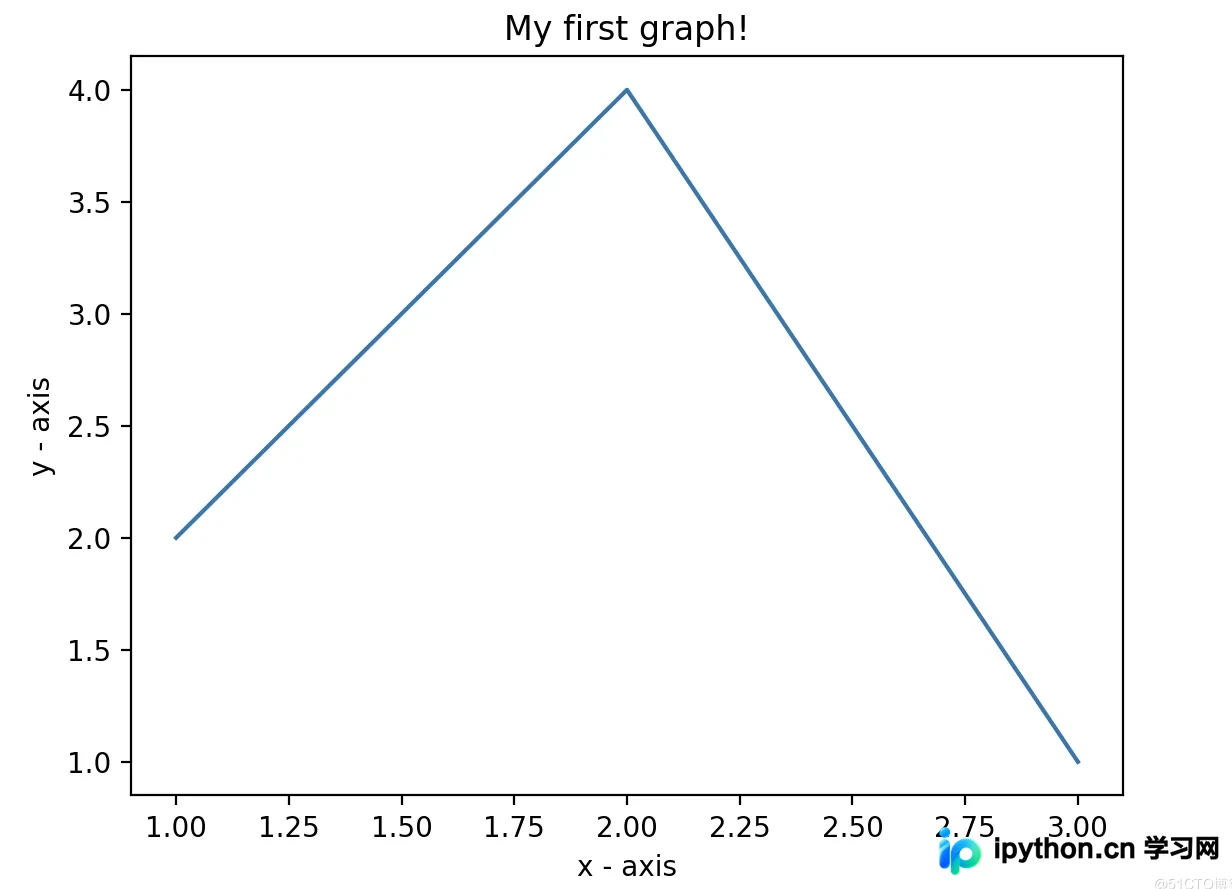
1.2 运行结果
1.3 代码解析
- 1)首先,将x轴对应的数值和y轴对应的数值分别定义为列表。
- 2)调用.plot()函数,在画布上绘制出这些点。
- 3)利用.xlabel()和.ylabel()函数,分别为x轴和y轴添加名称标签。
- 4)通过.title()函数,为整个绘图添加标题。
- 5)最后调用.show()函数,展示生成的绘图结果。
- 2、在同一图表中绘制多条线条
2、在同一图表中绘制多条线条
若希望在同一张图上绘制多条线,只需反复调用.plot()函数即可。
2.1 代码实现
import matplotlib.pyplot as plt


# line 1 points

x1 = [1,2,3]

y1 = [2,4,1]

# plotting the line 1 points

plt.plot(x1, y1, label = "line 1")


# line 2 points

x2 = [1,2,3]

y2 = [4,1,3]

# plotting the line 2 points

plt.plot(x2, y2, label = "line 2")


# naming the x axis

plt.xlabel('x - axis')

# naming the y axis

plt.ylabel('y - axis')

# giving a title to my graph

plt.title('Two lines on same graph!')


# show a legend on the plot

plt.legend()


# function to show the plot

plt.show()
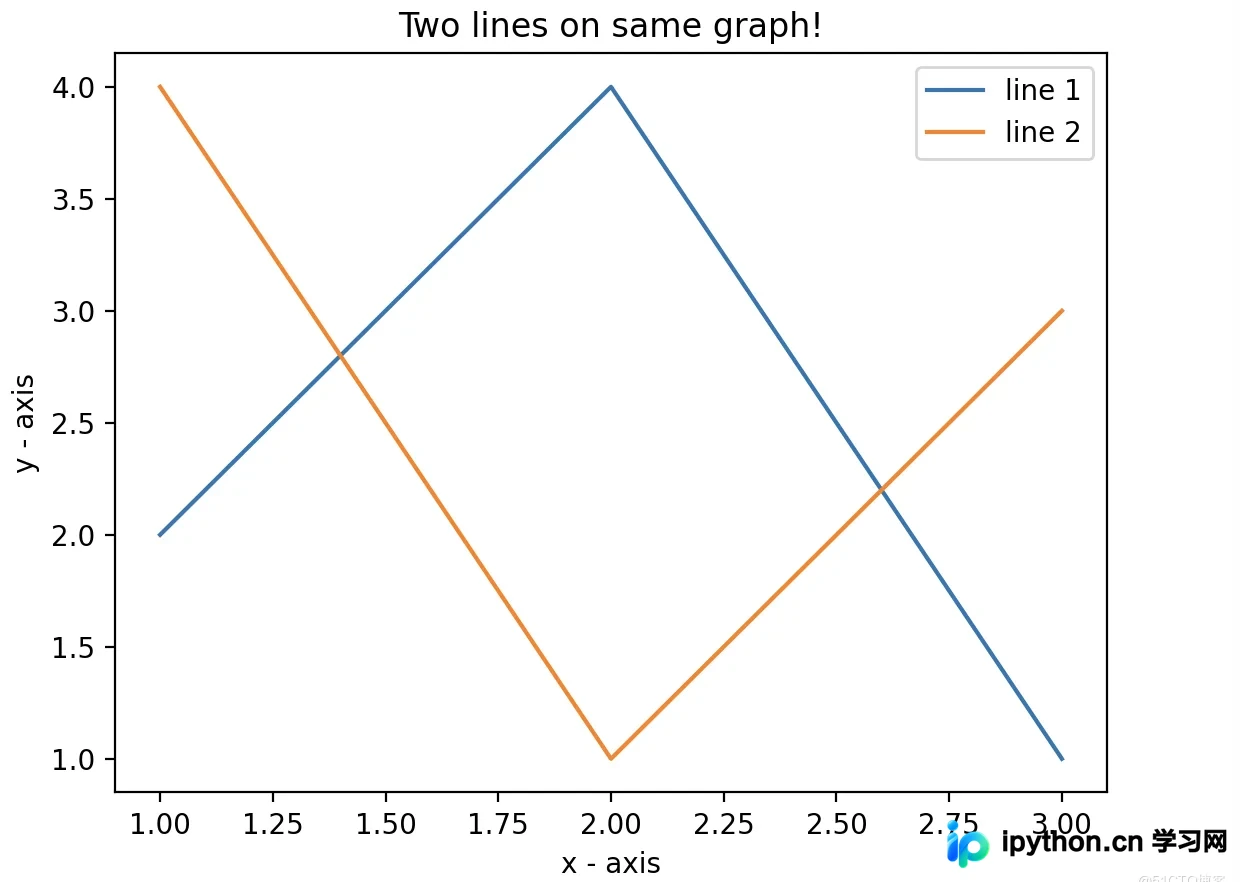
2.2 运行结果
2.3 代码解析
- 1)在同一张图上绘制两条线。通过为每条线指定名称(label参数),并在.plot()函数中传递该名称,从而区分不同线条。
- 2)图例是显示线条类型及其颜色信息的小矩形框。可以使用.legend()函数为绘图添加图例说明。
3、自定义绘图样式
接下来讨论适用于大多数场景的基本自定义设置。
3.1 代码实现
import matplotlib.pyplot as plt


# x axis values

x = [1,2,3,4,5,6]

# corresponding y axis values

y = [2,4,1,5,2,6]


# plotting the points

plt.plot(x, y, color='green', linestyle='dashed', linewidth = 3,marker='o', markerfacecolor='blue', markersize=12)


# setting x and y axis range

plt.ylim(1,8)

plt.xlim(1,8)


# naming the x axis

plt.xlabel('x - axis')

# naming the y axis

plt.ylabel('y - axis')


# giving a title to my graph

plt.title('Some cool customizations!')


# function to show the plot

plt.show()
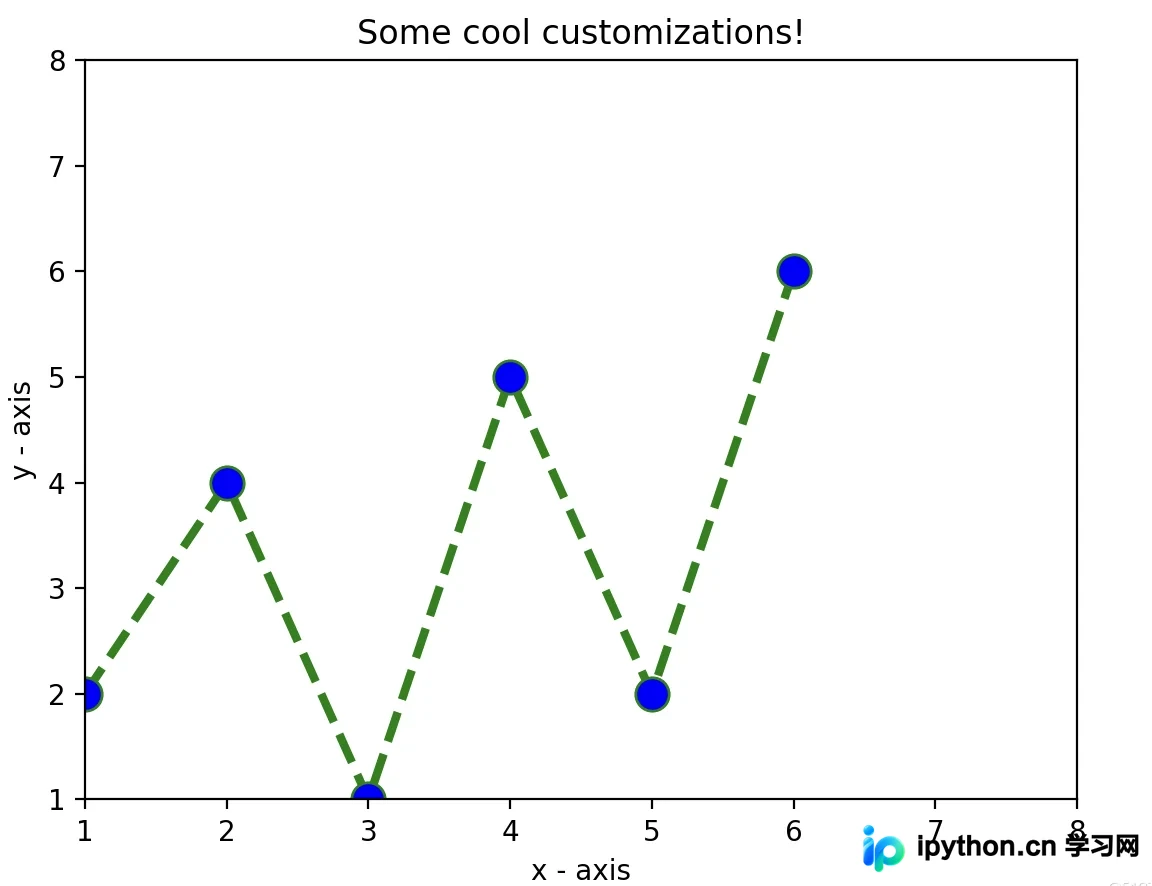
3.2 运行结果
3.3 代码解析
如上代码所示,我们执行了以下几项自定义修改:
- 1)设定线条的宽度、样式以及颜色。
- 2)设定标记的形状、颜色以及尺寸大小。
- 3)覆盖x轴和y轴的范围。若未手动覆盖,
pyplot模块会自动启用缩放功能来设定轴范围和比例。
至此,关于Python图形绘制详细代码的介绍已完毕。如需了解更多Python图形绘制相关内容,请搜索本站历史文章或继续浏览后续文章,感谢大家的支持!
免责声明:本文内容仅供参考,不代表本站观点。转载或引用请注明出处。









