

Python使用pdfkit将HTML转换为PDF的完整指南

本文详解Python中利用pdfkit库将HTML转换为PDF的实现方法。内容涵盖pdfkit及wkhtmltopdf在Debian、CentOS和MacOS下的安装步骤,演示from_url、from_file及from_string等核心API用法,并深入讲解自定义页面选项、CSS注入及Meta标签配置。针对常见的IOError和中文乱码问题提供排查方案,附带完整代码示例。
本文详细介绍在Python环境中将HTML内容转换为PDF格式的具体实现方案,供开发者参考实践。
核心方案是采用pdfkit库,它是wkhtmltopdf工具的Python封装版本。
安装环境准备
第一步,安装python-pdfkit库:
$ pip install pdfkit
第二步,安装wkhtmltopdf二进制工具:
- 在Debian或Ubuntu系统上:
$ sudo apt-get install wkhtmltopdf
- 在Redhat或CentOS系统上:
sudo yum intsall wkhtmltopdf
- 在MacOS系统上:
brew install Caskroom/cask/wkhtmltopdf
基本使用方法
以下是一个基础转换示例:
import pdfkit
pdfkit.from_url('http://google.com', 'out.pdf')
pdfkit.from_file('test.html', 'out.pdf')
pdfkit.from_string('Hello!', 'out.pdf')
除了单个文件,还可以传入URL或文件名列表进行批量转换:
pdfkit.from_url(['google.com', 'yandex.ru', 'engadget.com'], 'out.pdf')
pdfkit.from_file(['file1.html', 'file2.html'], 'out.pdf')
同样支持直接处理已打开的文件对象:
with open('file.html') as f:
  pdfkit.from_file(f, 'out.pdf')
若需对生成的PDF内容进行后续处理,可将输出设置为False从而将结果读取到变量中:
# 设置输出文件为False,将结果赋给一个变量
pdf = pdfkit.from_url('http://google.com', False)
可以指定所有wkhtmltopdf支持的选项,参考文档链接为 <http://wkhtmltopdf.org/usage/wkhtmltopdf.txt>。配置时移除选项名前的'--'符号;若选项无需值,字典值应使用None、False或*。
  options = {
    'page-size': 'Letter',
    'margin-top': '0.75in',
    'margin-right': '0.75in',
    'margin-bottom': '0.75in',
    'margin-left': '0.75in',
    'encoding': "UTF-8",
    'no-outline': None
  }
  pdfkit.from_url('http://google.com', 'out.pdf', options=options)
默认情况下,PDFKit会打印wkhtmltopdf的所有输出日志。若希望静默运行,需传递quiet选项:
  options = {
    'quiet': ''
    }
  pdfkit.from_url('google.com', 'out.pdf', options=options)
受限于wkhtmltopdf的命令语法,TOC(目录)和Cover(封面)选项必须作为独立参数指定:
  toc = {
    'xsl-style-sheet': 'toc.xsl'
  }
  cover = 'cover.html'
  pdfkit.from_file('file.html', options=options, toc=toc, cover=cover)
转换文件或字符串时,可通过css选项指定额外的CSS样式文件。
  # 单个 CSS 文件
  css = 'example.css'
  pdfkit.from_file('file.html', options=options, css=css)
  # Multiple CSS files
  css = ['example.css', 'example2.css']
  pdfkit.from_file('file.html', options=options, css=css)
也可通过HTML中的meta标签传递任意配置选项:
  body = """
    <html>
     <head>
      <meta name="pdfkit-page-size" content="Legal"/>
      <meta name="pdfkit-orientation" content="Landscape"/>
     </head>
     Hello World!
     </html>
    """
  pdfkit.from_string(body, 'out.pdf') #with --page-size=Legal and --orientation=Landscape
高级配置
每个API调用均支持一个可选参数,该参数应为pdfkit.configuration()类的实例。初始化时需传入configuration选项,可用配置项包括:
- wkhtmltopdf —— 指定wkhtmltopdf二进制文件的路径。默认情况下,pdfkit会尝试使用类UNIX系统中的which命令或Windows系统中的where命令来自动查找。
- meta_tag_prefix —— 指定用于解析meta标签的前缀,默认为pdfkit-。
示例:当wkhtmltopdf未安装在系统路径($PATH)中时:
config = pdfkit.configuration(wkhtmltopdf='/opt/bin/wkhtmltopdf'))
pdfkit.from_string(html_string, output_file, configuration=config)
常见问题排查
- IOError: 'No wkhtmltopdf executable found'
此错误表示未找到可执行文件。请确保wkhtmltopdf已加入系统路径($PATH),或通过configuration参数进行配置(详见上文)。在Windows系统中执行where wkhtmltopdf,或在Linux系统中执行which wkhtmltopdf,可返回该二进制文件的准确路径。
- IOError: 'Command Failed'
该错误意味着PDFKit无法处理特定输入。建议直接在错误信息后手动运行相关命令以排查原因(部分版本的wkhtmltopdf可能因段错误导致处理失败)。
- PDF生成正常但出现中文乱码
请确保满足以下两点:
1)、系统中已安装中文字体
2)、在HTML头部加入<meta charset="UTF-8">
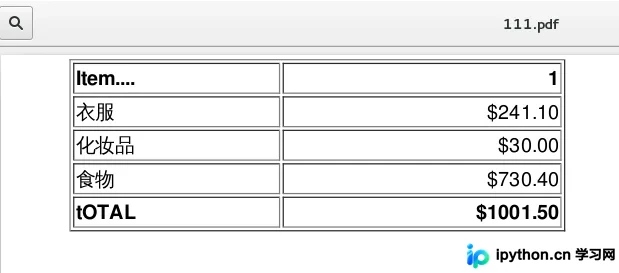
以下是一个示例HTML表格代码:
<html>
<head><meta charset="UTF-8"></head>
<body>
<table width="400" border="1">
 <tr>
 <th align="left">Item....</th>
 <th align="right">1</th>
 </tr>
 <tr>
 <td align="left">衣服</td>
 <td align="right">$241.10</td>
 </tr>
 <tr>
 <td align="left">化妆品</td>
 <td align="right">$30.00</td>
 </tr>
 <tr>
 <td align="left">食物</td>
 <td align="right">$730.40</td>
 </tr>
 <tr>
 <th align="left">tOTAL</th>
 <th align="right">$1001.50</th>
 </tr>
</table>
</body>
</html>
生成的PDF效果截图如下:
另外,也可参考在线转换工具:https://pdfcrowd.com/#convert_by_input
更多Python相关内容感兴趣的读者可查看本站专题:《Python文件与目录操作技巧汇总》、《Python编码操作技巧总结》、《Python数据结构与算法教程》、《Python函数使用技巧总结》、《Python字符串操作技巧汇总》及《Python入门与进阶经典教程》
希望本文所述对大家Python程序设计有所帮助。
免责声明:本文内容仅供参考,不代表本站观点。转载或引用请注明出处。









