

Python Tkinter 实现简易图片翻页器

发布时间:2026-10-14| 4人浏览过
本文介绍如何使用 Python 的 Tkinter 库实现一个简易的图片翻页功能。通过遍历指定目录下的 GIF 图片,利用 Canvas 组件进行展示,并封装为 Window 类处理按钮交互与页面切换逻辑。虽然界面样式较为简单,但核心功能完整,适合初学者参考学习基础 GUI 编程与文件操作。
Python Tkinter 图片翻页实现代码
具体实现代码如下:
import tkinter as tk
import tkinter.messagebox
import copy
import os,sys
def get_picture(dirs):
'''获得所有图片'''
  picture_list = []
  for dir,dir_abs,files in os.walk(dirs):
    for file in files:
      if file.endswith('.gif'):
        picture_list.append(os.path.join(dir,file))
  return picture_list
class Window:
  button_list = []
  object_list = []
  pictures = get_picture(picture_path)
  file = pictures[0]
  is_show = True
  index = 0
  image_file = ''
  def __init__(self):
    '''创建窗口和frame'''
    self.window = tk.Tk()
    self.window.title('my window')
    self.window.geometry('600x600')
    self.frame = tk.Frame(self.window)
    self.frame.pack()
    self.frame_l = tk.Frame(self.frame)
    self.frame_r = tk.Frame(self.frame)
    self.frame_l.pack(side='left')
    self.frame_r.pack(side='right')
    self.frame_ll = tk.Frame(self.frame_r)
    self.frame_rr = tk.Frame(self.frame_r)
    self.frame_ll.pack(side='left')
    self.frame_rr.pack(side='right')

  def next_picture(self):
    '''下一张图片'''
    self.index = self.pictures.index(self.file)
    self.index += 1
    if self.index < len(self.pictures):
      self.checkout_button()
      self.file = self.pictures[self.index]
      self.create_canvas(self.file)
    else:
      self.index = len(self.pictures) - 1
      tkinter.messagebox.showinfo('提示', '已近是最后一张了')

  def checkout_button(self):
    '''判断列表中是否只有button对象'''
    object_list_copy = copy.copy(self.object_list)
    for ob in self.object_list:
      if ob in self.button_list:
        pass
      else:
        b = object_list_copy.pop(self.object_list.index(ob))
        b.destroy()
    self.object_list = object_list_copy

  def pre_picture(self):
    '''上一页'''
    self.index = self.pictures.index(self.file)
    self.index -= 1
    if self.index >= 0:
      self.checkout_button()
      self.file = self.pictures[self.index]
      self.create_canvas(self.file)
    else:
      self.index = 0
      tkinter.messagebox.showinfo('提示', '已经是第一张了')

  def show_picture(self):
    '''展示图片和翻页按钮'''
    self.file = self.pictures[0]
    if self.is_show:
      self.is_show = False
      self.create_canvas(self.file)
      button1 = tk.Button(self.frame_ll, text='上一张', width=10, height=1, command=self.pre_picture)
      button1.pack()
      button2 = tk.Button(self.frame_rr, text='下一张', width=10, height=1, command=self.next_picture)
      button2.pack()
      self.button_list.append(button1)
      self.button_list.append(button2)
      self.object_list.extend(self.button_list)
    else:
      self.is_show = True
      while self.object_list:
        o = self.object_list.pop()
        o.destroy()
  def new_button(self):
    '''创建展示按钮'''
    tk.Button(self.frame_l, text='图片展示', width=10, height=1, command=self.show_picture).pack()

  def create_canvas(self,file):
    '''用画布展示图片'''
    self.image_file = tk.PhotoImage(file=file)
    canvas = tk.Canvas(self.frame_r, height=500, width=600)
    canvas.create_image(1, 1, anchor='nw', image=self.image_file)
    canvas.pack()
    self.object_list.append(canvas)

  def run(self):
    '''主程序调用'''
    self.window.mainloop()

if __name__ == '__main__':
  w = Window()
  w.new_button()
  w.run()
运行效果如图所示,虽然界面设计较为朴素,但功能运行正常,暂按此方案执行。
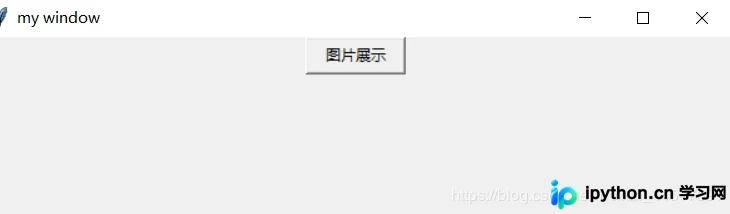
点击“图片展示”按钮后的界面状态如下:
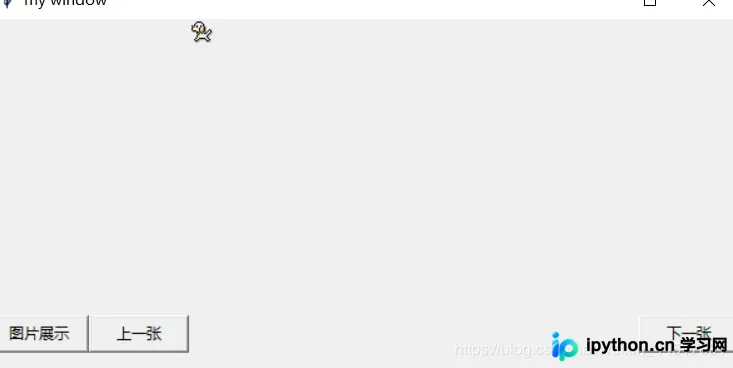
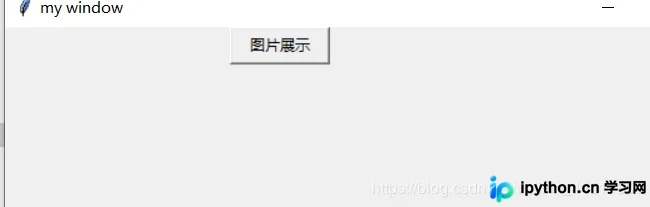
此时“上一页”和“下一页”按钮已启用,可正常切换图片;再次点击“图片展示”按钮可重新加载当前视图。
总结
至此,关于使用 Python Tkinter 实现简易图片翻页功能的文章介绍完毕。如需了解更多相关技术内容,欢迎查阅本站往期文章或继续浏览后续章节,感谢大家的支持!
免责声明:本文内容仅供参考,不代表本站观点。转载或引用请注明出处。









