

Pygame实现小球躲避小游戏完整源码与解析

本文提供基于Python Pygame库实现的小球躲避小游戏完整源码与详细解析。项目采用四文件模块化设计,涵盖窗口配置、自定义事件定时生成、鼠标控制躲避区与实时碰撞判定逻辑,支持三档难度递增与空格重启功能,适合Pygame入门实践与二次开发参考。
项目结构与运行目标
本实例实现以鼠标光标作为安全区域,躲避持续坠落并反弹的动态小球。程序会根据存活时间自动提升难度,包括增加小球数量、提高移动速度与缩小安全区范围。代码采用模块化结构分离配置、工具、逻辑与入口,便于快速理解Pygame核心流程并进行二次定制。
核心代码实现步骤
第1步:配置全局参数(setting.py)
集中管理画布尺寸、刷新帧率、背景色及关卡升级的时间阈值,统一导入后可避免硬编码分散导致的调试困难。
WIDTH = 900  # 宽
HEIGHT = 600  # 高
SCORE = 0  # 分数
TIME = 0  # 时间
FIRST_STEP = 10  # 到达第二关时间
SECOND_STEP = 20  # 到达第三关时间
FPS = 60  # 刷新率
BG_COLOR = (255, 239, 213)  # 背景颜色
第2步:封装绘图与事件工具(utils.py)
包含窗口初始化、自定义定时器事件绑定、多维难度映射表(球数/大小/速度)以及文本绘制辅助函数。所有计算逻辑均基于ladderNum(难度档)与time(运行秒数)进行索引匹配。
# -*- coding: utf-8 -*-
import pygame
from setting import FIRST_STEP, SECOND_STEP, BG_COLOR, WIDTH, HEIGHT


def ballNum(ladderNum, time):
    index = 0
    if FIRST_STEP <= time < SECOND_STEP:
        index = 1
    if SECOND_STEP <= time:
        index = 2
    numMap = [
        [2, 3, 5],
        [3, 5, 6],
        [4, 6, 7]
    ]
    return numMap[ladderNum - 1][index]


def protectTime(ballsNum):
    if ballsNum in [2, 3, 4]:
        return 1
    else:
        return 2


def howBigBallIs(ladderNum, time):
    index = 0
    if FIRST_STEP <= time < SECOND_STEP:
        index = 1
    if SECOND_STEP <= time:
        index = 2
    numMap = [
        [25, 20, 15],
        [24, 20, 16],
        [26, 20, 16]
    ]
    return numMap[ladderNum - 1][index]


def judgeDiff(ladderNum, time):
    index = 0
    if FIRST_STEP <= time < SECOND_STEP:
        index = 1
    if SECOND_STEP <= time:
        index = 2
    numMap = [
        [(30, 30, 3.5, 3.5), (28, 28, 6, 6), (26, 26, 9, 9)],
        [(30, 30, 4.5, 4.5), (27, 27, 8, 8), (25, 25, 10, 10)],
        [(30, 30, 5, 5), (26, 26, 9, 9), (24, 24, 12, 12)]
    ]
    return numMap[ladderNum - 1][index]


def makeGameBg(width, height):
    pygame.init()
    screen = pygame.display.set_mode((width, height))
    pygame.display.set_caption('小球逃逃逃')
    background = pygame.Surface(screen.get_size())
    return screen, background


def ballCome():
    COME_AGAIN = pygame.USEREVENT
    pygame.time.set_timer(COME_AGAIN, 1000)
    return COME_AGAIN


def makeTips(content, size, color, position, screen):
    font = pygame.font.SysFont('arial', size)
    text_sf = font.render(content, True, color, BG_COLOR)
    screen.blit(text_sf, position)


def draw(screen, SCORE, TIME):
    screen.fill(BG_COLOR)
    makeTips('SCORE: ', 30, (34, 139, 34), (5, 40), screen)
    makeTips('TIME(s): ', 30, (64, 158, 255), (5, 75), screen)
    makeTips(str(int(SCORE)), 30, (34, 139, 34), (135, 40), screen)
    makeTips(str(int(TIME)), 30, (64, 158, 255), (135, 75), screen)
    if TIME in [FIRST_STEP, FIRST_STEP + 1]:
        makeTips('Ops! LEVEL_2~', 30, (60, 179, 113), (WIDTH / 2 - 30 * 3.5, HEIGHT / 2 - 50), screen)
    elif TIME in [SECOND_STEP, SECOND_STEP + 1]:
        makeTips('Congratulations! LEVEL_3', 25, (60, 179, 113), (WIDTH / 2 - 25 * 6.25, HEIGHT / 2 - 50), screen)
第3步:编写主控逻辑与碰撞检测(main.py)
通过继承pygame.sprite.Sprite构建Ball与Mouse类。Ball处理随机生成位置、边界反弹与绘制遮挡层;Mouse绑定鼠标坐标但限制不越界。主循环中使用pygame.sprite.spritecollide执行矩形碰撞检测,结合防误触计时器确保游戏体验流畅。
# -*- coding: utf-8 -*-
import random
from setting import *
from utils import *


class Ball(pygame.sprite.Sprite):
    def __init__(self, *keys):
        super().__init__()
        self.timeSec = 0
        w, h, xs, ys = keys[0]
        self.w = w
        self.h = h
        self.xs = xs
        self.ys = ys
        x = random.randint(0, WIDTH - self.w)
        y = random.randint(0, HEIGHT - self.h)
        self.rect = pygame.Rect(x, y, self.w * 2, self.h * 2)

    def update(self, screen, *args):
        self.rect.x += self.xs
        self.rect.y += self.ys
        if self.rect.x > WIDTH - self.w or self.rect.x < 0:
            self.xs = -self.xs
        elif self.rect.y > HEIGHT - self.h or self.rect.y < 0:
            self.ys = -self.ys
        if self.timeSec <= args[0]:
            pygame.draw.rect(screen, (100, 149, 237), [self.rect.x, self.rect.y, self.rect.w, self.rect.h], 2)
        pygame.draw.circle(screen, (255, 0, 0), [self.rect.center[0], self.rect.center[1]], self.w)

    def timerAdd(self):
        self.timeSec += 1
        return self.timeSec


class Mouse(pygame.sprite.Sprite):
    def __init__(self, *keys):
        super().__init__()
        self.size = keys[0]
        self.rect = pygame.Rect(WIDTH / 2 - self.size, HEIGHT / 2 - self.size, self.size * 2, self.size * 2)

    def update(self, screen, *args):
        if pygame.mouse.get_focused():
            self.rect.center = pygame.mouse.get_pos()
        if self.rect.x < 0:
            self.rect.x = 0
        elif self.rect.x > WIDTH - self.rect.w:
            self.rect.x = WIDTH - self.rect.w
        elif self.rect.y < 0:
            self.rect.y = 0
        elif self.rect.y > HEIGHT - self.rect.h:
            self.rect.y = HEIGHT - self.rect.h
        pygame.draw.circle(screen, (255, 0, 0), [self.rect.center[0], self.rect.center[1]], self.size)


def main(ladderNum):
    screen, background = makeGameBg(WIDTH, HEIGHT)
    clock = pygame.time.Clock()
    comeAgain = ballCome()

    global TIME, SCORE
    balls = pygame.sprite.Group(Ball(judgeDiff(ladderNum, TIME)))
    mouse = Mouse(howBigBallIs(ladderNum, TIME))
    mouseObject = pygame.sprite.Group(mouse)

    RUNNING = True
    SHOWINFO = False
    while True:
        draw(screen, SCORE, TIME)
        if SHOWINFO:
            makeTips('Please Press The Space To Restart', 30, (255, 99, 71), (WIDTH / 2 - 240, HEIGHT / 2 - 50),
                     screen)
        for each in balls:
            if pygame.sprite.spritecollide(each, mouseObject, False, collided=None) and each.timeSec > 2:
                RUNNING = False
                SHOWINFO = True
        for event in pygame.event.get():
            if event.type == pygame.QUIT:
                pygame.quit()
                exit(0)
            elif event.type == pygame.KEYDOWN:
                if event.key == pygame.K_SPACE:
                    SCORE = 0
                    TIME = 0
                    for each in balls.sprites():
                        balls.remove(each)
                    SHOWINFO = False
                    RUNNING = True
            elif event.type == comeAgain and RUNNING:
                TIME += 1
                ballsNum = ballNum(ladderNum, TIME)
                diff = judgeDiff(ladderNum, TIME)
                SCORE += (ballsNum * diff[3])
                if TIME in [10, 20]:
                    mouseObject.remove(mouseObject.sprites()[0])
                    mouseObject.add(Mouse(howBigBallIs(ladderNum, TIME)))
                if len(balls) < ballsNum:
                    balls.add(Ball(diff))
                for each in balls:
                    each.timerAdd()
        balls.update(screen, protectTime(ballNum(ladderNum, TIME)))
        mouseObject.update(screen)
        clock.tick(FPS)
        pygame.display.update()
第4步:创建程序入口(run.py)
负责接收终端输入的难度指令(1/2/3),校验有效性后调用主控函数启动游戏循环。此设计保持了入口文件的纯净,符合单一职责原则。
import sys
from main import main

banner = """
 ____        _ _ _____
| __ )  __ _| | | ____|___  ___
|  _ \ / _` | | |  _| / __|/ __|
| |_) | (_| | | | |___\__ \ (__
|____/ \__,_|_|_|_____|___/\___|
"""

if __name__ == '__main__':
    print(banner)
    print("[*] 简单:输入 1")
    print("[*] 普通:输入 2")
    print("[*] 困难:输入 3")
    try:
        num = int(input("请选择难度:"))
        if num in [1, 2, 3]:
            main(num)
        else:
            print("无法处理~")
            sys.exit()
    except Exception:
        print("输入格式错误,请输入数字 1/2/3")
        sys.exit()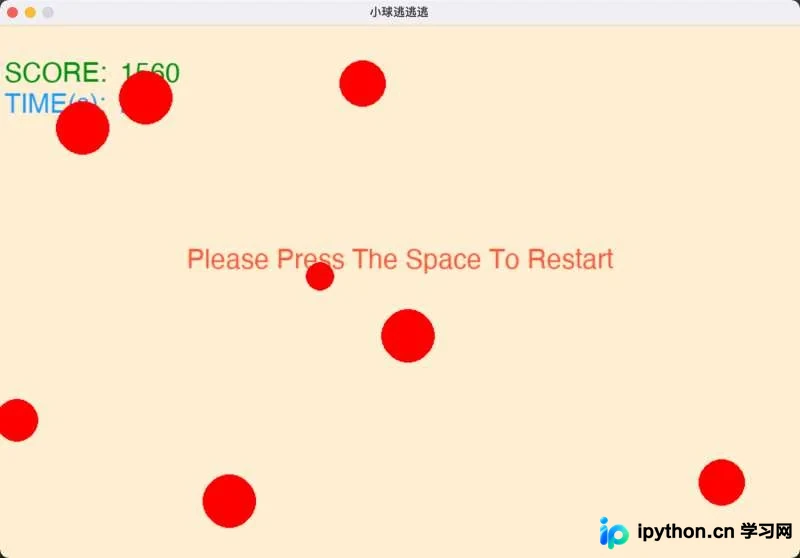
操作说明与排错指南
运行前需安装Python环境及图形库pip install pygame。将四个文件置于同一目录后,在终端执行python run.py并按提示输入数字启动。游戏过程中移动鼠标使安全圆环避开红色小球,碰撞即终止循环并输出提示。按空格键即可重置分数、时间并清空碰撞状态重新开局。
若运行时报错ModuleNotFoundError: No module named 'pygame',请检查虚拟环境是否正确激活或执行安装命令。部分Windows终端对彩色字符渲染存在兼容问题,如遇控制台乱码,可直接移除run.py中的print(banner)语句。碰撞判定设置了2秒的初始安全期(见each.timeSec > 2),可有效避免开局瞬间误判;如需调整该阈值,可在main.py中直接修改常量值。
总结
以上就是基于Pygame实现小球躲避小游戏的详细内容,更多关于Python游戏开发与精灵碰撞机制的资料请关注本站其它相关文章!
免责声明:本文内容仅供参考,不代表本站观点。转载或引用请注明出处。









