Python跨平台开发怎么自动获取系统字体路径

在Python跨平台开发中,图形绘制、数据可视化或生成PDF时常需要加载系统字体。本文详细介绍如何使用标准库扫描、利用matplotlib.font_manager以及调用系统底层机制自动定位Windows、macOS和Linux系统下的字体物理路径。
在进行图像生成、数据可视化、PDF排版或GUI界面开发时,Python程序经常需要向画布或组件注册特定字体。直接硬编码路径(如 C:\Windows\Fonts\simhei.ttf)会在跨平台运行时立刻导致文件未找到的严重异常。解决这一问题的核心逻辑非常清晰:优先使用经过充分检验的 matplotlib.font_manager 模块进行智能定位;在追求轻量无依赖的场景下,则利用标准库 platform 和 pathlib 组合预置的主流系统目录进行多层扫描与回退(Fallback)。
一、各主流操作系统的字体存储结构与差异
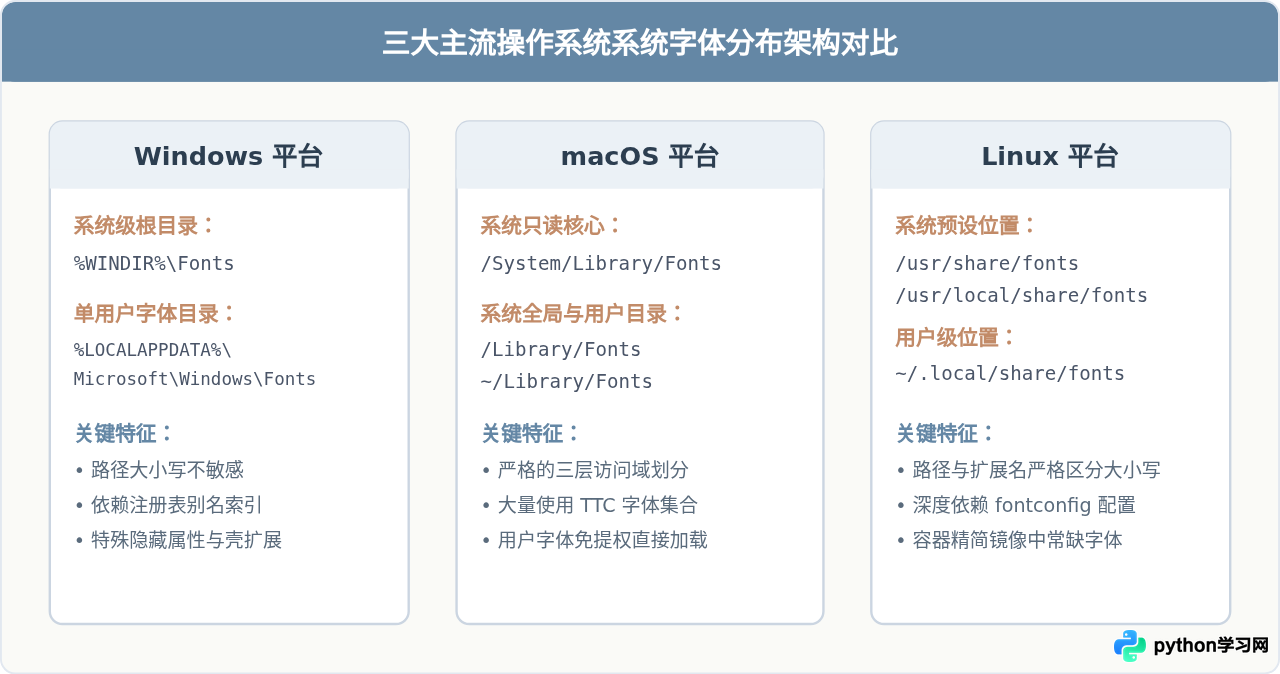
要想在不同操作系统间实现字体文件的自动搜寻,首先必须清楚各平台的字体存储惯例与访问权限。不同系统在目录分级、权限隔离及缓存机制上存在本质区别:
- Windows 系统:系统级字体统一保存在
C:\Windows\Fonts(受环境变量%WINDIR%约束)。从 Windows 10 开始,用户在无管理员权限下安装的字体会存放在专属目录%LOCALAPPDATA%\Microsoft\Windows\Fonts下,注册表中还会建立名称映射关系。 - macOS 系统:采用多层域隔离设计。核心系统字体存放在
/System/Library/Fonts,系统级全局字体在/Library/Fonts,当前用户的私有字体则存放在~/Library/Fonts。 - Linux 系统:通常遵循 XDG 规范与 Fontconfig 机制。主要目录包括
/usr/share/fonts、/usr/local/share/fonts以及用户目录下的~/.local/share/fonts与~/.fonts。Linux 往往维护一份由fc-cache生成的二进制索引。
二、通用操作步骤:构建字体获取流程
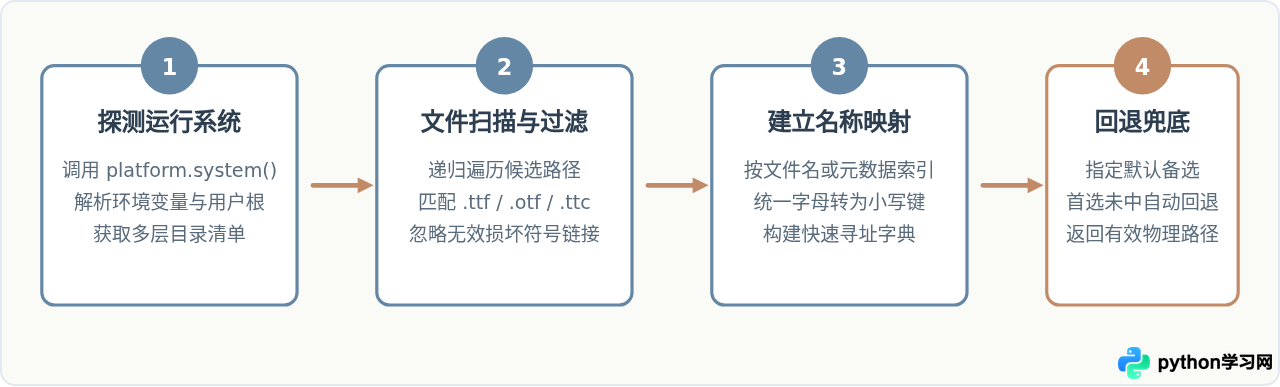
为了让跨平台程序稳定获取有效字体路径,开发过程应遵循清晰的四步管道流程:从识别环境与候选路径、递归检索扩展名,到解析字体元数据建立缓存,最后配备保底字体保证渲染不会崩溃。
三、轻量级零依赖方案:标准库多路径扫描
当项目需要保持极低体积、不能随意引入第三方重量级依赖时,使用 Python 3 标准库中的 platform、os 和 pathlib 是最直接高效的方案。核心思路是枚举当前系统所有已知的字体物理目录,进行递归过滤:
import os
import platform
from pathlib import Path
from typing import List, Optional

def get_platform_font_directories() -> List[Path]:
    """获取当前操作系统的标准系统字体目录列表"""
    current_os = platform.system()
    directories: List[Path] = []

    if current_os == "Windows":
        # 系统级 Fonts 目录(通常为 C:\Windows\Fonts)
        windir = os.environ.get("WINDIR", r"C:\Windows")
        directories.append(Path(windir) / "Fonts")

        # Windows 10/11 单用户安装字体目录
        local_app_data = os.environ.get("LOCALAPPDATA")
        if local_app_data:
            directories.append(Path(local_app_data) / "Microsoft" / "Windows" / "Fonts")

    elif current_os == "Darwin":  # macOS
        directories.extend([
            Path("/System/Library/Fonts"),
            Path("/Library/Fonts"),
            Path.home() / "Library" / "Fonts"
        ])

    elif current_os == "Linux":
        directories.extend([
            Path("/usr/share/fonts"),
            Path("/usr/local/share/fonts"),
            Path.home() / ".local" / "share" / "fonts",
            Path.home() / ".fonts"
        ])

    # 仅保留实际存在的目录
    return [d for d in directories if d.is_dir()]

def find_system_font_by_filename(target_filename: str) -> Optional[Path]:
    """在系统字体目录中按文件名检索首个匹配项(支持不区分大小写)"""
    valid_dirs = get_platform_font_directories()
    target_lower = target_filename.lower()

    # 允许的常见字体格式扩展名
    allowed_extensions = {".ttf", ".otf", ".ttc"}

    for font_dir in valid_dirs:
        try:
            for file_path in font_dir.rglob("*"):
                if file_path.is_file() and file_path.suffix.lower() in allowed_extensions:
                    # 匹配完整文件名或无后缀名称
                    if (file_path.name.lower() == target_lower or
                        file_path.stem.lower() == target_lower):
                        return file_path
        except (PermissionError, OSError):
            continue

    return None

# 示例验证:搜索常用中文字体
if __name__ == "__main__":
    test_fonts = ["msyh.ttc", "PingFang.ttc", "NotoSansCJK-Regular.ttc", "simhei.ttf"]
    for font_name in test_fonts:
        found_path = find_system_font_by_filename(font_name)
        if found_path:
            print(f"找到字体 [{font_name}] -> {found_path}")
            break
msyh.ttc。若要根据家族名称精确解析,则需要更深层的元数据支持。
四、工程推荐方案:使用 matplotlib.font_manager 智能定位
如果项目中允许使用或已经包含了数据分析与图像处理相关的生态(如 matplotlib、PIL 等),matplotlib.font_manager 是跨平台处理字体路径的最优解。它会在后台全自动维护系统字体缓存,并且能够智能解析 TrueType/OpenType 字体的内部元数据,直接支持通过字体族名进行检索。

1. 通过精确族名与权重查找
findfont 方法接受一个 FontProperties 对象或字体族名字符串。如果在系统字体库中找到了最契合的字体,它将直接返回操作系统的绝对物理路径:
from matplotlib import font_manager
from pathlib import Path

def resolve_font_path(font_name: str) -> Path:
    """使用 font_manager 根据字体名寻找系统物理文件路径"""
    # fallback_to_default=True 保证找不到时会安全回退到默认无衬线字体
    prop = font_manager.FontProperties(family=font_name)
    font_file = font_manager.findfont(prop, fallback_to_default=True)
    return Path(font_file)

# 示例:查找微软雅黑或苹方
path_msyh = resolve_font_path("Microsoft YaHei")
print(f"解析路径: {path_msyh}")
2. 遍历系统中所有已注册字体的元数据
如果需要向用户展现可供选择的字体下拉列表,可以通过 fontManager.ttflist 直接获取当前系统所有有效字体的名字和物理路径对照表:
from matplotlib import font_manager
import pandas as pd

def list_all_system_fonts():
    """列出系统中所有字体的真实名称、格式和路径"""
    fonts = font_manager.fontManager.ttflist
    font_data = []

    for f in fonts:
        font_data.append({
            "Family": f.name,
            "Style": f.style,
            "Weight": f.weight,
            "Format": f.fname.split(".")[-1].lower(),
            "Path": f.fname
        })

    # 转换为 DataFrame 方便去重与展示(或者纯字典操作)
    return font_data

# 打印前 3 个扫描到的字体信息示例
all_fonts = list_all_system_fonts()
for item in all_fonts[:3]:
    print(f"[{item['Family']}] ({item['Format']}): {item['Path']}")
五、系统底层接口机制:Linux 与 Windows 的原生配合
在无 Python 额外依赖的特定平台环境下,还可以调用操作系统原生工具快速获得最地道的字体结果:
1. Linux 环境下的 fc-list 命令行调用
Linux 下几乎所有的桌面环境和图形栈都依赖 fontconfig。使用标准库的 subprocess 调用 fc-list,可以直接获取对应语言或名称的字体路径:
import subprocess
import shutil
from typing import Optional

def find_linux_font_by_fc_list(lang: str = "zh") -> Optional[str]:
    """在 Linux 系统中调用 fc-list 检索支持特定语言的首选字体路径"""
    if not shutil.which("fc-list"):
        return None

    try:
        # 查询支持中文且包含 file 属性的字体
        result = subprocess.run(
            ["fc-list", f":lang={lang}", "file"],
            capture_output=True,
            text=True,
            check=True
        )
        lines = result.stdout.strip().split("\n")
        if lines and lines[0]:
            # 输出格式如: /usr/share/fonts/opentype/noto/NotoSansCJK-Regular.ttc:
            return lines[0].split(":")[0].strip()
    except (subprocess.SubprocessError, OSError):
        pass
    return None
2. Windows 注册表字体映射表检索
Windows 系统的注册表 HKEY_LOCAL_MACHINE\SOFTWARE\Microsoft\Windows NT\CurrentVersion\Fonts 中详细登记了所有安装字体的显示名称与文件名的映射关系。配合标准库 winreg,可以准确将“黑体 (TrueType)”这类带描述的名称反查到文件。
六、工业级跨平台统一封装实现
结合前述各种机制的优点,在实际跨平台项目中,最可靠的策略是设计一个具有优先级机制的统一字体解析器:优先匹配目标字体,支持中英双语别名,在首选未中时按平台降级到默认无衬线字体,并持久化单例缓存避免频繁磁盘扫描。
import os
import platform
from pathlib import Path
from typing import Dict, List, Optional

class CrossPlatformFontResolver:
    """跨平台系统字体定位与回退管理器"""

    # 各平台常见高质量中文字体族名(按优选顺序排列)
    DEFAULT_CANDIDATES: Dict[str, List[str]] = {
        "Windows": [
            "Microsoft YaHei", "msyh.ttc", "SimHei", "simhei.ttf", "Segoe UI"
        ],
        "Darwin": [
            "PingFang SC", "PingFang.ttc", "Hiragino Sans GB", "Heiti SC", "Helvetica Neue"
        ],
        "Linux": [
            "Noto Sans CJK SC", "NotoSansCJK-Regular.ttc", "WenQuanYi Micro Hei",
            "wqy-microhei.ttc", "DejaVu Sans"
        ]
    }

    _cached_paths: Dict[str, Path] = {}

    @classmethod
    def get_font_path(cls, desired_font: Optional[str] = None) -> Path:
        """
        获取一个可用的系统字体路径。
        若指定了 desired_font 则优先寻找;未找到或未指定时,自动根据当前 OS 返回可靠的系统字体。
        """
        sys_name = platform.system()
        cache_key = f"{sys_name}_{desired_font}"

        if cache_key in cls._cached_paths:
            return cls._cached_paths[cache_key]

        # 策略 1: 尝试利用 matplotlib.font_manager(如果环境存在)
        try:
            from matplotlib import font_manager
            candidates = [desired_font] if desired_font else []
            candidates.extend(cls.DEFAULT_CANDIDATES.get(sys_name, []))

            for name in candidates:
                if not name:
                    continue
                # 查询字体文件
                found = font_manager.findfont(
                    font_manager.FontProperties(family=name),
                    fallback_to_default=False
                )
                if found and os.path.exists(found) and not found.endswith("DejaVuSans.ttf"):
                    target = Path(found)
                    cls._cached_paths[cache_key] = target
                    return target
        except Exception:
            pass  # 环境无 matplotlib 或查找异常,继续降级到原生扫描

        # 策略 2: 原生标准库多路径遍历
        path = cls._fallback_directory_scan(desired_font, sys_name)
        if path:
            cls._cached_paths[cache_key] = path
            return path

        raise FileNotFoundError(f"在系统 [{sys_name}] 下未能自动定位到任何有效字体文件。")

    @classmethod
    def _fallback_directory_scan(cls, desired_font: Optional[str], sys_name: str) -> Optional[Path]:
        from pathlib import Path
        search_dirs: List[Path] = []
        if sys_name == "Windows":
            windir = os.environ.get("WINDIR", r"C:\Windows")
            search_dirs.append(Path(windir) / "Fonts")
        elif sys_name == "Darwin":
            search_dirs.extend([Path("/System/Library/Fonts"), Path("/Library/Fonts")])
        else:
            search_dirs.extend([Path("/usr/share/fonts"), Path("/usr/local/share/fonts")])

        candidates = [desired_font] if desired_font else []
        candidates.extend(cls.DEFAULT_CANDIDATES.get(sys_name, []))

        for font_dir in [d for d in search_dirs if d.is_dir()]:
            for cand in candidates:
                if not cand:
                    continue
                # 尝试直接拼接
                direct_match = font_dir / cand
                if direct_match.is_file():
                    return direct_match
                # 递归不区分大小写匹配
                for f in font_dir.glob("*.ttf"):
                    if cand.lower() in f.name.lower():
                        return f
                for f in font_dir.glob("*.ttc"):
                    if cand.lower() in f.name.lower():
                        return f
        return None

# 调用验证
if __name__ == "__main__":
    resolved = CrossPlatformFontResolver.get_font_path("PingFang SC")
    print(f"跨平台安全定位到的字体物理文件: {resolved}")
七、常见跨平台字体陷阱与注意事项
- TTC 字体集合索引问题:Windows 的
msyh.ttc或 macOS 的PingFang.ttc是 TrueType Collection 格式,里面包含多种粗细或多套字形。在使用 PIL 的ImageFont.truetype(path, size, index=0)时,需要明确指定index,否则默认仅加载首个字形。 - Docker 与精简 Linux 容器缺少字体:基于 Alpine、Debian-Slim 或 Ubuntu 精简版构建的容器镜像默认往往没有预装任何字体。在生成报表或图形时会报错。解决方案是在 Dockerfile 中显式安装字体包,例如:
# Debian / Ubuntu 基础镜像 RUN apt-get update && apt-get install -y fonts-noto-cjk fonts-dejavu-core && fc-cache -fv # Alpine 基础镜像 RUN apk add --no-cache font-noto-cjk ttf-dejavu && fc-cache -fv - 字体版权与商用授权边界:直接从客户端操作系统提取系统字体(如微软雅黑、苹方)用于服务端图像批量渲染或分发时,可能涉及商业授权问题。服务器端建议优先绑定开源且商用友好的开源字体(如 Google Noto Sans/Serif CJK、思源黑体、思源宋体)。
八、方案选型与技术对比总结
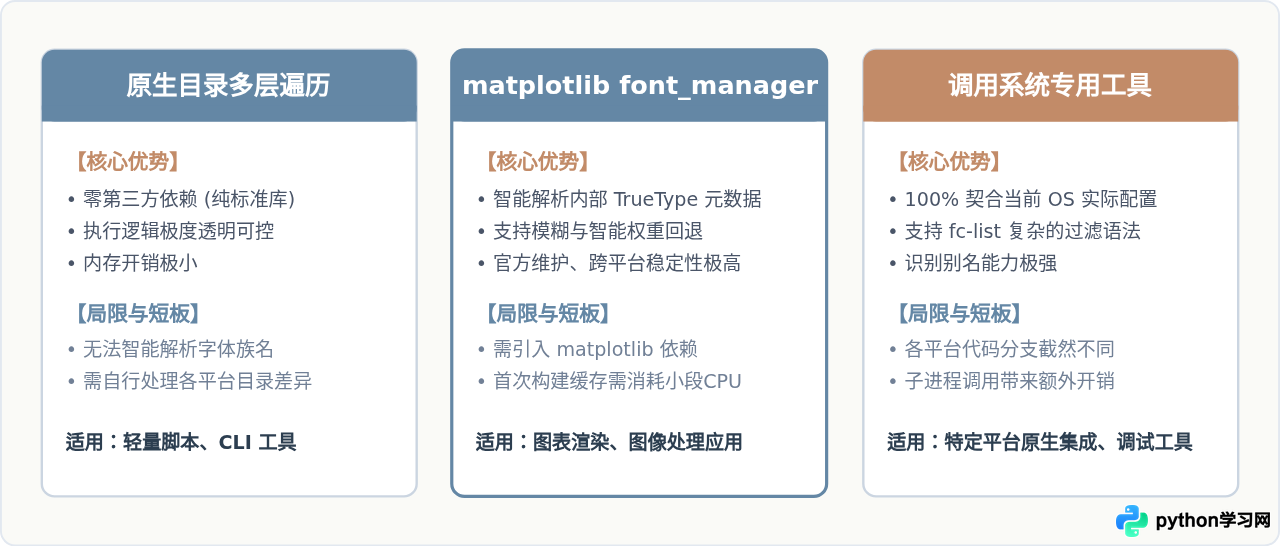
为了帮助开发者根据项目场景迅速决策,以下总结了三种核心技术路径的适用场景与优劣特性:
| 选型维度 | 标准库目录遍历 | matplotlib.font_manager | 原生系统命令 (如 fc-list) |
|---|---|---|---|
| 依赖条件 | 纯 Python 标准库(零外部依赖) | 需安装 matplotlib | 依赖操作系统外部命令行工具 |
| 查找依据 | 物理文件名 (如 simhei.ttf) | 字体名称 / 族名 (如 "SimHei") | 系统已注册的别名与语言配置 |
| 回退容错 | 需自行编码多层判断与异常捕获 | 内置智能近似匹配与默认降级 | 依赖 Fontconfig 规则链 |
| 推荐场景 | 轻量打包的命令行小工具、云函数 | 桌面 GUI、Pillow 图像合成、数据分析 | 特定 Linux 发行版的专用运维脚本 |
综上所述,在日常 Python 跨平台开发中,建立一个多级回退策略(首选指定高质量字体、次选 font_manager 智能解析、再按当前系统预置目录多层遍历保底)能够彻底解决不同操作系统下字体路径各异的问题,保障图形绘制与排版模块在任意平台上都能稳定运行。
免责声明:本文内容仅供参考,不代表本站观点。转载或引用请注明出处。