

Python OpenCV实战:自动提取印章图像

发布时间:2026-10-16| 4人浏览过
本文介绍使用Python和OpenCV库自动提取电子印章的方法。通过颜色空间转换与阈值分割技术,实现印章区域的精准识别与提取。文章包含完整源代码、处理前后对比图及注意事项,帮助开发者快速掌握印章自动化处理技能。
前言
本期内容将分享如何利用OpenCV库提取印章图像。在实际工作中,获取电子版印章的需求十分常见,本文将通过代码演示具体的提取流程。
尽管Photoshop功能强大,但对于不熟悉该工具的用户而言,操作门槛较高。此前有读者咨询能否通过编程方式辅助完成此类任务,因此本文应运而生。
虽然不擅长使用PS,但掌握代码编写能力可以解决这一难题。接下来将展示具体的实现方案。
(重要提示:所有从事设计或图像制作的人员请注意,切勿协助老板或朋友使用PS伪造公章。根据《刑法》第280条规定,伪造证件及印章属于刑事犯罪,请务必遵守法律法规,避免从事违法活动。)
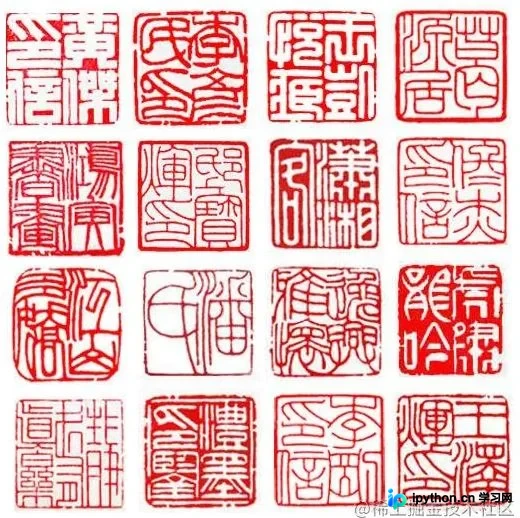
源码展示
import cv2
import numpy as np

class Seal:
    def __init__(self, img_path):
        """
        初始化图片
        :param img_path: 原始图片路径        """
        self.image = cv2.imread(img_path)
        self.img_shape = self.image.shape
        self.file_name = img_path.split('.')[0].split('\\')[-1]

    def unify_img_size(self):
        """
        统一图片的大小
        :return:返回一张未处理的目标图片        """
        img_w = 650 if self.img_shape[1] > 600 else 400
        self.image = cv2.resize(self.image, (img_w, int(img_w * self.img_shape[0] / self.img_shape[1])), interpolation=cv2.IMREAD_COLOR)
        impng = cv2.cvtColor(self.image.copy(), cv2.COLOR_RGB2RGBA)
        return impng

    def img_binaryzation(self,hue_image, low_range, high_range, imgpng):

        th = cv2.inRange(hue_image, low_range, high_range)
        element = cv2.getStructuringElement(cv2.MORPH_RECT, (1, 1))
        th = cv2.dilate(th, element)
        index1 = th == 255
        print_img = np.zeros(imgpng.shape, np.uint8)
        print_img[:, :, :] = (255, 255, 255, 0)
        print_img[index1] = imgpng[index1]  # (0,0,255)
        return print_img

    def img_enhance(self):
        imgpng = self.unify_img_size()
        hue_image = cv2.cvtColor(self.image, cv2.COLOR_BGR2HSV)  # 处理图像色调
        low_range = np.array([130, 43, 46])  # 设下边界
        high_range = np.array([180, 255, 255])  # 设上边界
        print1 = self.img_binaryzation(hue_image, low_range, high_range, imgpng)
        low_range = np.array([0, 43, 46])
        high_range = np.array([9, 255, 255])
        print2 = self.img_binaryzation(hue_image, low_range, high_range, imgpng)
        imgreal = cv2.add(print2, print1)

        white_px = np.asarray([255, 255, 255, 255])
        (row, col, _) = imgreal.shape
        for r in range(row):
            for c in range(col):
                px = imgreal[r][c]
                if all(px == white_px):
                    imgreal[r][c] = imgpng[r][c]
        return imgreal

    def extension_img(self):
        """
        边缘检测,截取并输出结果
        :return:
        """
        imgreal = self.img_enhance()
        # 扩充图片防止截取部分
        print4 = cv2.copyMakeBorder(imgreal, 50, 50, 50, 50, cv2.BORDER_CONSTANT, value=[255, 255, 255, 0])
        print2gray = cv2.cvtColor(print4, cv2.COLOR_RGBA2GRAY)
        _, grayfirst = cv2.threshold(print2gray, 254, 255, cv2.THRESH_BINARY_INV)

        element = cv2.getStructuringElement(cv2.MORPH_RECT, (22, 22))
        img6 = cv2.dilate(grayfirst, element)

        c_canny_img = cv2.Canny(img6, 10, 10)

        contours, hierarchy = cv2.findContours(c_canny_img, cv2.RETR_EXTERNAL, cv2.CHAIN_APPROX_NONE)
        areas = []
        for i, cnt in enumerate(contours):
            x, y, w, h = cv2.boundingRect(cnt)
            area = w * h
            ars = [area, i]
            areas.append(ars)
        areas = sorted(areas, reverse=True)
        maxares = areas[:1]

        x, y, w, h = cv2.boundingRect(contours[maxares[0][1]])
        print5 = print4[y:(y + h), x:(x + w)]
        # 高小于宽
        if print5.shape[0] < print5.shape[1]:
            zh = int((print5.shape[1] - print5.shape[0]) / 2)
            print5 = cv2.copyMakeBorder(print5, zh, zh, 0, 0, cv2.BORDER_CONSTANT, value=[255, 255, 255, 0])
        else:
            zh = int((print5.shape[0] - print5.shape[1]) / 2)
            print5 = cv2.copyMakeBorder(print5, 0, 0, zh, zh, cv2.BORDER_CONSTANT, value=[255, 255, 255, 0])
        resultprint = cv2.resize(print5, (150, 150))

        cv2.imwrite(r'output\{}_result.png'.format(self.file_name), resultprint)


if __name__ == '__main__':
    s = Seal(r"src\2.jpg")
    s.extension_img()
效果展示
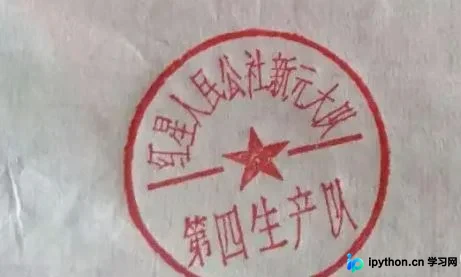
原图
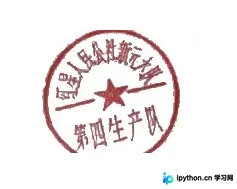
效果图
关于Python OpenCV实现印章提取的实战教程到此结束。如需了解更多相关技术细节,欢迎查阅本站过往文章或继续阅读后续内容。感谢大家的支持!
免责声明:本文内容仅供参考,不代表本站观点。转载或引用请注明出处。









