

Python Seaborn绘图实战:从基础设置到多维数据可视化

发布时间:2026-10-15| 4人浏览过
本文详解Python中Seaborn库的高级绘图应用。内容涵盖环境配置、调色板设定,并演示折线图、柱状图、直方图、点图、箱线图及小提琴图的绘制方法。通过电影票房数据实例,展示如何处理文本与数值转换,实现多维数据的直观可视化分析。
一、seaborn概述
Seaborn是对matplotlib库的高级封装,提供了更简洁的API接口,使图表制作更加便捷。在大多数场景下,仅使用seaborn即可生成极具视觉吸引力的统计图表。更多详细信息可访问其官方网站:seaborn
二、数据整理
import seaborn as sns
import numpy as np
import matplotlib as mpl
from matplotlib import pyplot as plt
import pandas as pd
from datetime import datetime,timedelta
%matplotlib inline
plt.rcParams['font.sans-serif']=['SimHei'] # 用来正常显示中文标签
plt.rcParams['axes.unicode_minus']=False # 用来正常显示负号
from datetime import datetime
films=['穿过寒冬拥抱你','反贪风暴5:最终章','李茂扮太子','误杀2','以年为单位的恋爱','黑客帝国:矩阵重启','雄狮少年','魔法满屋','汪汪队立大功大电影','爱情神话']
regions=['中国','英国','澳大利亚','美国','美国','中国','英国','澳大利亚','美国','美国']
bos=['61,181','44,303','42,439','22,984','13,979','61,181','44,303','41,439','20,984','19,979']
persons=['31','23','56','17','9','31','23','56','17','9']
prices=['51','43','56','57','49','51','43','56','57','49']
showdate=['2022-12-03','2022-12-05','2022-12-01','2022-12-02','2022-11-05','2022-12-03','2022-12-05','2022-12-01','2022-12-02','2022-11-05']
ftypes=['剧情','动作','喜剧','剧情','剧情','爱情','动作','动画','动画','动画']
points=['8.1','9.0','7.9','6.7','3.8','8.1','9.0','7.9','6.7','3.8']
filmdescript={
    'ftypes':ftypes,
    'bos':bos,
    'prices':prices,
    'persons':persons,
    'regions':regions,
    'showdate':showdate,
    'points':points
}
import numpy as np
import pandas as pd
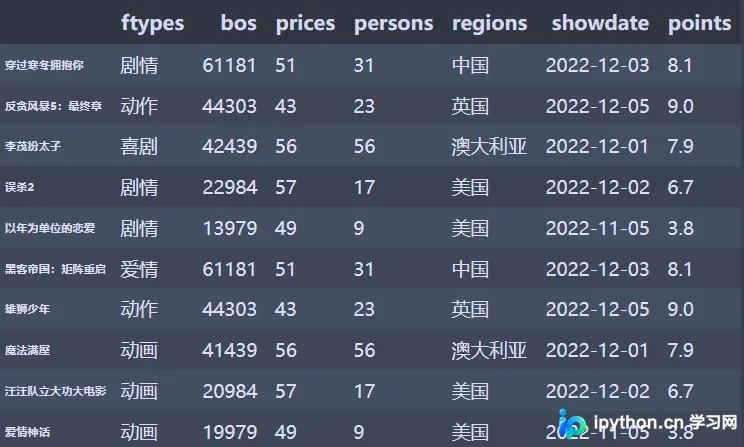
cnbo2021top5=pd.DataFrame(filmdescript,index=films)
cnbo2021top5[['prices','persons']]=cnbo2021top5[['prices','persons']].astype(int)
cnbo2021top5['bos']=cnbo2021top5['bos'].str.replace(',','').astype(int)
cnbo2021top5['showdate']=cnbo2021top5['showdate'].astype('datetime64')
cnbo2021top5['points']=cnbo2021top5['points'].apply(lambda x:float(x) if x!='' else 0)
cnbo2021top5
# 常用调色盘
r_hex = '#dc2624'     # red,       RGB = 220,38,36
dt_hex = '#2b4750'    # dark teal, RGB = 43,71,80
tl_hex = '#45a0a2'    # teal,      RGB = 69,160,162
r1_hex = '#e87a59'    # red,       RGB = 232,122,89
tl1_hex = '#7dcaa9'   # teal,      RGB = 125,202,169
g_hex = '#649E7D'     # green,     RGB = 100,158,125
o_hex = '#dc8018'     # orange,    RGB = 220,128,24
tn_hex = '#C89F91'    # tan,       RGB = 200,159,145
g50_hex = '#6c6d6c'   # grey-50,   RGB = 108,109,108
bg_hex = '#4f6268'    # blue grey, RGB = 79,98,104
g25_hex = '#c7cccf'   # grey-25,   RGB = 199,204,207
color=['#dc2624' ,'#2b4750','#45a0a2','#e87a59','#7dcaa9','#649E7D','#dc8018','#C89F91','#6c6d6c','#4f6268','#c7cccf']
sns.set_palette(color)
01 折线图
def sinplot(flip=1):
    x = np.linspace(0, 14, 100)
    for i in range(1, 7):
        plt.plot(x, np.sin(x + i * .5) * (7 - i) * flip)
sinplot()
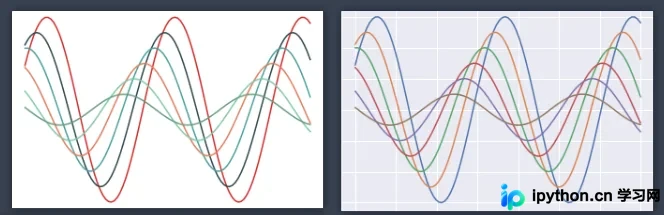
# 对两种画图进行比较
fig = plt.figure()
sns.set()
sinplot()
plt.rcParams['font.sans-serif']=['SimHei'] # 用来正常显示中文标签
plt.rcParams['axes.unicode_minus']=False # 用来正常显示负号
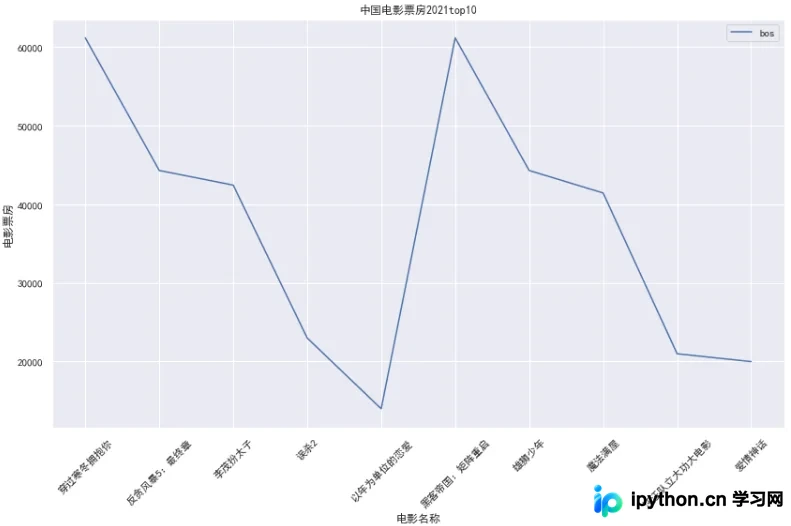
plt.figure(figsize=(14,8))
plt.title("中国电影票房2021top10")
plt.xlabel("电影名称")
plt.ylabel("电影票房")
sns.lineplot(data=cnbo2021top5[['bos']])
plt.xticks(rotation=45)
02 柱形图
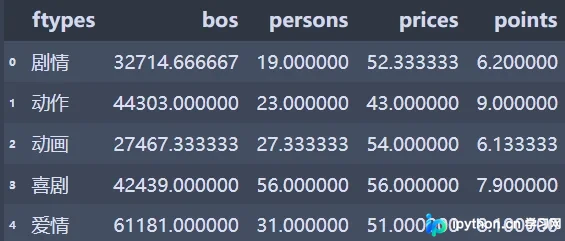
cnbo2021top5ftgb=cnbo2021top5.groupby(['ftypes'])['bos','persons','prices','points'].mean()
cnbo2021top5ftgb=cnbo2021top5ftgb.reset_index().replace()
cnbo2021top5ftgb
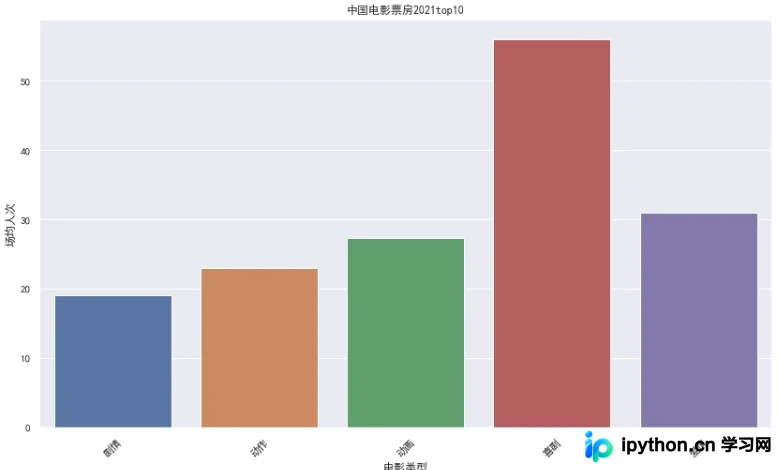
### 02 条形图
plt.figure(figsize=(14,8))
plt.title("中国电影票房2021top10")
sns.barplot(x=cnbo2021top5ftgb['ftypes'],y=cnbo2021top5ftgb['persons'])
plt.xlabel("电影类型")
plt.ylabel("场均人次")
plt.xticks(rotation=45)
plt.show()
03 直方图
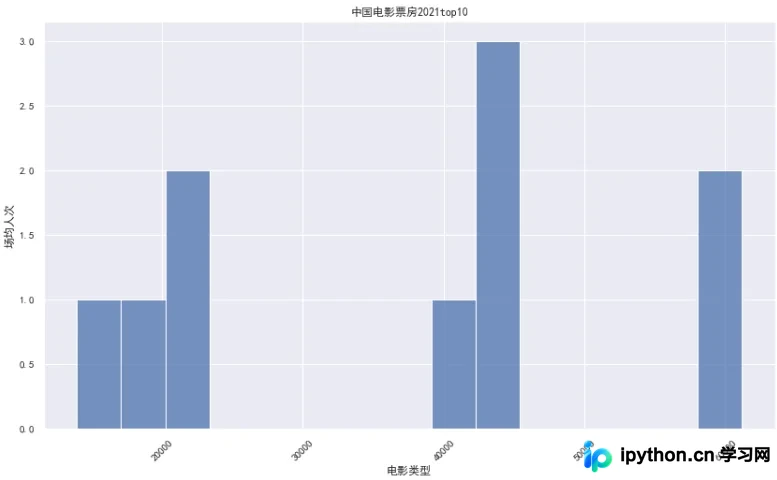
### 03 直方图
plt.figure(figsize=(14,8))
plt.title("中国电影票房2021top10")
sns.histplot(x=cnbo2021top5['bos'],bins=15) # x=cnbo2021top5ftgb['ftypes'],y=cnbo2021top5ftgb['persons']
plt.xlabel("电影类型")
plt.ylabel("场均人次")
plt.xticks(rotation=45)
plt.show()
三、绘图
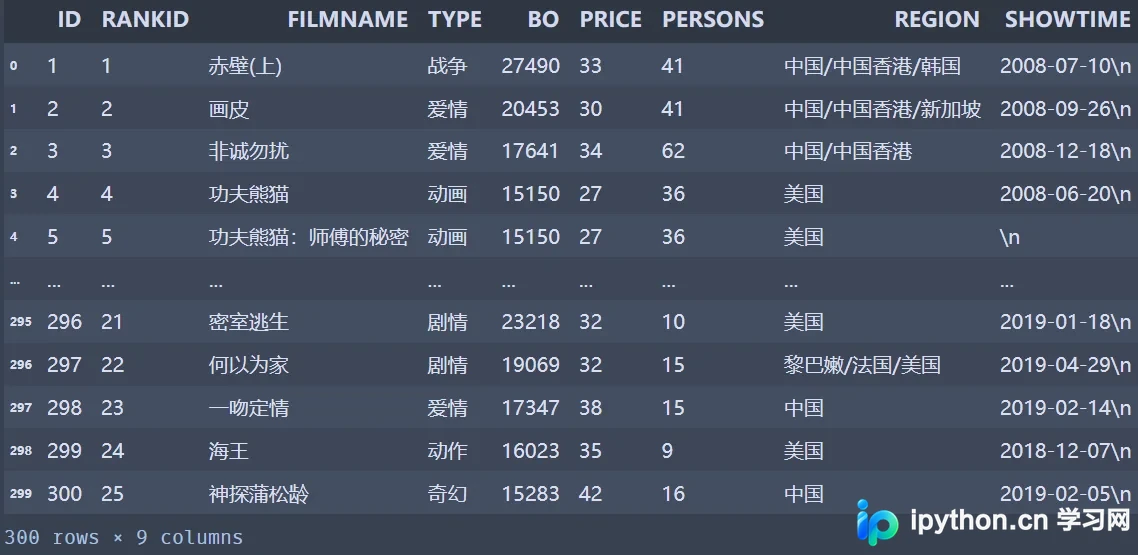
前文示例仅包含十部电影数据,下文将使用整理后的完整电影数据集进行演示:
Excel:300部电影数据整理
import pandas as pd
cnboo=pd.read_excel("cnboNPPD1.xlsx")
cnboo
01 设定调色盘
# 设定调色盘
sns.set_palette(color)
sns.palplot(sns.color_palette(color,11)) # 表示11种颜色

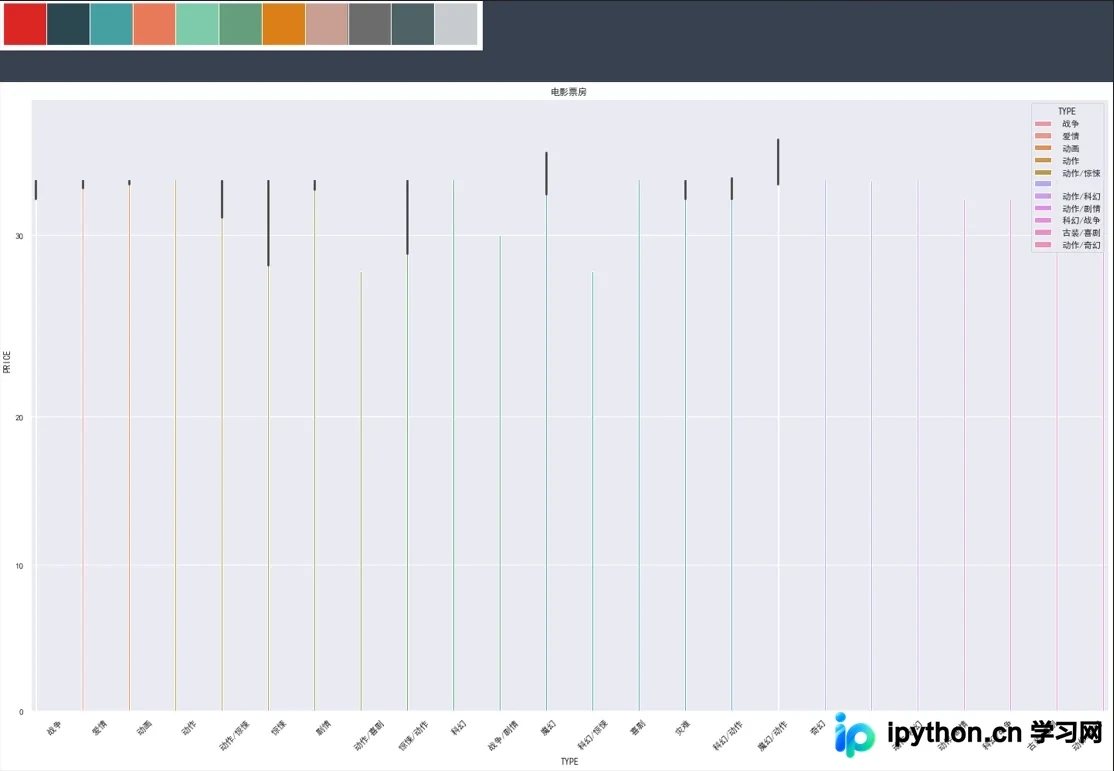
02 柱状图
sns.set_palette(color)
sns.palplot(sns.color_palette(color,11))
plt.figure(figsize=(25,20))
plt.title('电影票房')
plt.xticks(rotation=45)
sns.barplot(x='TYPE',
            y='PRICE',
            hue='TYPE',
            data=cnboo)
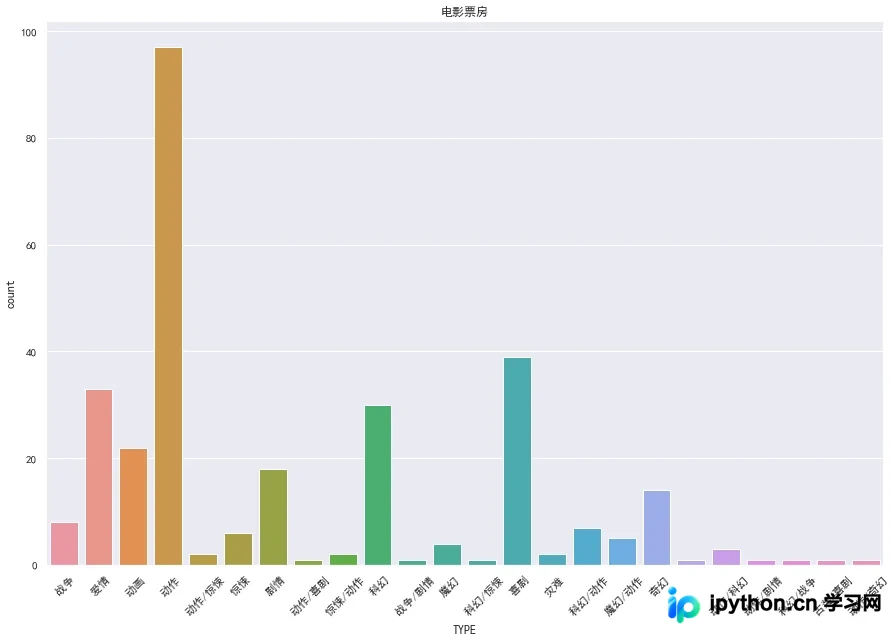
03 技术图
sns.set_palette(color)
sns.palplot(sns.color_palette(color,11))
plt.figure(figsize=(15,10))
plt.title('电影票房')
plt.xticks(rotation=45)
sns.countplot(x='TYPE',data=cnboo)
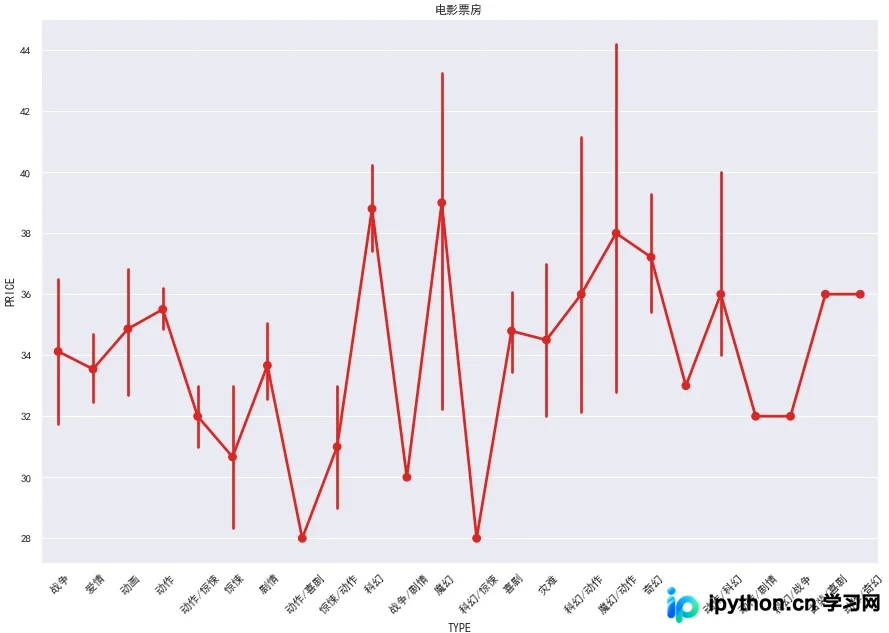
04 点图
sns.set_palette(color)
sns.palplot(sns.color_palette(color,11))
plt.figure(figsize=(15,10))
plt.title('电影票房')
plt.xticks(rotation=45)
sns.pointplot(x='TYPE',y='PRICE',data=cnboo)
plt.show()
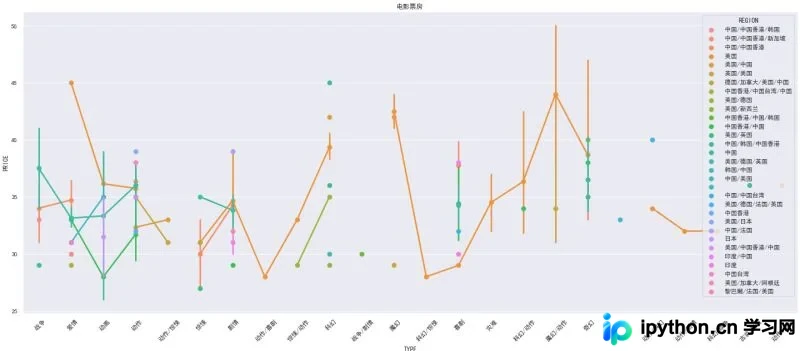
sns.set_palette(color)
sns.palplot(sns.color_palette(color,11))
plt.figure(figsize=(25,10))
plt.title('电影票房')
plt.xticks(rotation=45)
sns.pointplot(x='TYPE',y='PRICE',hue='REGION',data=cnboo)
plt.show()
05 箱型图
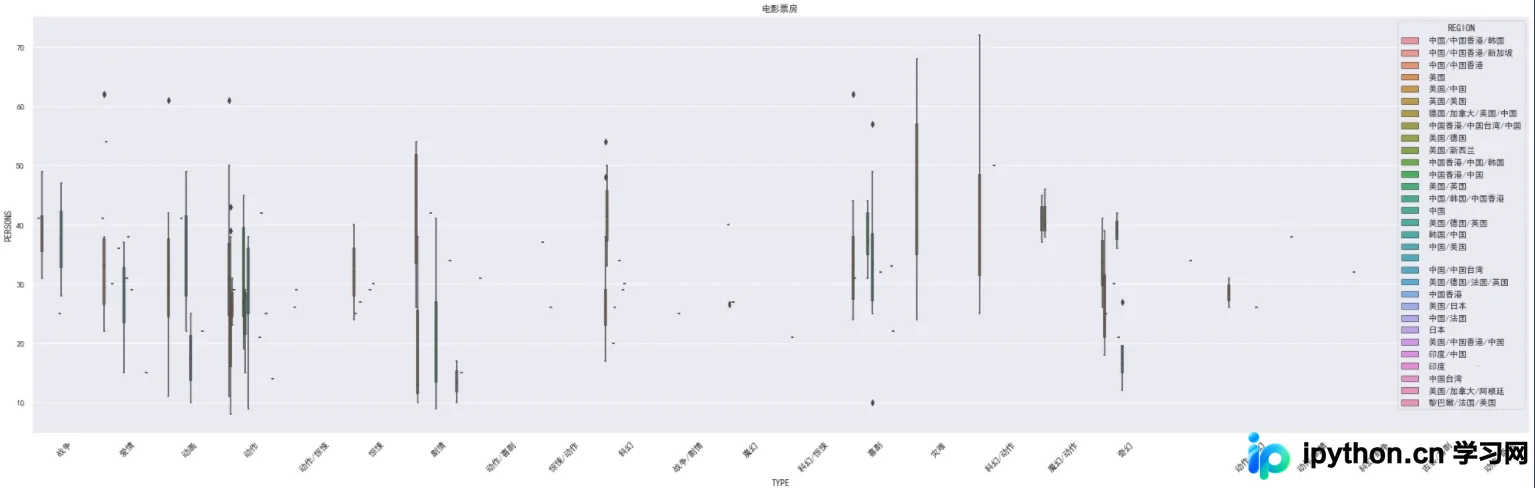
### 05 箱型图
sns.set_palette(color)
sns.palplot(sns.color_palette(color,11))
plt.figure(figsize=(35,10))
plt.title('电影票房')
plt.xticks(rotation=45)
sns.boxplot(x='TYPE',y='PERSONS',hue='REGION',data=cnboo) # ,markers=['^','o'],linestyles=['-','--']
plt.show()
# 图中的单个点代表在此数据当中的异常值
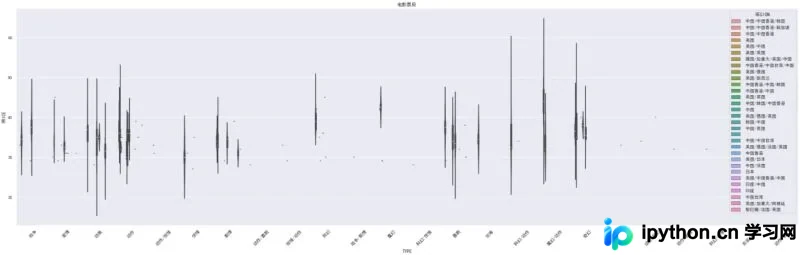
06 小提琴图
### 06 小提琴图
sns.set_palette(color)
sns.palplot(sns.color_palette(color,11))
plt.figure(figsize=(35,10))
plt.title('电影票房')
plt.xticks(rotation=45)
sns.violinplot(x='TYPE',y='PRICE',hue='REGION',data=cnboo) # ,markers=['^','o'],linestyles=['-','--']
plt.show()
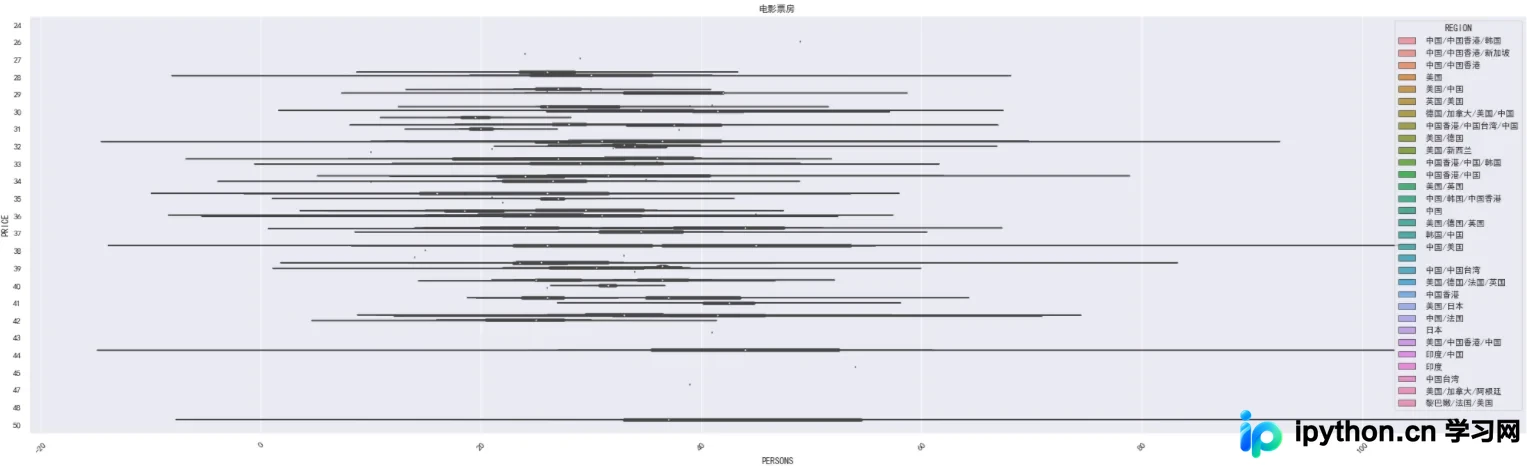
绘制横向排列的小提琴图:
sns.set_palette(color)
sns.palplot(sns.color_palette(color,11))
plt.figure(figsize=(35,10))
plt.title('电影票房')
plt.xticks(rotation=45)
sns.violinplot(x='PERSONS',y='PRICE',hue='REGION',data=cnboo,orient='h')
plt.show()
至此,关于Python matplotlib与seaborn绘图教程的详细介绍已完毕。如需了解更多Python seaborn绘图相关内容,建议查阅本站历史文章或继续浏览后续教程,感谢大家的支持!
免责声明:本文内容仅供参考,不代表本站观点。转载或引用请注明出处。









