

OpenCV与Selenium结合实现滑块验证码自动识别与通过

本文详解如何利用OpenCV图像处理与Selenium自动化测试技术解决滑块验证码问题。通过截取背景图与滑块小图,进行灰度处理与二值化定位缺口,并结合随机轨迹模拟人类操作,实现自动通过验证。
本案例演示如何使用OpenCV图像处理库与Selenium浏览器自动化工具协同工作,以解决滑块验证码的识别与通过问题。
首先明确整体处理思路:
- 当页面弹出滑块验证码时,利用Selenium定位并截取包含整个背景图的元素截图。
- 单独截取需要滑动的小图(滑块),并获取小图与背景图顶部的像素距离,以便裁剪掉背景图上下多余的边框区域。
- 利用OpenCV对背景图和小图进行灰度处理,并对小图执行全局阈值二值化操作,从而在背景图中精准定位小图的位置。
- 通过OpenCV计算出的偏移距离,调用Selenium的鼠标拖动接口,将滑块拖拽至目标终点。
具体实施步骤如下:
首先获取验证码背景图。在Selenium浏览器对象中,使用screenshot方法可以对指定的DOM元素进行截图保存。
import os
from selenium import webdriver


browser = webdriver.Chrome()
browser.get("https://www.toutiao.com/c/user/token/MS4wLjABAAAA4EKNlqVeNTTuEdWn0VytNS8cdODKTsNNwLTxOnigzZtclro2Kylvway5mTyTUKvz/")

save_path = os.path.join(os.path.expanduser('~'), "Desktop", "background.png")
browser.find_element_by_id("element_id_name").screenshot(save_path)
截取完成后,得到验证码背景图以及需要滑动的小图,示例如下:

接下来需要获取小图与背景图顶部的像素距离,即图中红色边框所代表的高度:
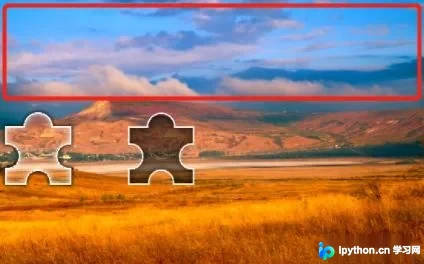
如果HTML结构中小图是独立存在的,其高度信息通常定义在页面元素属性中。使用Selenium页面元素对象的value_of_css_property方法即可获取该像素距离值。
获取此距离的目的是为了从背景图中裁剪掉上下多余的空白部分,仅保留包含关键图像内容的区域,从而显著提高后续图像识别的准确率。
element_object = browser.find_element_by_xpath("xpath_element")
px = element_object.value_of_css_property("top")
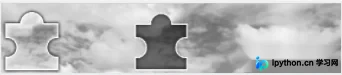
随后对裁剪后的图像进行灰度处理:
import numpy
import cv2


def make_threshold(img):
    """全局阈值
    将图片二值化,去除噪点,让其黑白分明"""
    x = numpy.ones(img.shape, numpy.uint8) * 255
    y = img - x
    result, thresh = cv2.threshold(y, 127, 255, cv2.THRESH_BINARY_INV)
    # 将二值化后的结果返回
    return thresh


class ComputeDistance:
    """获取需要滑动的距离
    将验证码背景大图和需要滑动的小图进行处理,先在大图中找到相似的小图位置,再获取对应的像素偏移量"""
    def __init__(self, Background_path: str, image_to_move: str, offset_top_px: int):
        """
        :param Background_path: 验证码背景大图
        :param image_to_move: 需要滑动的小图
        :param offset_top_px: 小图距离在大图上的顶部边距(像素偏移量)
        """
        self.Background_img = cv2.imread(Background_path)
        self.offset_px = offset_top_px
        self.show_img = show_img
        small_img_data = cv2.imread(image_to_move, cv2.IMREAD_UNCHANGED)
        # 得到一个改变维度为50的乘以值
        scaleX = 50 / small_img_data.shape[1]
        # 使用最近邻插值法缩放,让xy乘以scaleX,得到缩放后shape为50x50的图片
        self.tpl_img = cv2.resize(small_img_data, (0, 0), fx=scaleX, fy=scaleX)
        self.Background_cutting = None

    def tpl_op(self):
        # 将小图转换为灰色
        tpl_gray = cv2.cvtColor(self.tpl_img, cv2.COLOR_BGR2GRAY)
        h, w = tpl_gray.shape
        # 将背景图转换为灰色
        # Background_gray = cv2.cvtColor(self.Background_img, cv2.COLOR_BGR2GRAY)
        Background_gray = cv2.cvtColor(self.Background_cutting, cv2.COLOR_BGR2GRAY)
        # 得到二值化后的小图
        threshold_img = make_threshold(tpl_gray)
        # 将小图与大图进行模板匹配,找到所对应的位置
        result = cv2.matchTemplate(Background_gray, threshold_img, cv2.TM_CCOEFF_NORMED)
        min_val, max_val, min_loc, max_loc = cv2.minMaxLoc(result)
        # 左上角位置
        top_left = (max_loc[0] - 5, max_loc[1] + self.offset_px)
        # 右下角位置
        bottom_right = (top_left[0] + w, top_left[1] + h)
        # 在源颜色大图中画出小图需要移动到的终点位置
        """rectangle(图片源数据, 左上角, 右下角, 颜色, 画笔厚度)"""
        cv2.rectangle(self.Background_img, top_left, bottom_right, (0, 0, 255), 2)

    def cutting_background(self):
        """切割图片的上下边框"""
        height = self.tpl_img.shape[0]
        # 将大图中上下多余部分去除,如: Background_img[40:110, :]
        self.Background_cutting = self.Background_img[self.offset_px - 10: self.offset_px + height + 10, :]

    def run(self):
        # 如果小图的长度与大图的长度一致则不用将大图进行切割,可以将self.cutting_background()注释掉
        self.cutting_background()
        return self.tpl_op()


if __name__ == '__main__':
    image_path1 = "背景图路径"
    image_path2 = "小图路径"
    distance_px = "像素距离"
    main = ComputeDistance(image_path1, image_path2, distance_px)
    main.run()
上述代码逻辑可返回小图中心到背景图缺口的像素距离。我们可以观察灰度处理后的图片效果:
得到基础距离后,需对该数值进行特殊处理,将其拆分为一系列小数值的序列。这样做是为了在拖动过程中避免瞬间直达终点,
而是模拟人类手部移动的速度,使滑块缓慢向前移动,避免被识别为机器操控行为。
例如,若终点距离为100像素,可将其转换为类似 [8, 6, 11, 10, 3, 6, 3, -2, 4, 0, 15, 1, 9, 6, -2, 4, 1, -2, 15, 6, -2] 的列表,确保列表中所有数值之和恰好等于100。
实现该转换的最简单逻辑如下:
def handle_distance(distance):
    """将直线距离转为缓慢的轨迹"""
    import random
    slow_distance = []
    while sum(slow_distance) <= distance:
        slow_distance.append(random.randint(-2, 15))

    if sum(slow_distance) != distance:
        slow_distance.append(distance - sum(slow_distance))
    return slow_distance
计算出模拟轨迹后,接下来执行实际的拖动操作:
import time
from random import randint
from selenium.webdriver.common.action_chains import ActionChains


def move_slider(website, slider, track, **kwargs):
    """将滑块移动到终点位置
    :param website: selenium页面对象
    :param slider: selenium页面中滑块元素对象
    :param track: 到终点所需的距离
    """
    name = kwargs.get('name', '滑块')

    try:
        if track[0] > 200:
            return track[0]
        # 点击滑块元素并拖拽
        ActionChains(website).click_and_hold(slider).perform()
        time.sleep(0.15)
        for i in track:
            # 随机上下浮动鼠标
            ActionChains(website).move_by_offset(xoffset=i, yoffset=randint(-2, 2)).perform()
        # 释放元素
        time.sleep(1)
        ActionChains(website).release(slider).perform()
        time.sleep(1)
        # 随机拿开鼠标
        ActionChains(website).move_by_offset(xoffset=randint(200, 300), yoffset=randint(200, 300)).perform()
        print(f'[网页] 拖拽 {name}')
        return True
    except Exception as e:
        print(f'[网页] 拖拽 {name} 失败 {e}')
教程至此结束,下面结合前述代码编写一个完整案例。
访问今日头条某博主主页,直接打开链接时会触发验证码验证。
以下代码在通过pip安装好相关依赖库后可直接运行:
调用ComputeDistance类时,设置参数 show_img=True 可在拖动前展示背景图识别出的终点区域,效果如:
distance_obj = ComputeDistance(background_path, small_path, px, show_img=True)
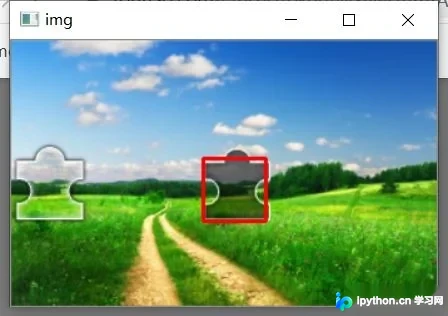
以下是完整案例代码:
import os
import time
import requests
import cv2
import numpy
from random import randint

from selenium import webdriver
from selenium.webdriver.common.action_chains import ActionChains


def show_image(img_array, name='img', resize_flag=False):
    """展示图片"""
    maxHeight = 540
    maxWidth = 960
    scaleX = maxWidth / img_array.shape[1]
    scaleY = maxHeight / img_array.shape[0]
    scale = min(scaleX, scaleY)
    if resize_flag and scale < 1:
        img_array = cv2.resize(img_array, (0, 0), fx=scale, fy=scale)
    cv2.imshow(name, img_array)
    cv2.waitKey(0)
    cv2.destroyWindow(name)


def make_threshold(img):
    """全局阈值
    将图片二值化,去除噪点,让其黑白分明"""
    x = numpy.ones(img.shape, numpy.uint8) * 255
    y = img - x
    result, thresh = cv2.threshold(y, 127, 255, cv2.THRESH_BINARY_INV)
    # 将二值化后的结果返回
    return thresh


def move_slider(website, slider, track, **kwargs):
    """将滑块移动到终点位置
    :param website: selenium页面对象
    :param slider: selenium页面中滑块元素对象
    :param track: 到终点所需的距离
    """
    name = kwargs.get('name', '滑块')

    try:
        if track[0] > 200:
            return track[0]
        # 点击滑块元素并拖拽
        ActionChains(website).click_and_hold(slider).perform()
        time.sleep(0.15)
        for i in track:
            # 随机上下浮动鼠标
            ActionChains(website).move_by_offset(xoffset=i, yoffset=randint(-2, 2)).perform()
        # 释放元素
        time.sleep(1)
        ActionChains(website).release(slider).perform()
        time.sleep(1)
        # 随机拿开鼠标
        ActionChains(website).move_by_offset(xoffset=randint(200, 300), yoffset=randint(200, 300)).perform()
        print(f'[网页] 拖拽 {name}')
        return True
    except Exception as e:
        print(f'[网页] 拖拽 {name} 失败 {e}')


class ComputeDistance:
    """获取需要滑动的距离
    将验证码背景大图和需要滑动的小图进行处理,先在大图中找到相似的小图位置,再获取对应的像素偏移量"""
    def __init__(self, Background_path: str, image_to_move: str, offset_top_px: int, show_img=False):
        """
        :param Background_path: 验证码背景大图
        :param image_to_move: 需要滑动的小图
        :param offset_top_px: 小图距离在大图上的顶部边距(像素偏移量)
        :param show_img: 是否展示图片
        """
        self.Background_img = cv2.imread(Background_path)
        self.offset_px = offset_top_px
        self.show_img = show_img
        small_img_data = cv2.imread(image_to_move, cv2.IMREAD_UNCHANGED)
        # 得到一个改变维度为50的乘以值
        scaleX = 50 / small_img_data.shape[1]
        # 使用最近邻插值法缩放,让xy乘以scaleX,得到缩放后shape为50x50的图片
        self.tpl_img = cv2.resize(small_img_data, (0, 0), fx=scaleX, fy=scaleX)
        self.Background_cutting = None

    def show(self, img):
        if self.show_img:
            show_image(img)

    def tpl_op(self):
        # 将小图转换为灰色
        tpl_gray = cv2.cvtColor(self.tpl_img, cv2.COLOR_BGR2GRAY)
        h, w = tpl_gray.shape
        # 将背景图转换为灰色
        # Background_gray = cv2.cvtColor(self.Background_img, cv2.COLOR_BGR2GRAY)
        Background_gray = cv2.cvtColor(self.Background_cutting, cv2.COLOR_BGR2GRAY)
        # 得到二值化后的小图
        threshold_img = make_threshold(tpl_gray)
        # 将小图与大图进行模板匹配,找到所对应的位置
        result = cv2.matchTemplate(Background_gray, threshold_img, cv2.TM_CCOEFF_NORMED)
        min_val, max_val, min_loc, max_loc = cv2.minMaxLoc(result)
        # 左上角位置
        top_left = (max_loc[0] - 5, max_loc[1] + self.offset_px)
        # 右下角位置
        bottom_right = (top_left[0] + w, top_left[1] + h)
        # 在源颜色大图中画出小图需要移动到的终点位置
        """rectangle(图片源数据, 左上角, 右下角, 颜色, 画笔厚度)"""
        cv2.rectangle(self.Background_img, top_left, bottom_right, (0, 0, 255), 2)
        if self.show_img:
            show_image(self.Background_img)
        return top_left

    def cutting_background(self):
        """切割图片的上下边框"""
        height = self.tpl_img.shape[0]
        # 将大图中上下多余部分去除,如: Background_img[40:110, :]
        self.Background_cutting = self.Background_img[self.offset_px - 10: self.offset_px + height + 10, :]

    def run(self):
        # 如果小图的长度与大图的长度一致则不用将大图进行切割,可以将self.cutting_background()注释掉
        self.cutting_background()
        return self.tpl_op()


class TodayNews(object):
    def __init__(self):
        self.url = "https://www.toutiao.com/c/user/token/" \
                   "MS4wLjABAAAA4EKNlqVeNTTuEdWn0VytNS8cdODKTsNNwLTxOnigzZtclro2Kylvway5mTyTUKvz/"
        self.process_folder = os.path.join(os.path.expanduser('~'), "Desktop", "today_news")
        self.background_path = os.path.join(self.process_folder, "background.png")
        self.small_path = os.path.join(self.process_folder, "small.png")
        self.small_px = None
        self.xpath = {}
        self.browser = None

    def check_file_exist(self):
        """检查流程目录是否存在"""
        if not os.path.isdir(self.process_folder):
            os.mkdir(self.process_folder)

    def start_browser(self):
        """启动浏览器"""
        self.browser = webdriver.Chrome()
        self.browser.maximize_window()

    def close_browser(self):
        self.browser.quit()

    def wait_element_loaded(self, xpath: str, timeout=10, close_browser=True):
        """等待页面元素加载完成
        :param xpath: xpath表达式
        :param timeout: 最长等待超时时间
        :param close_browser: 元素等待超时后是否关闭浏览器
        :return: Boolean
        """
        now_time = int(time.time())
        while int(time.time()) - now_time < timeout:
            # noinspection PyBroadException
            try:
                element = self.browser.find_element_by_xpath(xpath)
                if element:
                    return True
                time.sleep(1)
            except Exception:
                pass
        else:
            if close_browser:
                self.close_browser()
            # print("查找页面元素失败,如果不存在网络问题请尝试修改xpath表达式")
            return False

    def add_page_element(self):
        self.xpath['background_img'] = '//div[@role="dialog"]/div[2]/img[1]'
        self.xpath['small_img'] = '//div[@role="dialog"]/div[2]/img[2]'
        self.xpath['slider_button'] = '//div[@id="secsdk-captcha-drag-wrapper"]/div[2]'

    def process_main(self):
        """处理页面内容"""
        self.browser.get(self.url)

        for _ in range(10):
            if self.wait_element_loaded(self.xpath['background_img'], timeout=5, close_browser=False):
                time.sleep(1)
                # 截图
                self.browser.find_element_by_xpath(self.xpath['background_img']).screenshot(self.background_path)
                small_img = self.browser.find_element_by_xpath(self.xpath['small_img'])
                # 获取小图片的URL链接
                small_url = small_img.get_attribute("src")
                # 获取小图片距离背景图顶部的像素距离
                self.small_px = small_img.value_of_css_property("top").replace("px", "").split(".")[0]

                response = requests.get(small_url)
                if response.ok:
                    with open(self.small_path, "wb") as file:
                        file.write(response.content)

                time.sleep(1)
                # 如果没滑动成功则刷新页面重试
                if not self.process_slider():
                    self.browser.refresh()
                    continue
            else:
                break

    @staticmethod
    def handle_distance(distance):
        """将直线距离转为缓慢的轨迹"""
        import random
        slow_distance = []
        while sum(slow_distance) <= distance:
            slow_distance.append(random.randint(-2, 15))

        if sum(slow_distance) != distance:
            slow_distance.append(distance - sum(slow_distance))
        return slow_distance

    def process_slider(self):
        """处理滑块验证码"""

        distance_obj = ComputeDistance(self.background_path, self.small_path, int(self.small_px), show_img=False)
        # 获取移动所需的距离
        distance = distance_obj.run()

        track = self.handle_distance(distance[0])
        track.append(-2)
        slider_element = self.browser.find_element_by_xpath(self.xpath['slider_button'])

        move_slider(self.browser, slider_element, track)
        time.sleep(2)

        # 如果滑动完成则返回True
        if not self.wait_element_loaded(self.xpath['slider_button'], timeout=2, close_browser=False):
            return True
        else:
            return False

    def run(self):
        self.check_file_exist()
        self.start_browser()
        self.add_page_element()
        self.process_main()
        # self.close_browser()


if __name__ == '__main__':
    main = TodayNews()
    main.run()
本文关于OpenCV结合Selenium实现滑块验证码的介绍到此结束。如需了解更多相关OpenCV与Selenium滑块验证码内容,请搜索本站历史文章或继续浏览后续相关文章,感谢支持。
免责声明:本文内容仅供参考,不代表本站观点。转载或引用请注明出处。









