

Matplotlib绘制多色带箭头路径及关键点标注实战

发布时间:2026-10-13| 2人浏览过
本文详细介绍如何使用Python的Matplotlib库绘制带有不同颜色的带箭头线路,以直观展示复杂路径。通过配置颜色映射(cmap)和标量映射器,实现多条线路的区分显示。同时补充了利用annotate函数对特定点进行数值标注的方法,帮助开发者更清晰地呈现算法结果与数据关系。
Matplotlib绘制多色带箭头路径及关键点标注实战
在周五的计算任务中,我们生成了一条特定的路径序列。
该序列表现为类似 0->10->19->2...0 的形式。
这种纯文本形式的线路描述仅对编写代码的人员具有可读性,缺乏直观的视觉表达,导致其他同事难以清晰理解。因此,我们需要寻找一种方法,将这条线路以图形化的方式直观地绘制出来。
环境配置与数据准备
为此,我们选择使用Matplotlib库来实现可视化。
首先需要导入必要的依赖库。
import matplotlib.pyplot as plt
import numpy
import matplotlib.colors as colors
import matplotlib.cm as cmx
其中,后导入的两个模块主要用于处理颜色相关的配置与生成。
接下来,我们需要准备绘图所需的基础数据。
 _locations = [
    (4, 4), # depot
    (4, 4), # unload depot_prime
    (4, 4), # unload depot_second
    (4, 4), # unload depot_fourth
    (4, 4), # unload depot_fourth
    (4, 4), # unload depot_fifth
    (2, 0),
    (8, 0), # locations to visit
    (0, 1),
    (1, 1),
    (5, 2),
    (7, 2),
    (3, 3),
    (6, 3),
    (5, 5),
    (8, 5),
    (1, 6),
    (2, 6),
    (3, 7),
    (6, 7),
    (0, 8),
    (7, 8)
  ]
核心绘图逻辑与颜色映射
随后执行具体的绘图逻辑。
plt.figure(figsize=(10, 10))
p1 = [l[0] for l in _locations]
p2 = [l[1] for l in _locations]
plt.plot(p1[:6], p2[:6], 'g*', ms=20, label='depot')
plt.plot(p1[6:], p2[6:], 'ro', ms=15, label='customer')
plt.grid(True)
plt.legend(loc='lower left')

way = [[0, 12, 18, 17, 16, 4, 14, 10, 11, 13, 5], [0, 6, 9, 8, 20, 3], [0, 19, 21, 15, 7, 2]]  #

cmap = plt.cm.jet
cNorm = colors.Normalize(vmin=0, vmax=len(way))
scalarMap = cmx.ScalarMappable(norm=cNorm,cmap=cmap)

for k in range(0, len(way)):
  way0 = way[k]
  colorVal = scalarMap.to_rgba(k)
  for i in range(0, len(way0)-1):
    start = _locations[way0[i]]
    end = _locations[way0[i+1]]
#     plt.arrow(start[0], start[1], end[0]-start[0], end[1]-start[1], length_includes_head=True,
#         head_width=0.2, head_length=0.3, fc='k', ec='k', lw=2, ls=lineStyle[k], color='red')
    plt.arrow(start[0], start[1], end[0]-start[0], end[1]-start[1],
         length_includes_head=True, head_width=0.2, lw=2,
         color=colorVal)
plt.show()
cmap = plt.cm.jet
cNorm = colors.Normalize(vmin=0, vmax=len(way))
scalarMap = cmx.ScalarMappable(norm=cNorm,cmap=cmap)
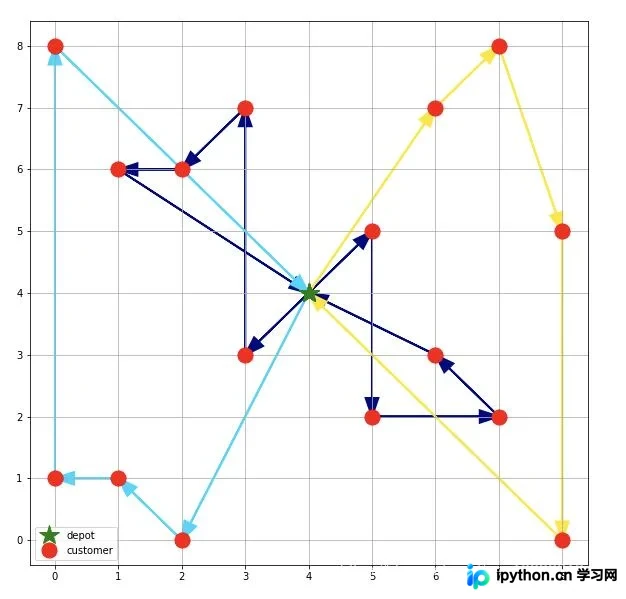
这里的cmap可以视为颜色库,cNorm用于设定颜色的取值范围。如果有几条不同的线路,就对应设置几种颜色。通过scalarMap完成颜色生成后,在绘图阶段即可根据索引获取相应的颜色值。
最终的绘图效果如下所示。
关键点标注技巧补充
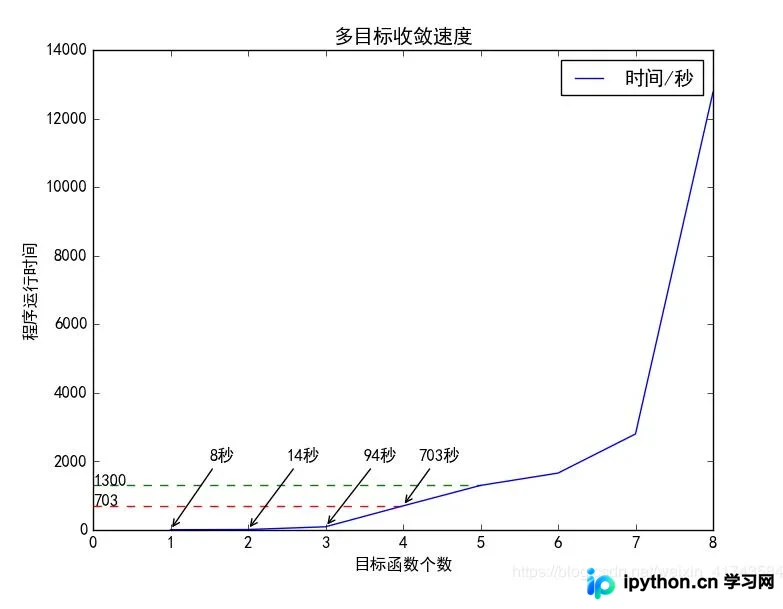
补充知识:Python包matplotlib绘图--如何标注某点--附代码
# -*- coding: utf-8 -*-
import matplotlib as mpl
import matplotlib.pyplot as plt
import numpy as np
plt.style.use('classic')

plt.rcParams['font.sans-serif'] = ['SimHei'] #解决中文显示
plt.rcParams['axes.unicode_minus'] = False #解决符号无法显示

x=np.array([1,2,3,4,5,6,7,8])
y1=np.array([3,5,35,300,800,600,1200,4000])
y2=np.array([8,14,94,703,1300,1660,2801,12768])

fig1 = plt.figure()

ax = plt.axes()
ax.plot(x, y2,label='时间/秒')
ax.set(xlabel='目标函数个数', ylabel='程序运行时间',title='多目标收敛速度')

plt.hlines(703, 0, 4, colors='r', linestyle="--")
plt.text(0, 703, "703")
plt.hlines(1300, 0, 5, colors='g', linestyle="--")
plt.text(0, 1300, "1300")

# annotate
plt.annotate("703秒", (4,703), xycoords='data',
       xytext=(4.2, 2000),
       arrowprops=dict(arrowstyle='->'))
plt.annotate("94秒", (3,94), xycoords='data',
       xytext=(3.5, 2000),
       arrowprops=dict(arrowstyle='->'))
plt.annotate("14秒", (2,14), xycoords='data',
       xytext=(2.5, 2000),
       arrowprops=dict(arrowstyle='->'))
plt.annotate("8秒", (1,8), xycoords='data',
       xytext=(1.5, 2000),
       arrowprops=dict(arrowstyle='->'))
plt.legend()
plt.show()
fig1.savefig('my_figure1.png')
import numpy as np
from matplotlib import pyplot as plt
from matplotlib.path import Path
from matplotlib.patches import PathPatch

# Use seaborn to change the default graphics to something nicer
import seaborn as sns
# And set a nice color palette
sns.set_color_codes('deep')

# Create the plot object
fig, ax = plt.subplots(figsize=(5, 4))
x = np.linspace(0, 1000)

# Add finishing constraint: x2 <= 100/2 - x1/2
plt.plot(x, 50/4 - 3*x/4, linewidth=3, label='First constraint')
plt.fill_between(x, 0, 100/2 - x/2, alpha=0.1)

# Add carpentry constraint: x2 <= 80 - x1
plt.plot(x, 30 - 2*x, linewidth=3, label='Second constraint')
plt.fill_between(x, 0, 100 - 2*x, alpha=0.1)

# Add non-negativity constraints
plt.plot(np.zeros_like(x), x, linewidth=3, label='$x$ Sign restriction')
plt.plot(x, np.zeros_like(x), linewidth=3, label='$y$ Sign restriction')

#====================================================
# This part is different from giapetto_feasible.py
# Plot the possible (x1, x2) pairs
pairs = [(x, y) for x in np.arange(101)
        for y in np.arange(101)
        if (300*x + 400*y) <= 5000
        and (200*x + 100*y) <= 3000]

# Split these into our variables
chairs, tables = np.hsplit(np.array(pairs), 2)

# Caculate the objective function at each pair
z =8*chairs + 9*tables

# Plot the results
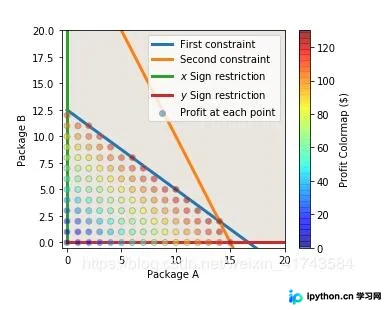
plt.scatter(chairs, tables, c=z, cmap='jet', edgecolor='gray', alpha=0.5, label='Profit at each point', zorder=3)

# Colorbar
cb = plt.colorbar()
cb.set_label('Profit Colormap ($)')
#====================================================

# Labels and stuff
plt.xlabel('Package A')
plt.ylabel('Package B')
plt.xlim(-0.5, 20)
plt.ylim(-0.5, 20)
plt.legend()
fig01 = plt.figure()
plt.show()
以上关于使用Matplotlib绘制不同颜色的带箭头线的实例分享完毕,希望能为各位提供参考,也欢迎大家继续支持本站。
免责声明:本文内容仅供参考,不代表本站观点。转载或引用请注明出处。









