

Python Tkinter创建子窗口及图片绘图实战与避坑指南

本文详解Python Tkinter中创建主窗口与Toplevel子窗口的方法,重点解析在Button回调中通过Label显示图片时常见的内存泄漏或显示空白问题。通过对比Tkinter与Pillow模块的使用,提供将图片处理代码外置的简单修复方案,并附带完整代码示例。
Tkinter主窗口与Toplevel子窗口创建规范
在构建GUI应用时,主窗口必须初始化为tk.Tk()实例。若需通过按钮点击事件创建子窗口,务必使用Toplevel类进行实例化,否则程序可能抛出错误或行为异常。
关于在窗口中绘制图片,具体实现逻辑可参考后续代码示例,核心在于正确加载并渲染图像资源。
# -*- coding: utf-8 -*-

"""
Created on Wed Oct 26 20:32:52 2016

@author: min
"""

import Tkinter as tk
from PIL import Image, ImageTk
global attackTime
attackTime=1


def show1():
  top1=tk.Toplevel()
  image = Image.open('random.jpg')
  img = ImageTk.PhotoImage(image)
  canvas1 = tk.Canvas(top1, width = image.width*2 ,height = image.height*2, bg = 'white')
  canvas1.create_image(0,0,image = img,anchor="nw")
  canvas1.create_image(image.width,0,image = img,anchor="nw")
  canvas1.pack()
  top1.mainloop()


def show2():
  top1=tk.Toplevel()
  image = Image.open('random.jpg')
  img = ImageTk.PhotoImage(image)
  canvas = tk.Canvas(top1, width = image.width ,height = image.height, bg = 'white')
  canvas.create_image(0,0,image = img,anchor="nw")
  canvas.pack()
  top1.mainloop()


def showMessage():
  top=tk.Toplevel()
  l=tk.Label(top,text='Attacks cost '+str(attackTime)+' s',width=20)
  l.pack()
  top.mainloop()

root=tk.Tk()
b1=tk.Button(root,text='start1',command=show1)
b1.pack()
b2=tk.Button(root,text='start2',command=showMessage)
b2.pack()
root.mainloop()
补充知识:Python Tkinter界面开发中关于Tk()与图片显示的常见陷阱分析。
Python 3中Tkinter模块与Toplevel实际操作
一、Python 3中Tkinter模块的基础使用。
1、创建Python窗口通常采用import tkinter或from tkinter import *两种导入方式。大众熟知的创建窗口方式是直接调用Tk()(在from tkinter import *语境下),但另一种创建窗口的方法是win=Toplevel(),这代表创建二级界面。该方法允许直接生成多个独立窗口,在涉及多个函数调用并生成Python窗口的场景中非常实用。经实际测试,该方式效果良好。
2、Toplevel()的实际操作演示。
首先,在Python 3环境下编写以下基础代码:
from tkinter import *

win=Toplevel()

win.title=("这是一个二级界面")

win.geometry("500x300+10+10")

win.mainloop()
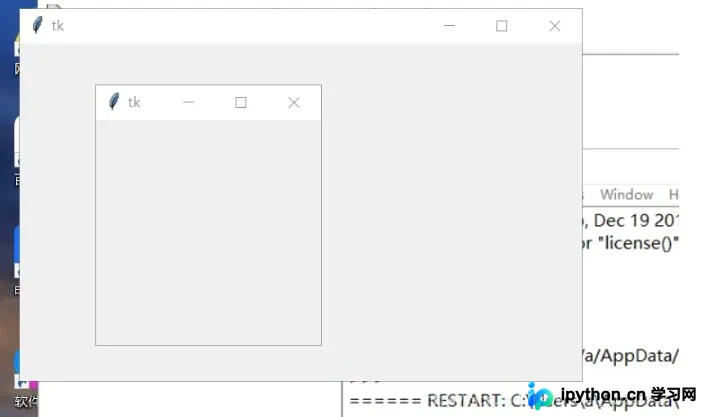
运行上述代码后,界面将弹出两个独立的窗口:
Label控件显示图片的常见陷阱与解决方案
二、关于在Label控件中显示图片的重大陷阱。
1、在Label中显示图片需同时引入tkinter与pillow两个模块。
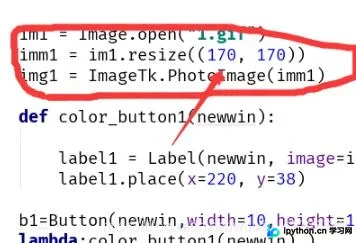
单独运行在tkinter上显示图片的代码并无问题,但若将该显示图片的函数封装在Button的command回调中,即使使用二级界面也无法正常显示,这是一个常见且严重的坑。解决此问题非常简单:只需将处理图片的两行关键代码移至函数外部即可。具体结构如图:
以上关于Python GUI编程(Tkinter)创建子窗口及在窗口上用图片绘图的实例分享完毕,希望能为读者提供参考,并欢迎大家继续支持本站。
免责声明:本文内容仅供参考,不代表本站观点。转载或引用请注明出处。









