

pyecharts图表绘制实战:从环境配置到多类可视化详解

本文详细解析pyecharts库的使用,涵盖从环境配置、地图包安装到各类图表绘制的完整流程。重点介绍标题、标签等公共属性设置,并逐一演示柱状图、散点图、漏斗图、仪表盘、地理坐标、折线/面积图、水滴球、地图、平行坐标及饼图的代码实现与参数调整,助力开发者快速掌握Python数据可视化技巧。
环境配置与数据准备
运行环境需预先安装pyecharts库,以及对应的地图数据包,包括全球国家地图包、中国省级地图包和中国市级地图包。
测试数据来源于2018年4月16日全国各地的最高最低气温及天气类型,数据文件名为2018-4-16.json,通过爬虫程序获取。
完整代码包含天气数据爬虫脚本及图表绘制脚本,代码托管于https://github.com/goodloving/pyecharts.git(py文件)。
图表公共属性设置
一、公共属性
1、标题栏属性:通常在实例化图表时指定,例如bar = Bar(“大标题”,“副标题”,···各种属性···)。
title_color = “颜色”:用于设置标题颜色,支持颜色名称如'red'或十六进制代码如'#0000'。
title_pos = ‘位置':用于设置标题位置,可选值包括‘center'、‘left'等。
width = 1200:用于设置图表宽度。
height = 800:用于设置图表高度。
background_color = "颜色":用于设置图表背景色。
·····
2、标签栏属性:在调用bar.add(“标签”,x,values,···属性···)时指定。
'mark_'类:通过'mark_'前缀显示,例如 mark_point['max', 'min', 'average']用于标出最大、最小和平均值的点。
其他标记属性包括mark_point_textcolor、mark_line_symbolsize等。
'legend_'类:例如legend_pos=‘left'用于设置图例位置。
'is_'类:例如is_label_show=True用于显示每个点的值,is_datazoom_show=True用于启用X轴移动控制。
is_convert = True:用于设置是否交换X轴和Y轴。
eg:
bar = pyecharts.Bar("全国各地最高气温", "2018-4-18", title_color='red', title_pos='right', width=1400, height=700, background_color='#404a59')
bar.add("最高气温", cities, highs, mark_point=['max', 'min', 'average'], is_label_show=True, is_datazoom_show=True, legend_pos='left')
bar.render('Bar-High.html')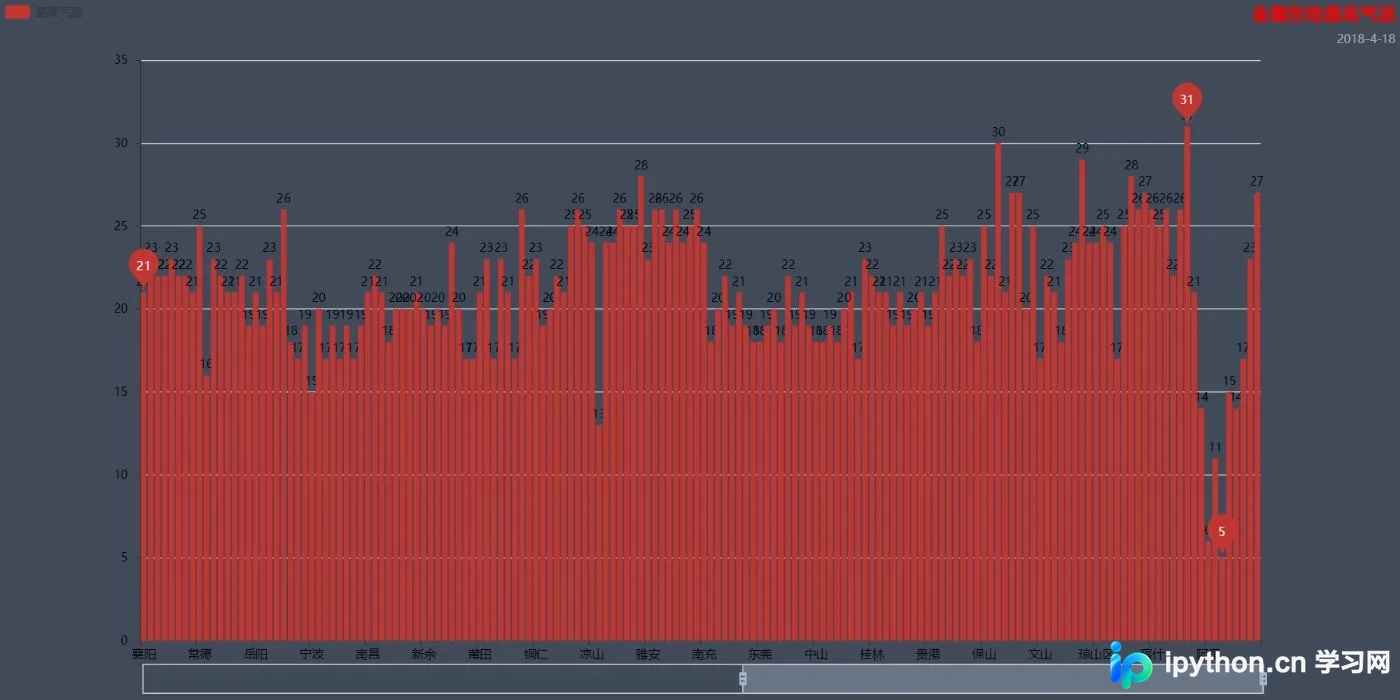
地图插件安装说明
3、Geo和Map图表无法显示底图。
自pyecharts v0.3.2版本起,库不再内置地图JS文件。若需使用地图图表,用户需自行安装对应的地图文件包。
地图文件被拆分为三个Python包,分别为: 全球国家地图: echarts-countries-pypkg (1.9MB) 中国省级地图: echarts-china-provinces-pypkg (730KB)
中国市级地图: echarts-china-cities-pypkg (3.8MB)
(1)在PyCharm中,可直接在设置界面搜索并安装这三个库。
(2)或通过pip命令安装。
pip install echarts-countries-pypkg

pip install echarts-china-provinces-pypkg

pip install echarts-china-cities-pypkg
常见图表类型与代码实现
二、各种图表
1.柱状图/条形图——Bar
bar = pyecharts.Bar("全国各地最高最低气温", "2018-4-18", title_pos='right', title_color='blue', width=1400, height=700,background_color='white')
bar.add("最高气温", cities, highs, mark_point=['max'], legend_text_color='red', is_datazoom_show=True)
bar.add("最低气温", cities, lows, mark_line=['min'], legend_text_color='blue' )


bar.render('Bar-High-Low.html')
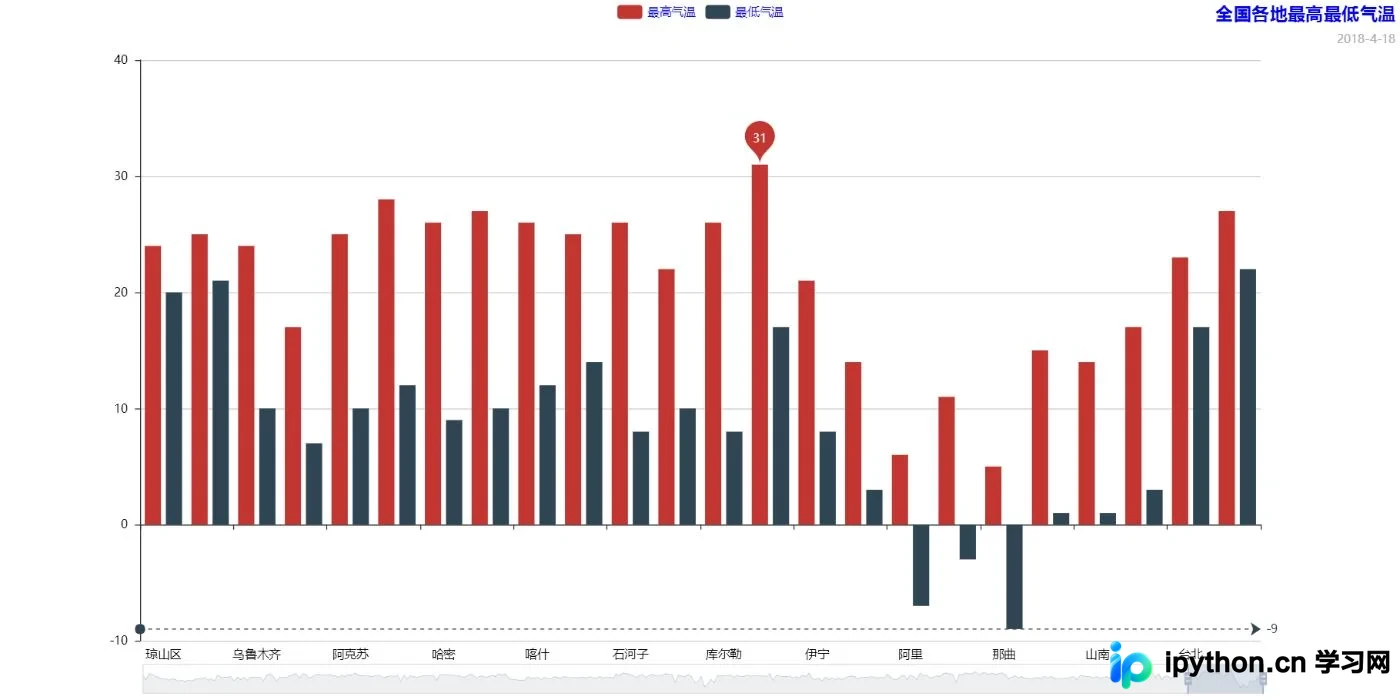
2、散点图——EffectScatter
es = pyecharts.EffectScatter("最低气温动态散点图", "2018-4-16", title_pos='right', title_color='blue', width=1400, height=700, background_color='white')
es.add("最低温度", range(0, len(cities)), lows, legend_pos='center', legend_text_color='blue',symbol_size=10, effect_period=3, effect_scale=3.5, symbol='pin',is_datazoom_show=True,is_label_show=True)


es.render("EffectScatter-low.html")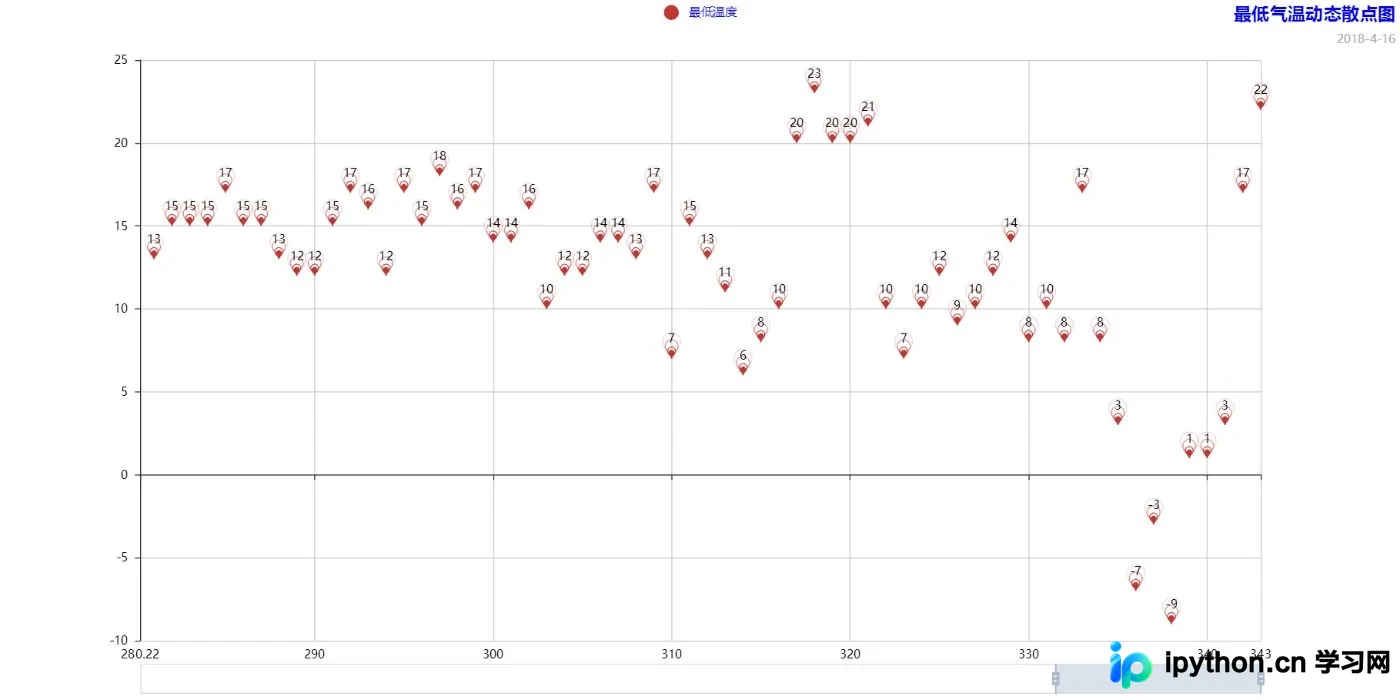
3、漏斗图——Funnel
fl = pyecharts.Funnel("最高气温漏斗图", "2018-40-16", title_pos='left', width=1400, height=700)
fl.add("最低气温", cities[:15], lows[:15], is_label_show=True, label_pos='inside', label_text_color='white')


fl.render("Funnel-low.html")
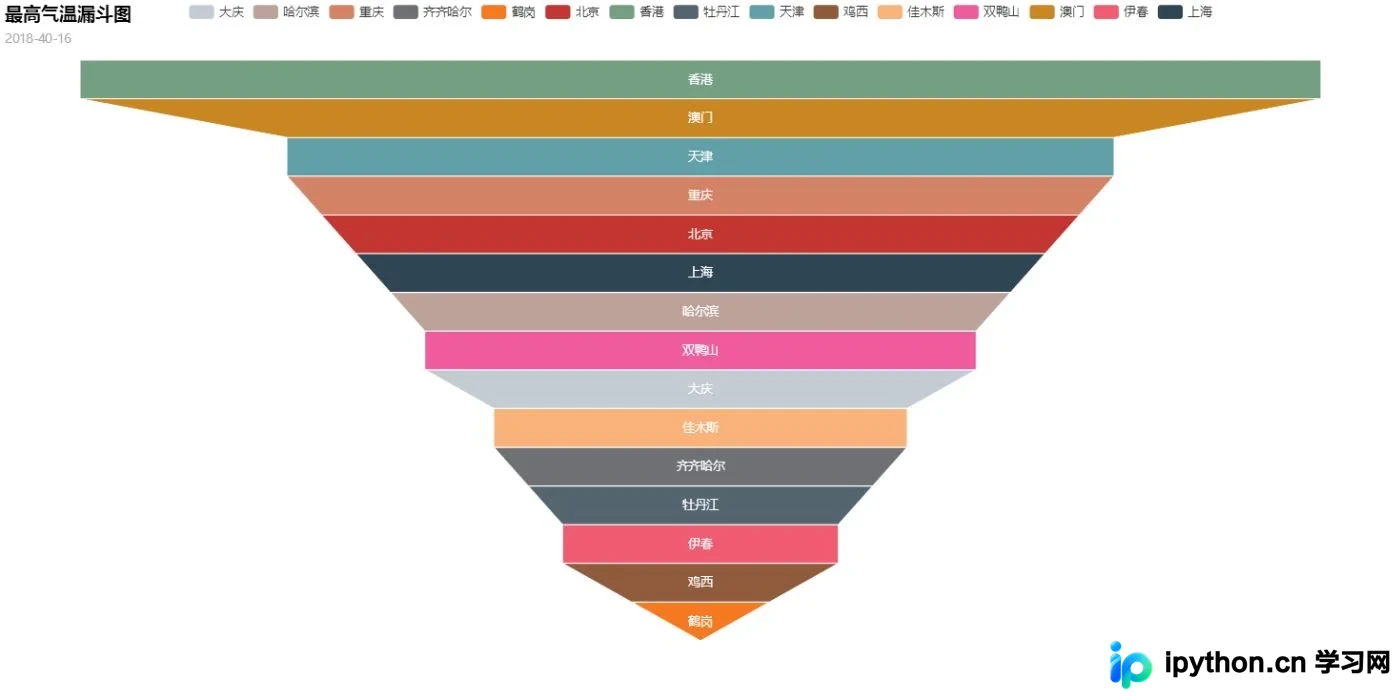
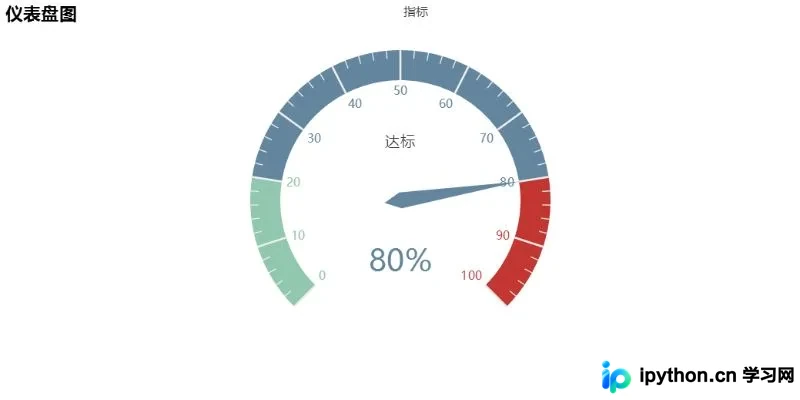
4、仪表盘——Guage
gu = pyecharts.Gauge("仪表盘图")
gu.add("指标", "达标", 80)


gu.render("Guage-eg.html")
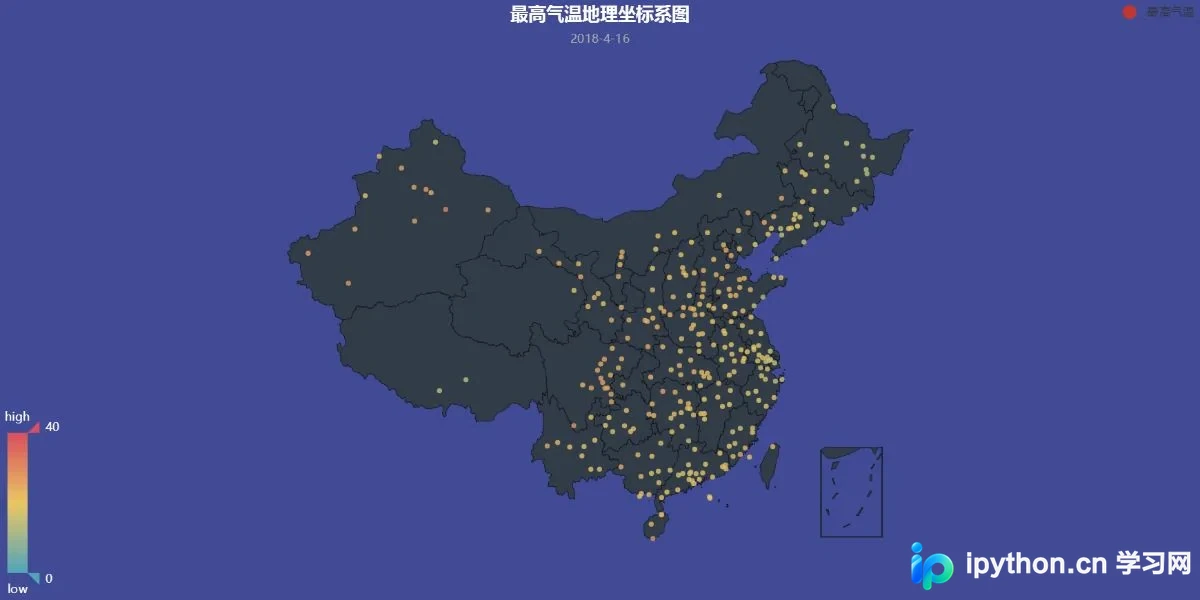
5、地理坐标图——Geo
geo = pyecharts.Geo("最高气温地理坐标系图", '2018-4-16', title_color='#fff', title_pos='center', width=1200, height=600, background_color='#404a95')
geo.add("最高气温", cities, highs, is_visualmap=True, visual_range=[0, 40], visual_text_color='#fff', symbol_size=5, legend_pos='right',is_geo_effect_show=True)


geo.render("Geo-Low.html")
6、关系图——Graph(略)
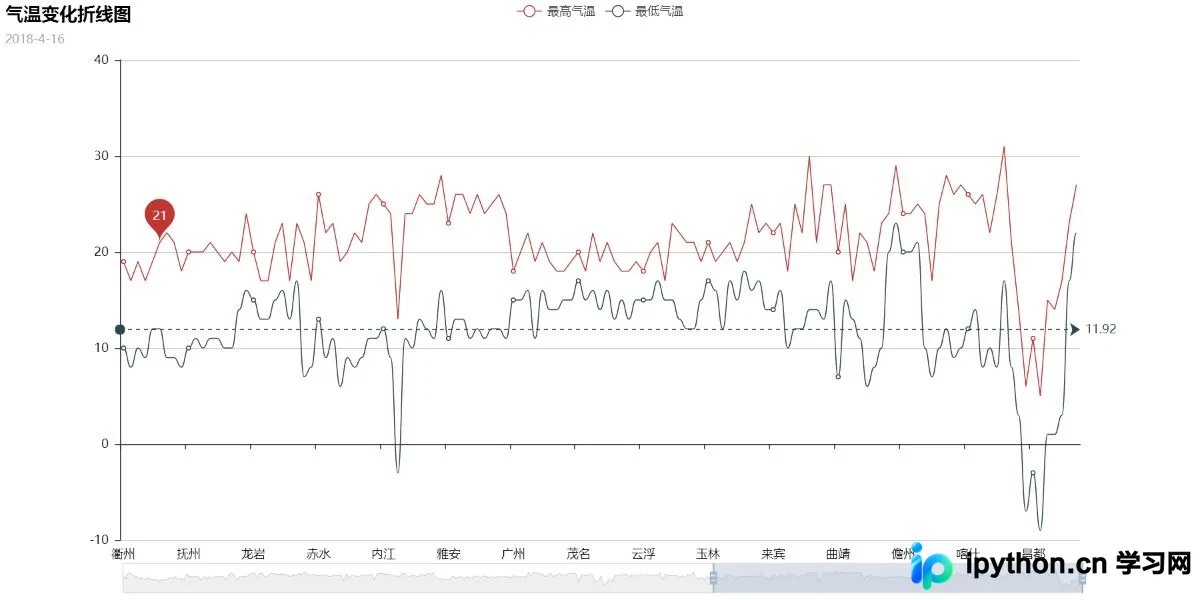
7、折线/面积图——Line
line = pyecharts.Line("气温变化折线图", '2018-4-16', width=1200, height=600)
line.add("最高气温", cities, highs, mark_point=['average'], is_datazoom_show=True)
line.add("最低气温", cities, lows, mark_line=['average'], is_smooth=True)


line.render('Line-High-Low.html')
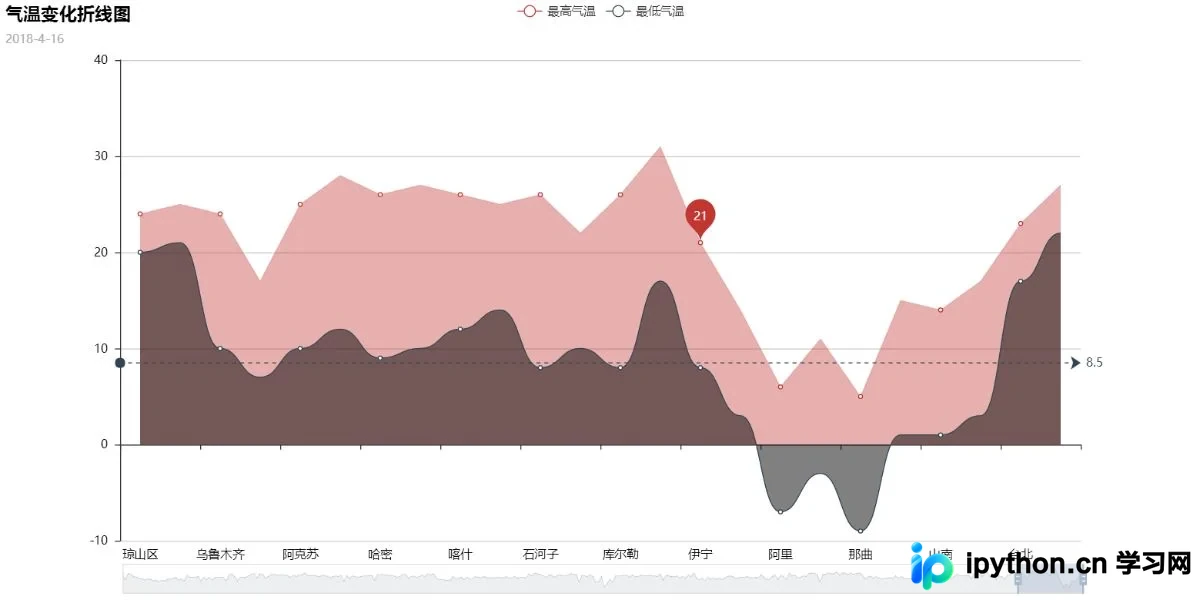
line = pyecharts.Line("气温变化折线图", '2018-4-16', width=1200, height=600)
line.add("最高气温", cities, highs, mark_point=['average'], is_datazoom_show=True, is_fill=True, line_opacity=0.2, area_opacity=0.4)
line.add("最低气温", cities, lows, mark_line=['average'], is_smooth=True, is_fill=True, area_color="#000", area_opacity=0.5)


line.render('Area-High-Low.html')
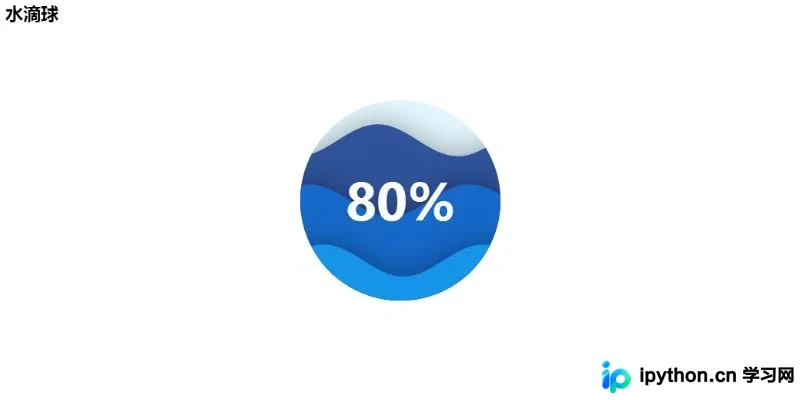
8、水滴球——Liquid
lq = pyecharts.Liquid("水滴球")
lq.add("Liquid", [0.8, 0.5, 0.2], is_liquid_outline_show=False, is_liquid_animation=True)


lq.render("LiQuid.html")
9、地图——Map
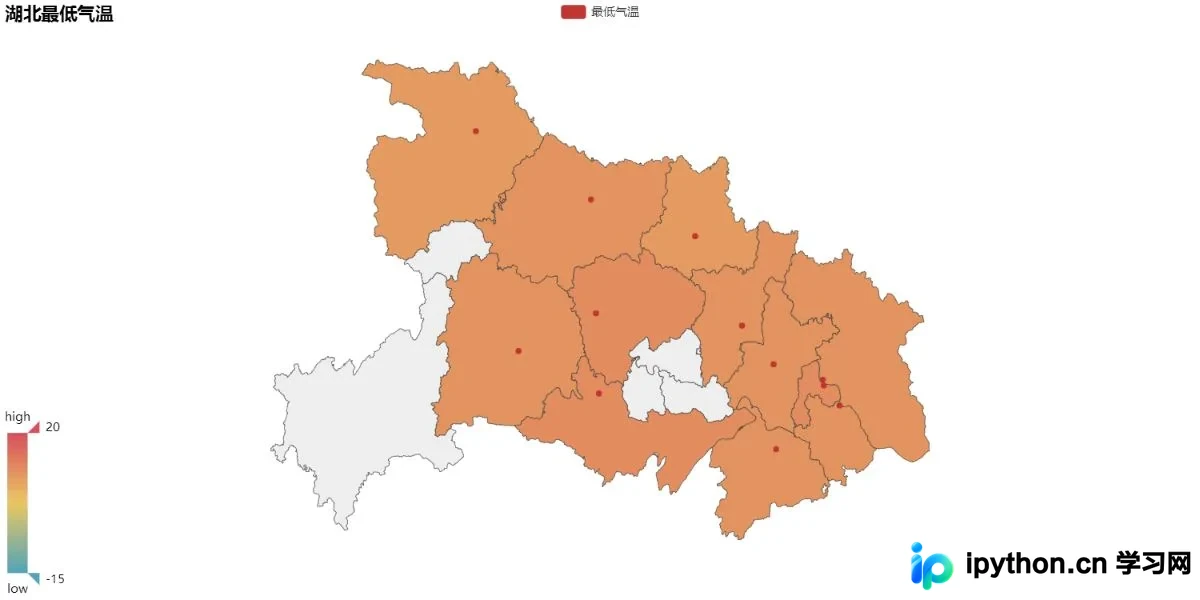
a_city = []
for i in cities:
a_city.append(i + '市')
map = pyecharts.Map("湖北最低气温", width=1200, height=600)
map.add("最低气温", a_city, lows, maptype='湖北', is_visualmap=True, visual_text_color='#000', visual_range= [-15, 20])


map.render("Map-low.html")
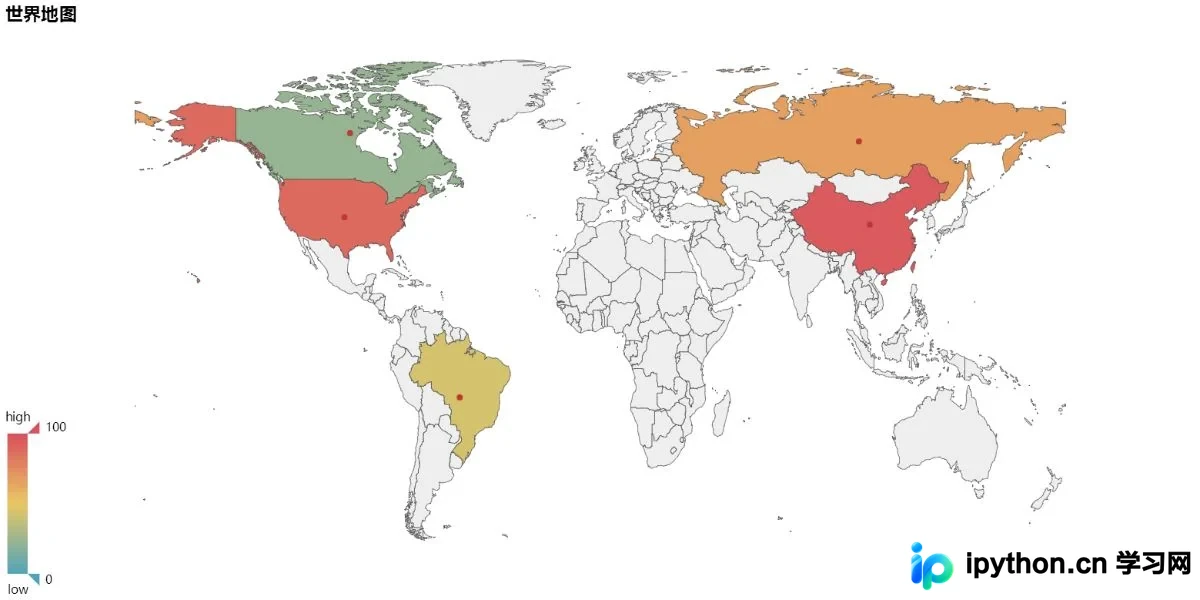
value = [95.1, 23.2, 43.3, 66.4, 88.5]

attr= ["China", "Canada", "Brazil", "Russia", "United States"]

map = Map("世界地图示例", width=1200, height=600)

map.add("", attr, value, maptype="world", is_visualmap=True, visual_text_color='#000')

map.render('Map-World.html')
10、平行坐标图——Parallel
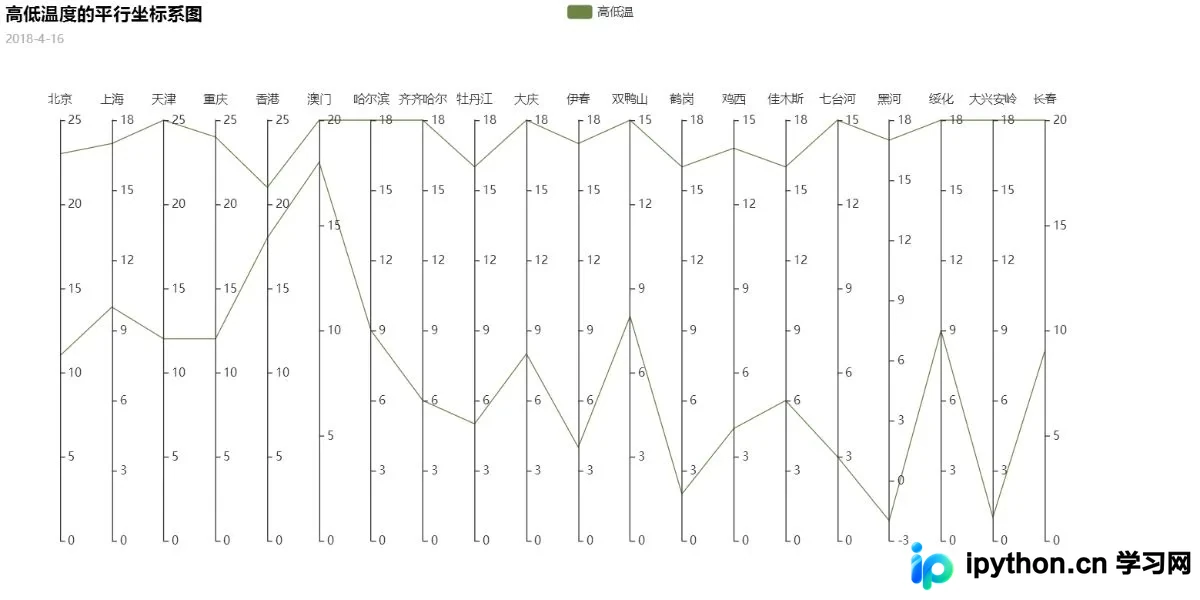
parallel = pyecharts.Parallel("高低温度的平行坐标系图", '2018-4-16', width=1200, height=600)
parallel.config(cities[:20])
parallel.add("高低温", [highs[:20], lows[:20]], is_random=True)


parallel.render('Parallel-High-Low.html')
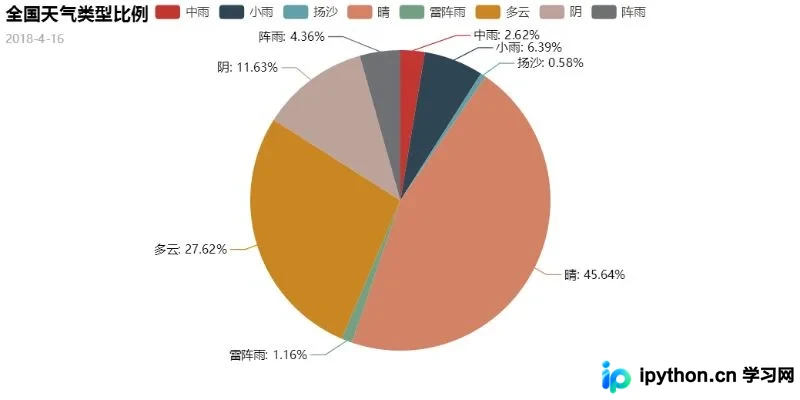
11、饼图——Pie
sun = 0
cloud = 0
lit_rain = 0
mit_rain = 0
sail = 0
shadom = 0
z_rain = 0
th_rain = 0
for i in types:
if i == '晴':
sun += 1
elif i == '多云':
cloud += 1
elif i == '小雨':
lit_rain += 1
elif i == '中雨':
mit_rain += 1
elif i == '阴':
shadom += 1
elif i == '阵雨':
z_rain += 1
elif i == '雷阵雨':
th_rain += 1
elif i == '扬沙':
sail += 1
pie = pyecharts.Pie("全国天气类型比例", '2018-4-16')
pie.add('天气类型', weather, [mit_rain, lit_rain, sail, sun, th_rain, cloud, shadom, z_rain], is_label_show=True)


pie.render('Pie-weather.html')
饼图高级定制参数
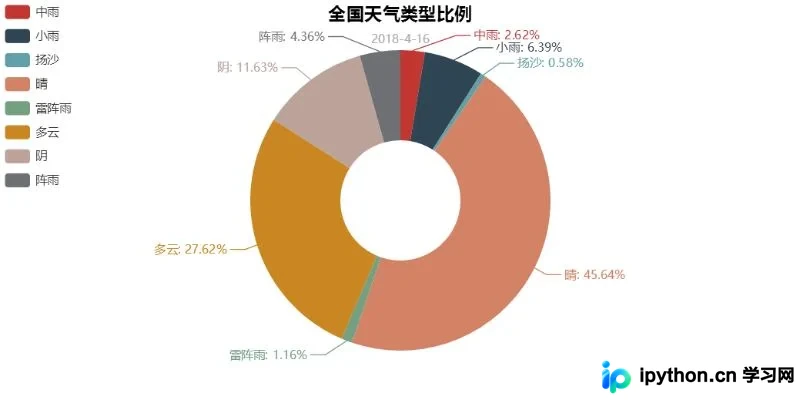
修改:
pie = pyecharts.Pie("全国天气类型比例", '2018-4-16', title_pos='center')
pie.add('天气类型', weather, [mit_rain, lit_rain, sail, sun, th_rain, cloud, shadom, z_rain], is_label_show=True, legend_pos='left', label_text_color=None, legend_orient='vertical', radius=[30, 75])


pie.render('Pie-weather.html')
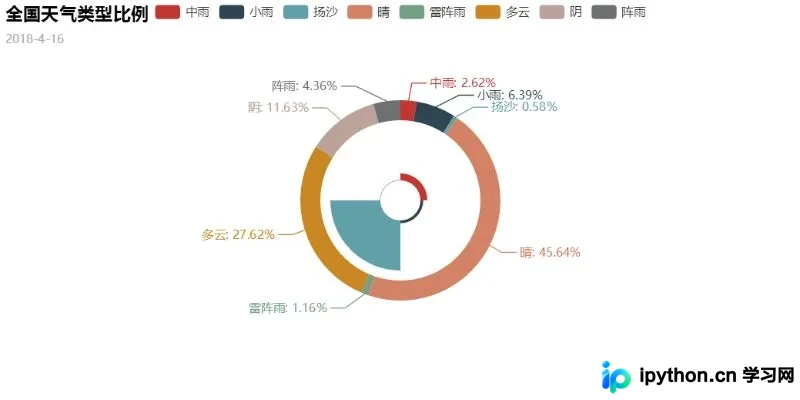
pie镶嵌:
center -> list
饼图的中心(圆心)坐标,数组第一项为横坐标,第二项为纵坐标,默认为[50, 50]。默认设置为百分比,设为百分比时第一项相对于容器宽度,第二项相对于容器高度。
rosetype -> str
是否展示为南丁格尔图,通过半径区分数据大小,有'radius'和'area'两种模式。默认为'radius':radius模式下扇区圆心角展现数据百分比,半径展现数据大小;area模式下所有扇区圆心角相同,仅通过半径展现数据大小。
pie = pyecharts.Pie("全国天气类型比例", '2018-4-16')
pie.add('', weather, [mit_rain, lit_rain, sail, sun, th_rain, cloud, shadom, z_rain], is_label_show=True, label_text_color=None, legend_orient='vertical', radius=[40, 50], center=[50, 50])
pie.add('', ['中雨', '小雨', '扬沙', '晴'], [lit_rain, mit_rain, sun, sail], radius=[10, 35], center=[50, 50], rosetype='area')


pie.render('Pie-weather.html')
至此,pyecharts的大多数图表绘制功能均已实现,更多知识可查看下方链接。
以上就是本文的全部内容,希望对大家的学习有所帮助,也希望大家多多支持本站。
免责声明:本文内容仅供参考,不代表本站观点。转载或引用请注明出处。









