

Python tkinter模块弹出窗口及传值回到主窗口操作详解

本文详解Python tkinter模块中弹出窗口及向主窗口传值的操作。针对单参数场景,介绍使用simpledialog标准窗口的方法;针对多参数场景,提供基于松耦合(通过私有变量和wait_window获取返回值)与紧耦合(直接操作父窗口对象)两种自定义窗口的传值方案,并附完整代码示例。
本文详细介绍Python tkinter模块中弹出窗口的创建以及从弹出窗口向主窗口传递数据的具体操作方法。内容包含标准窗口与自定义窗口的实现,旨在为读者提供实用的参考案例。
在实际开发中,常需通过弹出窗口配置程序运行参数。针对此类需求,主要有两种处理路径可供选择。
一、使用标准窗口
若仅需设置单个参数或从弹出窗口获取单一返回值,可直接调用simpledialog模块。其导入方式如下所示。
from tkinter.simpledialog import askstring, askinteger, askfloat
完整例子
import tkinter as tk
from tkinter.simpledialog import askstring, askinteger, askfloat
# 接收一个整数
def print_integer():
  res = askinteger("Spam", "Egg count", initialvalue=12*12)
  print(res)
# 接收一个浮点数
def print_float():
  res = askfloat("Spam", "Egg weight\n(in tons)", minvalue=1, maxvalue=100)
  print(res)
# 接收一个字符串
def print_string():
  res = askstring("Spam", "Egg label")
  print(res)
root = tk.Tk()
tk.Button(root, text='取一个字符串', command=print_string).pack()
tk.Button(root, text='取一个整数', command=print_integer).pack()
tk.Button(root, text='取一个浮点数', command=print_float).pack()
root.mainloop()
二、自定义窗口
当需要设置的参数数量超过两个时,tkinter内置的标准窗口功能便无法满足需求。
此时需自定义窗口,核心问题在于如何将自定义窗口中的数据回传至主窗口。
经搜索常见方案,多推荐全局变量(global)或对象变量(如列表、字典等),但这些方式并非理想选择。
通过参考StackOverflow上的相关讨论,综合多个问题的解答,本文提炼出两种较为满意的解决方案。
这两种方案分别被称为松耦合与紧耦合模式。
1)松耦合方案
说明:
主窗口类继承自 tk.Tk
弹窗类继承自 tk.Toplevel
要点:
弹窗将多个数据打包存入名为 username 的私有列表对象,随后销毁弹窗。
主窗口在弹窗运行结束后,通过调用wait_window方法,获取弹窗中名为 username 的私有变量值。
完整代码:
import tkinter as tk
'''松耦合'''
# 弹窗
class MyDialog(tk.Toplevel):
  def __init__(self):
    super().__init__()
    self.title('设置用户信息')
    # 弹窗界面
    self.setup_UI()
  def setup_UI(self):
    # 第一行(两列)
    row1 = tk.Frame(self)
    row1.pack(fill="x")
    tk.Label(row1, text='姓名:', width=8).pack(side=tk.LEFT)
    self.name = tk.StringVar()
    tk.Entry(row1, textvariable=self.name, width=20).pack(side=tk.LEFT)
    # 第二行
    row2 = tk.Frame(self)
    row2.pack(fill="x", ipadx=1, ipady=1)
    tk.Label(row2, text='年龄:', width=8).pack(side=tk.LEFT)
    self.age = tk.IntVar()
    tk.Entry(row2, textvariable=self.age, width=20).pack(side=tk.LEFT)
    # 第三行
    row3 = tk.Frame(self)
    row3.pack(fill="x")
    tk.Button(row3, text="取消", command=self.cancel).pack(side=tk.RIGHT)
    tk.Button(row3, text="确定", command=self.ok).pack(side=tk.RIGHT)
  def ok(self):
    self.userinfo = [self.name.get(), self.age.get()] # 设置数据
    self.destroy() # 销毁窗口
  def cancel(self):
    self.userinfo = None # 空!
    self.destroy()
# 主窗
class MyApp(tk.Tk):
  def __init__(self):
    super().__init__()
    #self.pack() # 若继承 tk.Frame ,此句必须有!
    self.title('用户信息')
    # 程序参数/数据
    self.name = '张三'
    self.age = 30
    # 程序界面
    self.setupUI()
  def setupUI(self):
    # 第一行(两列)
    row1 = tk.Frame(self)
    row1.pack(fill="x")
    tk.Label(row1, text='姓名:', width=8).pack(side=tk.LEFT)
    self.l1 = tk.Label(row1, text=self.name, width=20)
    self.l1.pack(side=tk.LEFT)
    # 第二行
    row2 = tk.Frame(self)
    row2.pack(fill="x")
    tk.Label(row2, text='年龄:', width=8).pack(side=tk.LEFT)
    self.l2 = tk.Label(row2, text=self.age, width=20)
    self.l2.pack(side=tk.LEFT)
    # 第三行
    row3 = tk.Frame(self)
    row3.pack(fill="x")
    tk.Button(row3, text="设置", command=self.setup_config).pack(side=tk.RIGHT)
  # 设置参数
  def setup_config(self):
    # 接收弹窗的数据
    res = self.ask_userinfo()
    #print(res)
    if res is None: return
    # 更改参数
    self.name, self.age = res
    # 更新界面
    self.l1.config(text=self.name)
    self.l2.config(text=self.age)
  # 弹窗
  def ask_userinfo(self):
    inputDialog = MyDialog()
    self.wait_window(inputDialog) # 这一句很重要!!!
    return inputDialog.userinfo
if __name__ == '__main__':
  app = MyApp()
  app.mainloop()
2)紧耦合方案
说明:
主窗口类继承自 tk.Tk
弹窗类继承自 tk.Toplevel
要点:
弹窗显式保存父窗口引用,直接修改父窗口数据并更新父窗口部件,最后销毁弹窗。
主窗口在弹窗运行结束后,通过wait_window方法,返回 None。
完整代码:
import tkinter as tk
'''紧耦合'''
# 弹窗
class PopupDialog(tk.Toplevel):
  def __init__(self, parent):
    super().__init__()
    self.title('设置用户信息')
    self.parent = parent # 显式地保留父窗口
    # 第一行(两列)
    row1 = tk.Frame(self)
    row1.pack(fill="x")
    tk.Label(row1, text='姓名:', width=8).pack(side=tk.LEFT)
    self.name = tk.StringVar()
    tk.Entry(row1, textvariable=self.name, width=20).pack(side=tk.LEFT)
    # 第二行
    row2 = tk.Frame(self)
    row2.pack(fill="x", ipadx=1, ipady=1)
    tk.Label(row2, text='年龄:', width=8).pack(side=tk.LEFT)
    self.age = tk.IntVar()
    tk.Entry(row2, textvariable=self.age, width=20).pack(side=tk.LEFT)
    # 第三行
    row3 = tk.Frame(self)
    row3.pack(fill="x")
    tk.Button(row3, text="取消", command=self.cancel).pack(side=tk.RIGHT)
    tk.Button(row3, text="确定", command=self.ok).pack(side=tk.RIGHT)
  def ok(self):
    # 显式地更改父窗口参数
    self.parent.name = self.name.get()
    self.parent.age = self.age.get()
    # 显式地更新父窗口界面
    self.parent.l1.config(text=self.parent.name)
    self.parent.l2.config(text=self.parent.age)
    self.destroy() # 销毁窗口
  def cancel(self):
    self.destroy()
# 主窗
class MyApp(tk.Tk):
  def __init__(self):
    super().__init__()
    # self.pack() # 若继承 tk.Frame,此句必须有!!!
    self.title('用户信息')
    # 程序参数
    self.name = '张三'
    self.age = 30
    # 程序界面
    self.setupUI()
  def setupUI(self):
    # 第一行(两列)
    row1 = tk.Frame(self)
    row1.pack(fill="x")
    tk.Label(row1, text='姓名:', width=8).pack(side=tk.LEFT)
    self.l1 = tk.Label(row1, text=self.name, width=20)
    self.l1.pack(side=tk.LEFT)
    # 第二行
    row2 = tk.Frame(self)
    row2.pack(fill="x")
    tk.Label(row2, text='年龄:', width=8).pack(side=tk.LEFT)
    self.l2 = tk.Label(row2, text=self.age, width=20)
    self.l2.pack(side=tk.LEFT)
    # 第三行
    row3 = tk.Frame(self)
    row3.pack(fill="x")
    tk.Button(row3, text="设置", command=self.setup_config).pack(side=tk.RIGHT)
  # 设置参数
  def setup_config(self):
    pw = PopupDialog(self)
    self.wait_window(pw) # 这一句很重要!!!
    return
if __name__ == '__main__':
  app = MyApp()
  app.mainloop()
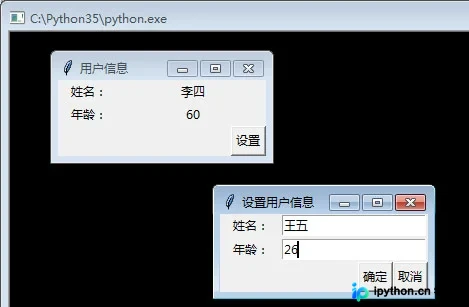
效果图
更多关于Python相关内容感兴趣的读者可查看本站专题:《Python编码操作技巧总结》、《Python数据结构与算法教程》、《Python函数使用技巧总结》、《Python字符串操作技巧汇总》及《Python入门与进阶经典教程》
希望本文所述对大家Python程序设计有所帮助。
免责声明:本文内容仅供参考,不代表本站观点。转载或引用请注明出处。









