

Python实现图片文字水印自动添加

发布时间:2026-10-15| 7人浏览过
本文介绍使用Python的PIL库为图像批量添加文字水印的方法。通过自定义类封装,支持调节水印文字内容、字体大小及透明度,并强制输出为PNG格式以保留透明通道。代码示例展示了如何随机分布水印位置,适用于需要高效处理图片版权标识的场景。
Python实现图片文字水印自动添加
在处理图片相关工作时,经常需要为图片添加水印。若采用手动方式逐一添加,效率极低,因此通常借助代码自动化完成。本文主要介绍如何实现图像文字水印的添加功能,图片水印功能目前仍在探索中。
以在图片中添加“美团外卖”字样为例进行说明。

文字水印代码实现
from PIL import Image,ImageDraw,ImageFont
import numpy as np
import random
import cv2
import re

###################################################################################
class Make_Font(object):  #### 设置文字水印
    def __init__(self,image_path,out_path,font,font_size,diaphaneity):
        self.image_path = image_path  ### 读入背景图片
        self.out_path = out_path  ### 输出水印图片
        self.font = font  ### 设置水印字内容
        self.font_size = font_size  ## 设置字体大小
        self.diaphaneity = diaphaneity  ### 设置字体透明度

        suffix = self.out_path.split('.')[-1]
        match = re.match(r'png',suffix)
        if not match:
            raise ValueError('The out put file name must be PNG file!')
    def _text_xy(self,image_size):
        width, height = image_size
        x = random.randint(min(0, width), max(0, width))  #### 随机取画文字点
        y = random.randint(min(0, height), max(0, height))
        return x,y

    def _draw_font_box(self,image_size,font_size):
        img_w,img_h = image_size
        font_w,font_h = font_size
        all_x = []
        x = 0
        all_x.append(x)
        while x < img_w:
            x = font_w + 50 + x  ####  隔50 画一次文字
            all_x.append(x)

        all_y = []
        y = 0
        all_y.append(y)
        while y < img_h:
            y = font_h + 50 + y   ####  隔50 画一次文字
            all_y.append(y)
        return all_x,all_y

    def run_make_font(self):
        image = Image.open(self.image_path) ## (598,419)
        image_x,image_y = image.size[0:2] ## (598,419)
        text = self.font
        text_diap = self.diaphaneity   ####  设置字体透明度  越小越透明 (0,100)
        font = ImageFont.truetype('1.ttf',self.font_size) ## 设置字体和大小
        layer = image.convert('RGBA')  ## 转换图像格式:A为透明度   尺寸(598, 419)

        max_size = max(image_x,image_y)
        text_overlayer = Image.new('RGBA',(2*max_size,2*max_size),(255,255,255,0))  ## 生成同等大小的透明图片

        image_draw = ImageDraw.Draw(text_overlayer) ## 画图
        text_size_x,text_size_y = image_draw.textsize(text,font = font)  ## 获取文本大小
        #print(text_size_x,text_size_y)   ### 字体大小 (250,50)
        x_count,y_count = self._draw_font_box(text_overlayer.size,(text_size_x,text_size_y))
        for i in x_count:
            for j in y_count:
                #text_x,text_y = text_xy((image_x,image_y)) ## 设置文本位置
                image_draw.text((int(i),int(j)),text,font=font,fill=(255,255,255,text_diap)) ## 设置文本颜色和透明度
        text_overlayer = text_overlayer.rotate(45)   # 设置逆时针旋转45度
        #######  设置切割点  ##############
        box_x = (text_overlayer.size[0]-image_x)/2
        box_y = (text_overlayer.size[1]-image_y)/2
        box = [box_x,box_y,box_x+image_x,box_y+image_y]
        new_img = text_overlayer.crop(box)
        new_img = new_img.resize(layer.size)
        #text_overlayer.save('text_overlayer_after.png')  ## 生成的水印png图片
        #new_img.save('new_img.png')  ## 生成的水印png图片
        after = Image.alpha_composite(layer,new_img)  ## (im1,im2)将im2复合到im1上,返回一个Image对象
        after.save(self.out_path)  ### .png 可以直接保存RGBA格式

#########################################################################################

if __name__=="__main__":
    ############### 文字水印  ########################
    MK = Make_Font(image_path='./without_water/test5.jpg',out_path='test5_after.png',font = '美团外卖',font_size = 30,diaphaneity = 90)
    MK.run_make_font()
    ##################################################
核心代码实现了将指定文字水印嵌入图像的功能,其中文字内容、字体尺寸以及文字透明度均为可调节参数(image_path指定原始图像路径,out_path指定输出带水印图像的路径)。
最终生成的效果图如下所示。
注意:上传的示例图像经过了压缩处理。
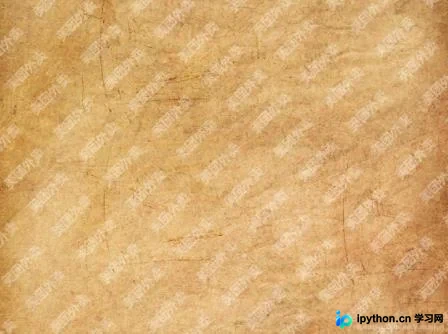
原计划补充生成图像Logo水印的代码,但尚未达到预期效果。
以上就是本文的全部内容,希望对读者的学习有所帮助,也欢迎大家继续支持本站。
免责声明:本文内容仅供参考,不代表本站观点。转载或引用请注明出处。









