

Python matplotlib绘图实战:从基础配置到高级图表生成

本文系统整理Python matplotlib常用绘图技巧,涵盖中文与字体配置、子图布局(subplot2grid与subplot)、坐标轴隐藏、分辨率调整、主题样式切换、网格图例添加、数学公式渲染及交互保存等核心功能,并提供条形图、散点图及带表格复合图表的完整代码示例,助力高效生成美观数据可视化结果。
前言
在业务数据分析流程中,数据可视化是至关重要的环节。本文汇总了matplotlib库的常用绘图技巧,旨在帮助开发者更高效、美观地呈现图表数据。作者:北山啦
Matplotlib是Python生态中核心的绘图库,可与NumPy无缝配合,提供类似MatLab功能的开源替代方案,同时支持集成PyQt、wxPython等图形用户界面工具包。
pip3 install matplotlib -i https://pypi.tuna.tsinghua.edu.cn/simple
import matplotlib.pyplot as plt
显示中文
通过配置全局参数字典rcParams,只需在代码起始处添加特定设置即可解决中文显示问题。
plt.rcParams['font.sans-serif'] = ['SimHei']
plt.rcParams['axes.unicode_minus'] = False
此外,还可进一步指定具体字体,常见可选字体包括:
font.family 字体的名称 sans-serif 西文字体(默认) SimHei 中文黑体 FangSong 中文仿宋 YouYuan 中文幼圆 STSong 华文宋体 Kaiti 中文楷体 LiSu 中文隶书
字体风格
plt.rcParams["font.style"] = "italic"
绘制子图
使用plt.subplot2grid()函数进行网格化子图布局。
plt.subplot2grid((3,3),(0,0),colspan=3)
""""""
plt.subplot2grid((3,3),(1,0),colspan=2)
""""""
plt.subplot2grid((3,3),(1,2),rowspan=2)
""""""
plt.subplot2grid((3,3),(2,0))
""""""
plt.subplot2grid((3,3),(2,1))
plt.show()
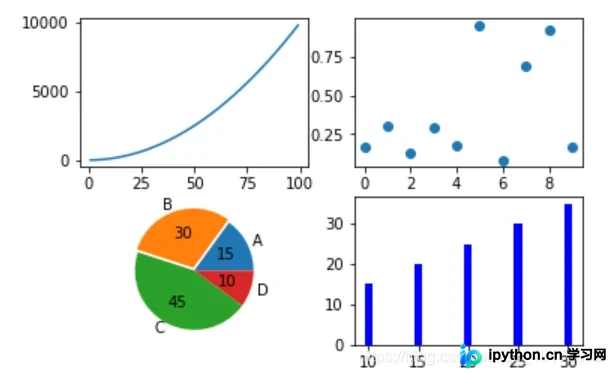
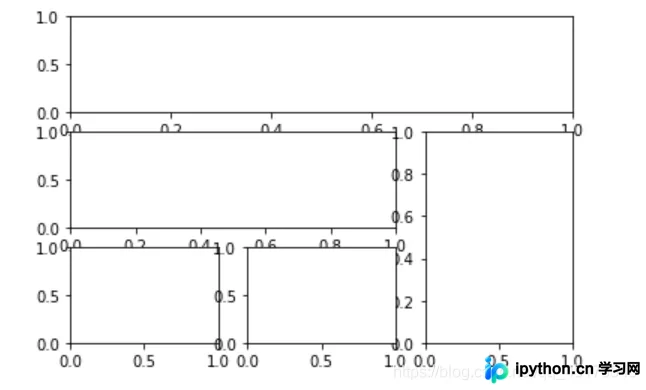 2. 使用plt.subplot()进行常规子图划分。
import numpy as np
import pandas as pd
import matplotlib.pyplot as plt
# 画第1个图:折线图
x=np.arange(1,100)
plt.subplot(221)
plt.plot(x,x*x)
# 画第2个图:散点图
plt.subplot(222)
plt.scatter(np.arange(0,10), np.random.rand(10))
# 画第3个图:饼图
plt.subplot(223)
plt.pie(x=[15,30,45,10],labels=list('ABCD'),autopct='%.0f',explode=[0,0.05,0,0])

# 画第4个图:条形图
plt.subplot(224)
plt.bar([20,10,30,25,15],[25,15,35,30,20],color='b')
plt.show()
matplotlib绘图设置不显示边框、坐标轴
针对部分图形,隐藏坐标轴与边框可使视觉效果更加简洁美观。
plt.xticks([])
plt.yticks([])
ax = plt.subplot(2,5,1)
# 去除黑框
ax.spines['top'].set_visible(False)
ax.spines['right'].set_visible(False)
ax.spines['bottom'].set_visible(False)
ax.spines['left'].set_visible(False)
具体实现实例:
#author:https://beishan.blog.csdn.net/
import matplotlib.pyplot as plt
for i in range(0,10):
    fig = plt.gcf()
    fig.set_size_inches(12,6)
    ax = plt.subplot(2,5,i+1)
    # 去除坐标轴
    plt.xticks([])
    plt.yticks([])

    # 去除黑框
    ax.spines['top'].set_visible(False)
    ax.spines['right'].set_visible(False)
    ax.spines['bottom'].set_visible(False)
    ax.spines['left'].set_visible(False)
    # 设置各个子图间间距
    plt.subplots_adjust(left=0.10, top=0.88, right=0.65, bottom=0.08, wspace=0.02, hspace=0.02)
    ax.imshow(Xtrain[i],cmap="binary")

提高分辨率
若默认生成的图像清晰度不足,可通过调整dpi参数来提升输出分辨率。
plt.figure(figsize = (7,6),dpi =100)
设置绘图风格
当觉得matplotlib默认图像风格过于朴素时,可利用内置的多种主题提升视觉效果,只需调用plt.style.use('主题名')即可应用指定风格。
plt.style.use('ggplot')
常用的内置样式包括:
Solarize_Light2 _classic_test_patch bmh classic dark_background fast fivethirtyeight ggplot grayscale seaborn seaborn-bright seaborn-colorblind seaborn-dark seaborn-dark-palette seaborn-darkgrid seaborn-deep seaborn-muted seaborn-notebook seaborn-paper seaborn-pastel seaborn-poster seaborn-talk seaborn-ticks seaborn-white seaborn-whitegrid tableau-colorblind10
添加标题
plt.title("2020-2021北山啦粉丝数增长图")
显示网格
plt.grid()
plt.grid(color='g',linewidth='1',linestyle='-.')
图例设置
plt.legend(["2020","2021"],loc="best")
图例同样支持添加标题以增强可读性。
plt.plot([1,3,5,7],[4,9,6,8],"ro--")
plt.plot([1,2,3,4], [2,4,6,8],"gs-.")
plt.legend(["2020","2021"],loc="best",title="标题")
plt.title("2020-2021北山啦粉丝数增长图")
添加公式
在绘图过程中,若需展示包含数学符号或公式的文字说明,可采用特定语法实现。
plt.text(11000,0.45,r'拟合曲线为$f(x) = x^2-4x+0.5$')
图形交互设置
在Jupyter环境中,可使用魔法命令控制图表交互行为。
%matplotlib notebook 弹出可交互的matplotlib窗口
%matplotlib qt5 弹出matplotlib控制台
%matplotlib inline 直接嵌入图表,不需要使用plt.show()
保存图片
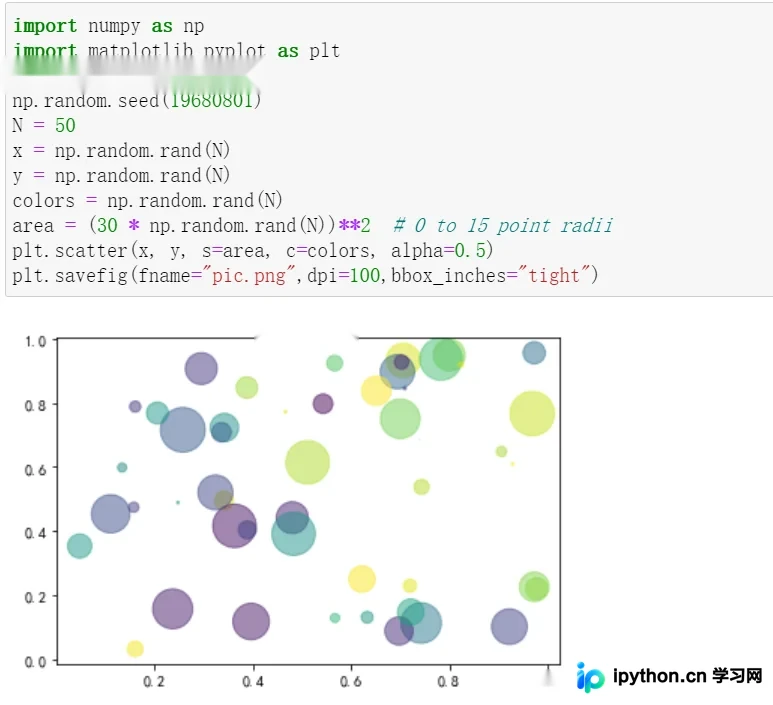
plt.savefig("pic.png",dpi=100,bbox_inches="tight")
读取图片
方法一:使用PIL库读取并显示。
from PIL import Image
image = Image.open("./pic.png")
image.show()
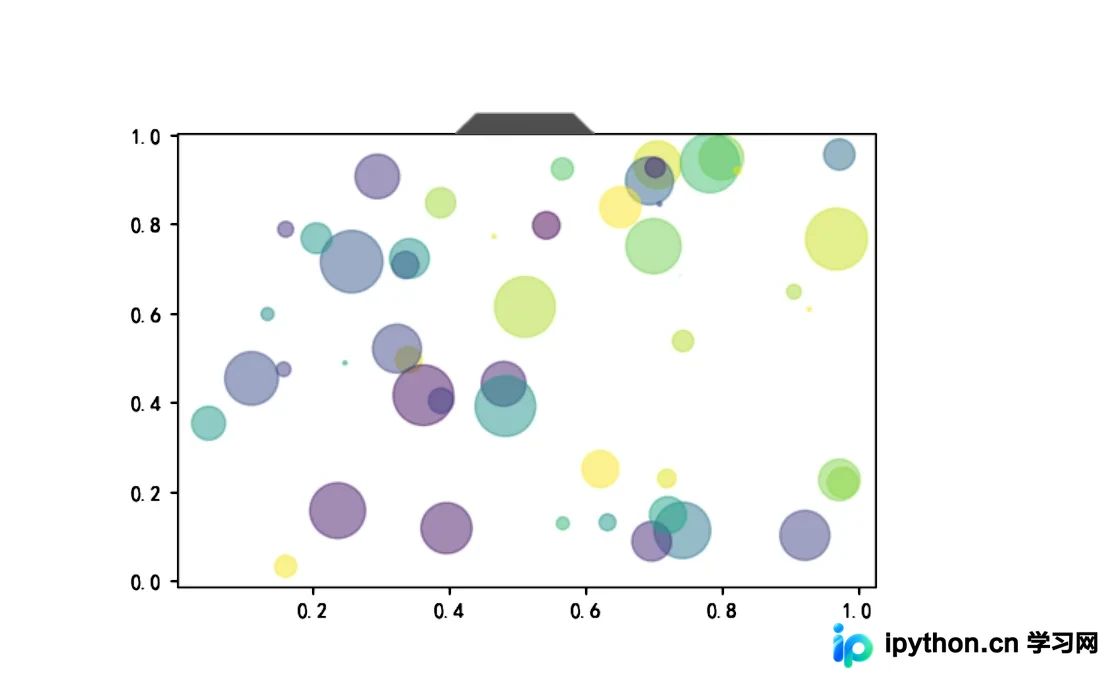
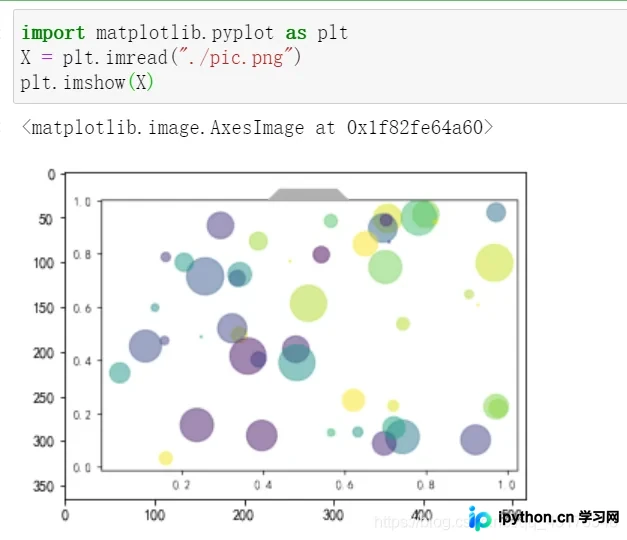
方法二:使用matplotlib直接读取图像数据并展示。
import matplotlib.pyplot as plt
X = plt.imread("./pic.png")
plt.imshow(X)
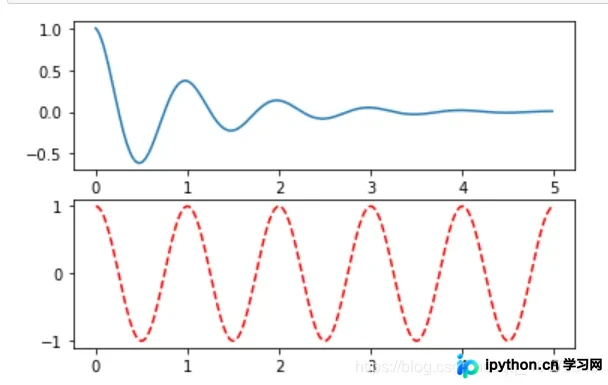
条形图
def f(t):
    return np.exp(-t) * np.cos(2*np.pi*t)
a = np.arange(0,5,0.02)

plt.subplot(211)
plt.plot(a,f(a))

plt.subplot(212)
plt.plot(a,np.cos(2*np.pi*a),'r--')

plt.show()
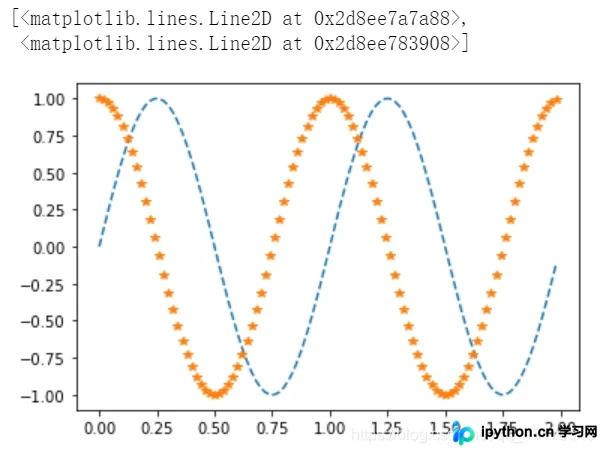
b = np.arange(0,2,0.02)
plt.plot(b,np.sin(2*np.pi*b),'--',b,np.cos(2*np.pi*b),"*")
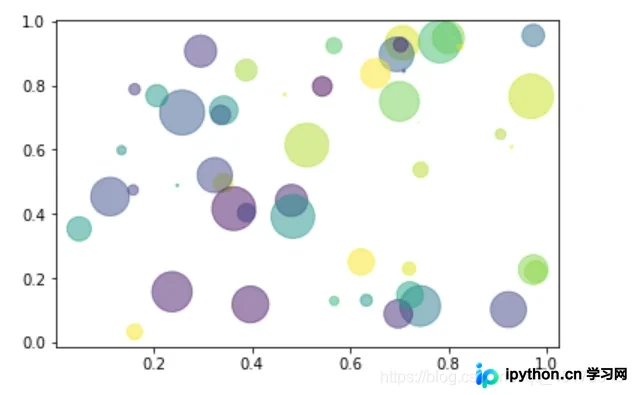
散点图
import numpy as np
import matplotlib.pyplot as plt

# Fixing random state for reproducibility
np.random.seed(19680801)


N = 50
x = np.random.rand(N)
y = np.random.rand(N)
colors = np.random.rand(N)
area = (30 * np.random.rand(N))**2  # 0 to 15 point radii

plt.scatter(x, y, s=area, c=colors, alpha=0.5)
plt.show()
带表格的图形
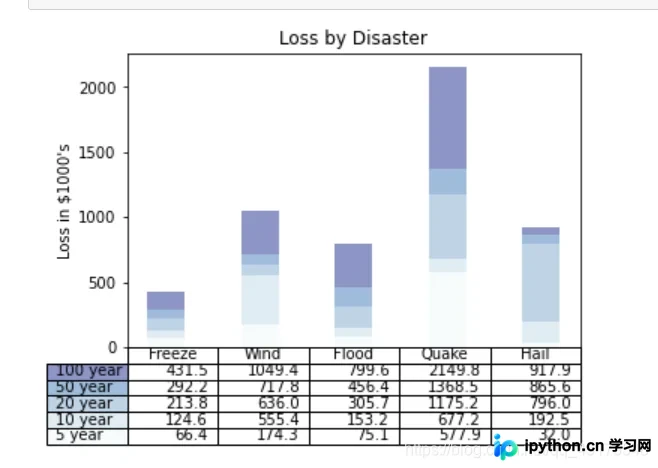
import numpy as np
import matplotlib.pyplot as plt


data = [[ 66386, 174296,  75131, 577908,  32015],
        [ 58230, 381139,  78045,  99308, 160454],
        [ 89135,  80552, 152558, 497981, 603535],
        [ 78415,  81858, 150656, 193263,  69638],
        [139361, 331509, 343164, 781380,  52269]]

columns = ('Freeze', 'Wind', 'Flood', 'Quake', 'Hail')
rows = ['%d year' % x for x in (100, 50, 20, 10, 5)]

values = np.arange(0, 2500, 500)
value_increment = 1000

# Get some pastel shades for the colors
colors = plt.cm.BuPu(np.linspace(0, 0.5, len(rows)))
n_rows = len(data)

index = np.arange(len(columns)) + 0.3
bar_width = 0.4

# Initialize the vertical-offset for the stacked bar chart.
y_offset = np.zeros(len(columns))

# Plot bars and create text labels for the table
cell_text = []
for row in range(n_rows):
    plt.bar(index, data[row], bar_width, bottom=y_offset, color=colors[row])
    y_offset = y_offset + data[row]
    cell_text.append(['%1.1f' % (x / 1000.0) for x in y_offset])
# Reverse colors and text labels to display the last value at the top.
colors = colors[::-1]
cell_text.reverse()

# Add a table at the bottom of the axes
the_table = plt.table(cellText=cell_text,
                      rowLabels=rows,
                      rowColours=colors,
                      colLabels=columns,
                      loc='bottom')

# Adjust layout to make room for the table:
plt.subplots_adjust(left=0.2, bottom=0.2)

plt.ylabel("Loss in ${0}'s".format(value_increment))
plt.yticks(values * value_increment, ['%d' % val for val in values])
plt.xticks([])
plt.title('Loss by Disaster')

plt.show()
总结
本文介绍了Python matplotlib的实用绘图技巧,更多内容可参考本站过往文章或继续关注后续更新,感谢支持!
免责声明:本文内容仅供参考,不代表本站观点。转载或引用请注明出处。









