

Python+Selenium实现网页元素长截图完整教程

本文详细介绍如何使用Python、Selenium和PIL库实现网页特定元素的长截图功能。通过获取元素尺寸、循环滚动截取、裁剪及拼接图片,解决元素高度超过屏幕可视区域的问题。同时提供短元素截取的优化方案及iframe处理技巧,附带完整可运行代码。
Python实现网页元素长截图教程
一.目标
在浏览网页时,能够针对任意指定元素生成图片,无论该元素的高度如何,均可实现完整截取。

开发环境与依赖库
二.所用工具和第三方库
Python环境,PIL图像处理库,Selenium自动化测试库。
PyCharm集成开发环境。
三.代码部分
长截图核心实现逻辑
长截图的整体实现思路如下:
1.定位并获取目标元素。
2.通过滚动操作移动页面,执行截图,重复此过程直到覆盖元素底部。
3.对每次截取的完整屏幕图片进行裁剪,仅保留目标元素区域。
4.将裁剪后的多张图片按顺序拼接成一张长图。
若ChromeDriver已配置在系统环境变量中,则无需指定驱动路径。
b=webdriver.Chrome(executable_path=r"C:\Users\Desktop\chromedriver.exe")#指定一下driver
b.get("https://www.w3school.com.cn/html/html_links.asp")
b.maximize_window()#最大化窗口
初始化浏览器并打开目标网站。
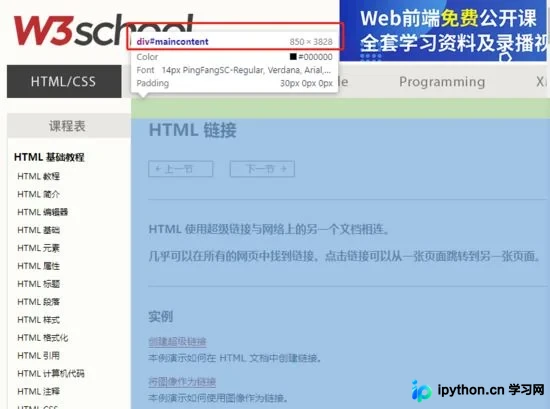
页面中存在一个ID为maincontent的元素,其宽度为850PX,高度为3828PX。由于该元素高度远超单屏显示范围,必须采用长截图策略才能完整捕获。
el=b.find_element_by_id("maincontent")#找到元素
需要确定一个关键参数:当前屏幕单次截图所能覆盖的最大像素高度。
首先通过以下代码获取一张全屏截图以测量高度:
#fp为存放图片的地址
b.get_screenshot_as_file(fp)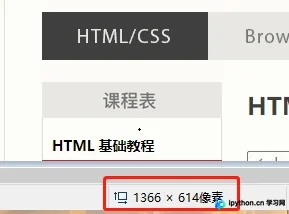
经测试,该电脑屏幕单次截图的默认高度为614像素。
因此定义一个变量来存储该高度:
sc_hight=614
接着初始化其他必要的计算变量。
 count = int(el.size["height"] / sc_hight) # 元素的高度除以你每次截多少就是次数
  start_higth = el.location["y"] # 元素的初始高度
  max_px = start_higth + (count - 1) * sc_hight # for循环中最大的px
  last_px = el.size["height"] + start_higth - sc_hight # 元素最底部的位置
  surplus_px = last_px - max_px # 剩余的边的高度
  img_path = [] # 用来存放图片地址
关键变量注释说明:
1.count:计算截取次数,公式为元素高度除以每次截图高度。例如本例中元素高3828PX,每次截614px,计算结果为6.2,取整后为6次。剩余不足一次的部分将在后续处理。
2.start_hight:元素在页面中的初始Y轴坐标,即起始高度。
3.max_px:循环结束时的最大Y轴坐标值。
4.last_px:元素最底部的Y轴坐标。
5.surplus_px:执行6次滚动截图后,剩余未截取部分的高度。
屏幕每次滚动的距离为sc_hight个像素,初始滚动位置设为(0, 元素的Y值)。
 for i in range(0, count):
    js = "scrollTo(0,%s)" % (start_higth + i * sc_hight) # 用于移动滑轮,每次移动614px,初始值是元素的初始高度
    b.execute_script(js) # 执行js
    time.sleep(0.5)
    fp = r"C:\Users\wdj\Desktop\%s.png" % i # 图片地址,运行的话,改一下
    b.get_screenshot_as_file(fp) # 屏幕截图,这里是截取是完整的网页图片,你可以打断点看一下图片
    img = Image.open(fp=fp)
    img2 = img.crop((el.location["x"], 0, el.size["width"] + el.location["x"], sc_hight)) # 剪切图片
    img2.save(fp) # 保存图片,覆盖完整的网页图片
    img_path.append(fp) # 添加图片路径
    time.sleep(0.5)
    print(js)
  else:
    js = "scrollTo(0,%s)" % last_px # 滚动到最后一个位置
    b.execute_script(js)
    fp = r"C:\Users\wdj\Desktop\last.png"
    b.get_screenshot_as_file(fp)
    img = Image.open(fp=fp)
    print((el.location["x"], sc_hight - surplus_px, el.size["width"] + el.location["x"], sc_hight))
    img2 = img.crop((el.location["x"], sc_hight - surplus_px, el.size["width"] + el.location["x"], sc_hight))
    img2.save(fp)
    img_path.append(fp)
    print(js)
上述逻辑完成了对元素所在页面的完整截取与裁剪,并将保存路径存入img_path列表。
最后一步:创建一张新图片,将所有截取并裁剪好的小图依次粘贴到新图中。
 new_img = Image.new("RGB", (el.size["width"], el.size["height"])) # 创建一个新图片,大小为元素的大小
  k = 0
  for i in img_path:
    tem_img = Image.open(i)
    new_img.paste(tem_img, (0, sc_hight * k)) # 把图片贴上去,间隔一个截图的距离
    k += 1
  else:
    new_img.save(r"C:\Users\wdj\Desktop\test.png") # 保存
运行效果展示:
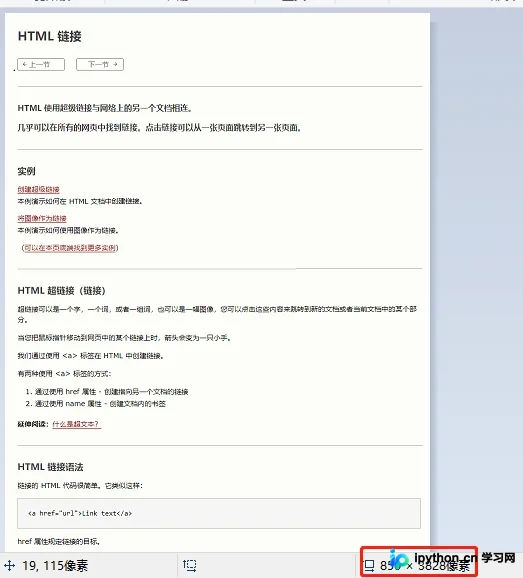
结果显示元素已被完整截取。
短元素截取与特殊场景处理
补充优化:
若目标元素较小,无需长截图即可完整显示,如何处理?
逻辑较为简单,直接提供相关代码。
 start_higth = el.location["y"]
  js = "scrollTo(0,%s)" % (start_higth)
  b.execute_script(js) # 执行js
  time.sleep(0.5)
  fp = r"C:\Users\wdj\Desktop\test.png" # 图片地址,运行的话,改一下
  b.get_screenshot_as_file(fp)
  img = Image.open(fp=fp)
  img2 = img.crop((el.location["x"], 0, el.size["width"] + el.location["x"], el.size["height"])) # 剪切图片
  img2.save(fp)
优化后的效果如下:

完整代码示例:
from selenium import webdriver
from PIL import Image
import time
def short_sc(el,b):
  start_higth = el.location["y"]
  js = "scrollTo(0,%s)" % (start_higth)
  b.execute_script(js) # 执行js
  time.sleep(0.5)
  fp = r"C:\Users\wdj\Desktop\test.png" # 图片地址,运行的话,改一下
  b.get_screenshot_as_file(fp)
  img = Image.open(fp=fp)
  img2 = img.crop((el.location["x"], 0, el.size["width"] + el.location["x"], el.size["height"])) # 剪切图片
  img2.save(fp)
def long_sc(el,b):
  count = int(el.size["height"] / sc_hight) # 元素的高度除以你每次截多少就是次数
  start_higth = el.location["y"] # 元素的初始高度
  max_px = start_higth + (count - 1) * sc_hight # for循环中最大的px
  last_px = el.size["height"] + start_higth - sc_hight # 元素最底部的位置
  surplus_px = last_px - max_px # 剩余的边的高度
  img_path = [] # 用来存放图片地址
  for i in range(0, count):
    js = "scrollTo(0,%s)" % (start_higth + i * sc_hight) # 用于移动滑轮,每次移动614px,初始值是元素的初始高度
    b.execute_script(js) # 执行js
    time.sleep(0.5)
    fp = r"C:\Users\wdj\Desktop\%s.png" % i # 图片地址,运行的话,改一下
    b.get_screenshot_as_file(fp) # 屏幕截图,这里是截取是完整的网页图片,你可以打断点看一下图片
    img = Image.open(fp=fp)
    img2 = img.crop((el.location["x"], 0, el.size["width"] + el.location["x"], sc_hight)) # 剪切图片
    img2.save(fp) # 保存图片,覆盖完整的网页图片
    img_path.append(fp) # 添加图片路径
    time.sleep(0.5)
    print(js)
  else:
    js = "scrollTo(0,%s)" % last_px # 滚动到最后一个位置
    b.execute_script(js)
    fp = r"C:\Users\wdj\Desktop\last.png"
    b.get_screenshot_as_file(fp)
    img = Image.open(fp=fp)
    print((el.location["x"], sc_hight - surplus_px, el.size["width"] + el.location["x"], sc_hight))
    img2 = img.crop((el.location["x"], sc_hight - surplus_px, el.size["width"] + el.location["x"], sc_hight))
    img2.save(fp)
    img_path.append(fp)
    print(js)
  new_img = Image.new("RGB", (el.size["width"], el.size["height"])) # 创建一个新图片,大小为元素的大小
  k = 0
  for i in img_path:
    tem_img = Image.open(i)
    new_img.paste(tem_img, (0, sc_hight * k)) # 把图片贴上去,间隔一个截图的距离
    k += 1
  else:
    new_img.save(r"C:\Users\wdj\Desktop\test.png") # 保存
b=webdriver.Chrome(executable_path=r"C:\Users\wdj\Desktop\chromedriver.exe")#指定一下driver
b.get("https://www.w3school.com.cn/html/html_links.asp")
b.maximize_window()#最大化窗口
# b.get_screenshot_as_file(fp)
sc_hight=614#你屏幕截图默认的大小,可以去截一张,去画图里面看看是多少像素,我这里是614像素
# b.switch_to.frame(b.find_element_by_xpath('//*[@id="intro"]/iframe'))
el=b.find_element_by_id("maincontent")#找到元素
if el.size["height"]>sc_hight:
  long_sc(el,b)
else:
  short_sc(el,b)
完整代码
PS:
针对特殊情况,如目标元素位于iframe框架内,可直接使用driver.switch_to.frame(iframe元素)切换至对应frame。
若元素不在iframe中但存在overflow属性导致内容溢出,可通过JavaScript移除其overflow属性以正常截取。
免责声明:本文内容仅供参考,不代表本站观点。转载或引用请注明出处。









