

Python科学绘图实战:Matplotlib参数配置与多图表绘制详解

本文详细介绍Python中Matplotlib库的科学绘图应用。重点解析pylab.rcParams全局参数设置方法,涵盖坐标轴、标签及线宽等属性调整。通过完整代码示例,演示plt.subplot子图划分技巧,并分别实现条形图、散点图及基于networkx的网络图绘制,提供可直接运行的Python3代码参考。
在Python中进行科学绘图,核心依赖的是matplotlib库。作为一个强大的2D绘图库,Matplotlib支持多种硬拷贝格式输出,并能在跨平台的交互式环境中生成达到出版质量标准的图形。
对于希望深入学习的读者,推荐参考电子书《Python图表绘制:matplotlib绘图库入门》。
实际开发中,主要使用pylab和pyplot这两个子模块。它们足以应对大多数基础绘图需求;针对条形图、散点图等特殊图表类型,下文将分别展开具体介绍。
首先介绍一个关键配置函数:pylab.rcParams.update(params)。该函数允许用户精细调整图表的各项属性,包括坐标轴范围、axes标签字号、xtick与ytick标签大小、线条宽度以及图例字号等,几乎覆盖所有可视化细节。
详细的参数列表可查阅官方文档:http://matplotlib.org/users/customizing.html
接下来展示一个基于Python3的基础绘图示例。
import matplotlib.pyplot as plt
import matplotlib.pylab as pylab
import scipy.io
import numpy as np
params={
  'axes.labelsize': '35',
  'xtick.labelsize':'27',
  'ytick.labelsize':'27',
  'lines.linewidth':2 ,
  'legend.fontsize': '27',
  'figure.figsize'  : '12, 9'  # set figure size
}
pylab.rcParams.update(params)      #set figure parameter
#line_styles=['ro-','b^-','gs-','ro--','b^--','gs--'] #set line style

#We give the coordinate date directly to give an example.
x1 = [-20,-15,-10,-5,0,0,5,10,15,20]
y1 = [0,0.04,0.1,0.21,0.39,0.74,0.78,0.80,0.82,0.85]
y2 = [0,0.014,0.03,0.16,0.37,0.78,0.81,0.83,0.86,0.92]
y3 = [0,0.001,0.02,0.14,0.34,0.77,0.82,0.85,0.90,0.96]
y4 = [0,0,0.02,0.12,0.32,0.77,0.83,0.87,0.93,0.98]
y5 = [0,0,0.02,0.11,0.32,0.77,0.82,0.90,0.95,1]


plt.plot(x1,y1,'bo-',label='m=2, p=10%',markersize=20) # in 'bo-', b is blue, o is O marker, - is solid line and so on
plt.plot(x1,y2,'gv-',label='m=4, p=10%',markersize=20)
plt.plot(x1,y3,'ys-',label='m=6, p=10%',markersize=20)
plt.plot(x1,y4,'ch-',label='m=8, p=10%',markersize=20)
plt.plot(x1,y5,'mD-',label='m=10, p=10%',markersize=20)


fig1 = plt.figure(1)
axes = plt.subplot(111)
#axes = plt.gca()
axes.set_yticks([0.1,0.2,0.3,0.4,0.5,0.6,0.7,0.8,0.9,1.0])
axes.grid(True) # add grid

plt.legend(loc="lower right") #set legend location
plt.ylabel('Percentage')  # set ystick label
plt.xlabel('Difference') # set xstck label

plt.savefig('D:\\commonNeighbors_CDF_snapshots.eps',dpi = 1000,bbox_inches='tight')
plt.show()
该示例的运行效果如下图所示:
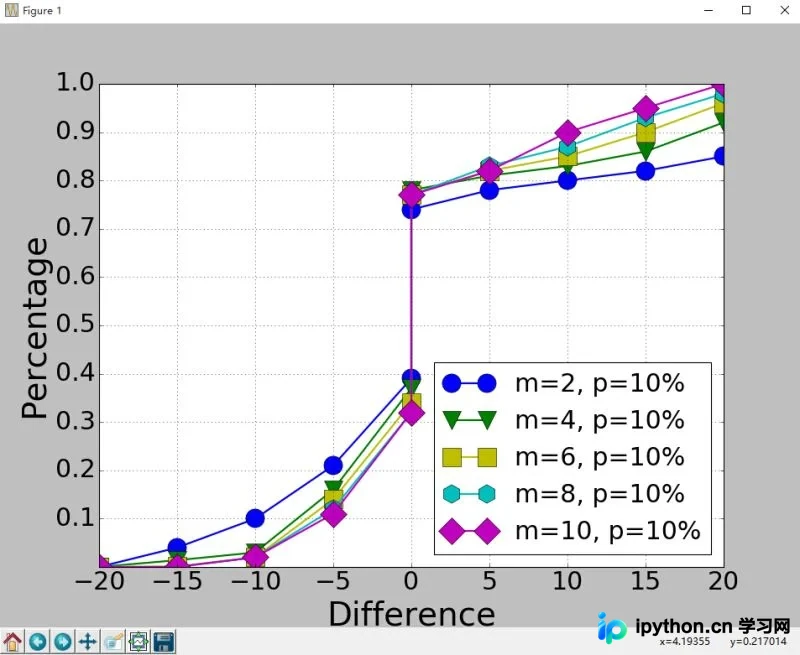
代码逻辑相对直观,此处重点解析plt.subplot(111)这一关键函数。
plt.subplot(111)与plt.subplot(1,1,1)功能等价,其含义是将绘图区域划分为1行1列,当前绘制的是该区域内的第1个子图(排序规则为先行后列)。
若使用plt.subplot(211),则表示将区域划分为2行1列,当前绘制的是第1个子图(即第1行第1列)。依此类推,当行列数均不超过10时,可以省略逗号分隔符。
以下是Python绘制条形图的完整代码示例。
import scipy.io
import numpy as np
import matplotlib.pylab as pylab
import matplotlib.pyplot as plt
import matplotlib.ticker as mtick
params={
  'axes.labelsize': '35',
  'xtick.labelsize':'27',
  'ytick.labelsize':'27',
  'lines.linewidth':2 ,
  'legend.fontsize': '27',
  'figure.figsize'  : '24, 9'
}
pylab.rcParams.update(params)


y1 = [9.79,7.25,7.24,4.78,4.20]
y2 = [5.88,4.55,4.25,3.78,3.92]
y3 = [4.69,4.04,3.84,3.85,4.0]
y4 = [4.45,3.96,3.82,3.80,3.79]
y5 = [3.82,3.89,3.89,3.78,3.77]

ind = np.arange(5)        # the x locations for the groups
width = 0.15
plt.bar(ind,y1,width,color = 'blue',label = 'm=2')
plt.bar(ind+width,y2,width,color = 'g',label = 'm=4') # ind+width adjusts the left start location of the bar.
plt.bar(ind+2*width,y3,width,color = 'c',label = 'm=6')
plt.bar(ind+3*width,y4,width,color = 'r',label = 'm=8')
plt.bar(ind+4*width,y5,width,color = 'm',label = 'm=10')
plt.xticks(np.arange(5) + 2.5*width, ('10%','15%','20%','25%','30%'))

plt.xlabel('Sample percentage')
plt.ylabel('Error rate')

fmt = '%.0f%%' # Format you want the ticks, e.g. '40%'
xticks = mtick.FormatStrFormatter(fmt)
# Set the formatter
axes = plt.gca()  # get current axes
axes.yaxis.set_major_formatter(xticks) # set % format to ystick.
axes.grid(True)
plt.legend(loc="upper right")
plt.savefig('D:\\errorRate.eps', format='eps',dpi = 1000,bbox_inches='tight')

plt.show()
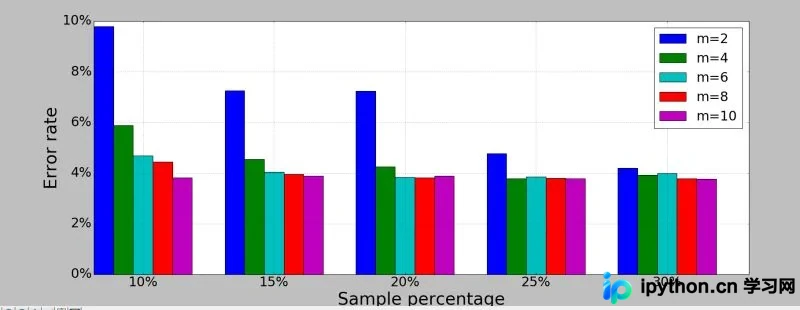
对应的图表输出结果如下:
绘制散点图主要依赖scatter函数,其他类似图表的绘制方法也与此相近。
若需绘制网络图,则需要引入networkx库。以下提供一个具体的应用实例:
import networkx as nx
import pylab as plt
g = nx.Graph()
g.add_edge(1,2,weight = 4)
g.add_edge(1,3,weight = 7)
g.add_edge(1,4,weight = 8)
g.add_edge(1,5,weight = 3)
g.add_edge(1,9,weight = 3)

g.add_edge(1,6,weight = 6)
g.add_edge(6,7,weight = 7)
g.add_edge(6,8,weight = 7)

g.add_edge(6,9,weight = 6)
g.add_edge(9,10,weight = 7)
g.add_edge(9,11,weight = 6)

fixed_pos = {1:(1,1),2:(0.7,2.2),3:(0,1.8),4:(1.6,2.3),5:(2,0.8),6:(-0.6,-0.6),7:(-1.3,0.8), 8:(-1.5,-1), 9:(0.5,-1.5), 10:(1.7,-0.8), 11:(1.5,-2.3)} #set fixed layout location

#pos=nx.spring_layout(g) # or you can use other layout set in the module
nx.draw_networkx_nodes(g,pos = fixed_pos,nodelist=[1,2,3,4,5],
node_color = 'g',node_size = 600)
nx.draw_networkx_edges(g,pos = fixed_pos,edgelist=[(1,2),(1,3),(1,4),(1,5),(1,9)],edge_color='g',width = [4.0,4.0,4.0,4.0,4.0],label = [1,2,3,4,5],node_size = 600)

nx.draw_networkx_nodes(g,pos = fixed_pos,nodelist=[6,7,8],
node_color = 'r',node_size = 600)
nx.draw_networkx_edges(g,pos = fixed_pos,edgelist=[(6,7),(6,8),(1,6)],width = [4.0,4.0,4.0],edge_color='r',node_size = 600)

nx.draw_networkx_nodes(g,pos = fixed_pos,nodelist=[9,10,11],
node_color = 'b',node_size = 600)
nx.draw_networkx_edges(g,pos = fixed_pos,edgelist=[(6,9),(9,10),(9,11)],width = [4.0,4.0,4.0],edge_color='b',node_size = 600)

plt.text(fixed_pos[1][0],fixed_pos[1][1]+0.2, s = '1',fontsize = 40)
plt.text(fixed_pos[2][0],fixed_pos[2][1]+0.2, s = '2',fontsize = 40)
plt.text(fixed_pos[3][0],fixed_pos[3][1]+0.2, s = '3',fontsize = 40)
plt.text(fixed_pos[4][0],fixed_pos[4][1]+0.2, s = '4',fontsize = 40)
plt.text(fixed_pos[5][0],fixed_pos[5][1]+0.2, s = '5',fontsize = 40)
plt.text(fixed_pos[6][0],fixed_pos[6][1]+0.2, s = '6',fontsize = 40)
plt.text(fixed_pos[7][0],fixed_pos[7][1]+0.2, s = '7',fontsize = 40)
plt.text(fixed_pos[8][0],fixed_pos[8][1]+0.2, s = '8',fontsize = 40)
plt.text(fixed_pos[9][0],fixed_pos[9][1]+0.2, s = '9',fontsize = 40)
plt.text(fixed_pos[10][0],fixed_pos[10][1]+0.2, s = '10',fontsize = 40)
plt.text(fixed_pos[11][0],fixed_pos[11][1]+0.2, s = '11',fontsize = 40)

plt.show()
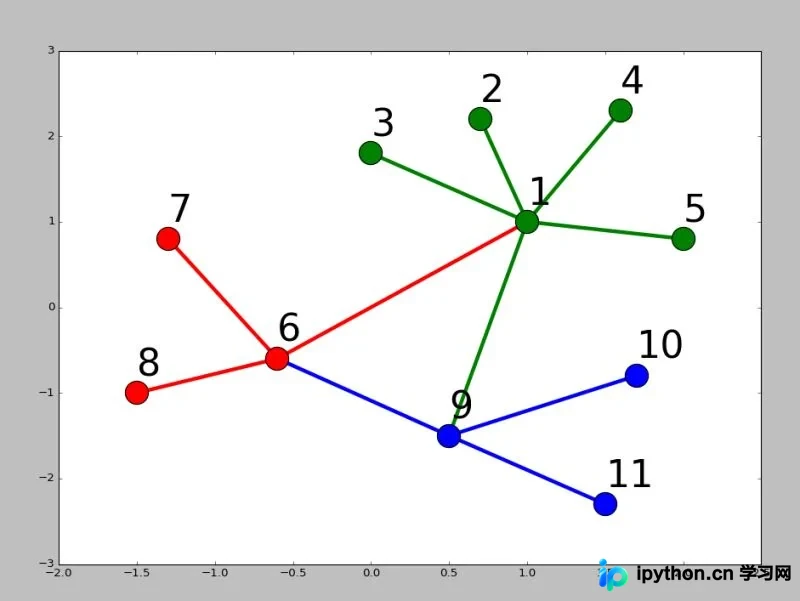
网络图的可视化结果如下:
总结
本文分享了Python科学绘图的相关代码与技巧,希望能为读者提供帮助。感兴趣的朋友可继续浏览本站其他技术专题,如有疏漏欢迎留言指正,感谢大家的支持!
免责声明:本文内容仅供参考,不代表本站观点。转载或引用请注明出处。









