

Python Web开发中实现图片验证码的完整方案

本文介绍在Python Web应用中生成图片验证码的方法。通过Pillow库创建验证码图像,利用BytesIO模块在内存中处理图片以避免磁盘IO开销,并结合Flask框架实现验证码的生成、显示及Session校验逻辑,有效防止爬虫提交表单。
系统运行环境为CentOS 7.4,Python版本为3.6.1。
当前Web应用中,为防止爬虫程序恶意提交表单,图片验证码是最常见且简单的防护手段之一。
1. 验证码图片的生成
在Python中,通常使用PIL或其升级版Pillow库来生成图片验证码。以下是利用Pillow生成验证码的具体代码示例:
#!/usr/bin/env python3

#- * -coding: utf - 8 - * -#@Author: Yang#@ Time: 2017 / 11 / 06 1: 04
import random
from PIL
import Image, ImageDraw, ImageFont, ImageFilter
_letter_cases = "abcdefghjkmnpqrstuvwxy"#
小写字母, 去除可能干扰的i, l, o, z
_upper_cases = _letter_cases.upper()# 大写字母
_numbers = ''.join(map(str, range(10)))# 数字
init_chars = ''.join((_letter_cases, _upper_cases, _numbers))

def create_validate_code(size = (120, 30),
    chars = init_chars,
    img_type = "GIF",
    mode = "RGB",
    bg_color = (230, 230, 230),
    fg_color = (18, 18, 18),
    font_size = 20,
    font_type = ‘/usr/share / fonts / dejavu / DejaVuSans - Bold.ttf',
    length = 4,
    draw_lines = True,
    n_line = (1, 2),
    draw_points = True,
    point_chance = 1):
  ''
'@
todo: 生成验证码图片@ param size: 图片的大小, 格式( 宽, 高), 默认为(120, 30)@ param chars:
允许的字符集合, 格式字符串@ param img_type: 图片保存的格式, 默认为GIF, 可选的为GIF, JPEG, TIFF,
PNG@ param mode: 图片模式, 默认为RGB@ param bg_color: 背景颜色, 默认为白色@ param fg_color: 前景色,
验证码字符颜色, 默认为蓝色 #0000FF
  @param font_size: 验证码字体大小
  @param font_type: 验证码字体的详细路径,默认为 ae_AlArabiya.ttf
  @param length: 验证码字符个数
  @param draw_lines: 是否划干扰线
  @param n_lines: 干扰线的条数范围,格式元组,默认为(1, 2),只有draw_lines为True时有效
  @param draw_points: 是否画干扰点
  @param point_chance: 干扰点出现的概率,大小范围[0, 100]
  @return: [0]: PIL Image实例
  @return: [1]: 验证码图片中的字符串
  '''
  width, height = size# 宽, 高
img = Image.new(mode, size, bg_color)# 创建图形
draw = ImageDraw.Draw(img)# 创建画笔
def get_chars():
  ''
'生成给定长度的字符串,返回列表格式'
''
return random.sample(chars, length)
def create_lines():
  ''
'绘制干扰线'
''
line_num = random.randint( * n_line)# 干扰线条数
for i in range(line_num): #起始点
begin = (random.randint(0, size[0]), random.randint(0, size[1]))# 结束点
end = (random.randint(0, size[0]), random.randint(0, size[1]))
draw.line([begin, end], fill = (0, 0, 0))
def create_points():
  ''
'绘制干扰点'
''
chance = min(100, max(0, int(point_chance)))# 大小限制在[0, 100]
for w in range(width):
  for h in range(height):
  tmp = random.randint(0, 100)
if tmp > 100 - chance:
  draw.point((w, h), fill = (0, 0, 0))
def create_strs():
  ''
'绘制验证码字符'
''
c_chars = get_chars()
strs = ' %s ' % ' '.join(c_chars)# 每个字符前后以空格隔开
font = ImageFont.truetype(font_type, font_size)
font_width, font_height = font.getsize(strs)
draw.text(((width - font_width) / 3, (height - font_height) / 3),
  strs, font = font, fill = fg_color)
return ''.join(c_chars)
if draw_lines:
  create_lines()
if draw_points:
  create_points()
strs = create_strs()# 图形扭曲参数
params = [1 - float(random.randint(1, 2)) / 100,
  0,
  0,
  0,
  1 - float(random.randint(1, 10)) / 100,
  float(random.randint(1, 2)) / 500,
  0.001,
  float(random.randint(1, 2)) / 500
]
img = img.transform(size, Image.PERSPECTIVE, params)# 创建扭曲
img = img.filter(ImageFilter.EDGE_ENHANCE_MORE)# 滤镜, 边界加强( 阈值更大)
return img, strs

if __name__ == '__main__':
  img, str = create_validate_code()
img.save('./test.gif', 'gif')
函数执行后返回一个元组,其中第一个元素是Image类的实例(即生成的图片对象),第二个元素是验证码对应的字符串,可用于后续比对验证。
生成的验证码图片效果如下:
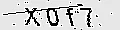
需要注意的是,上述代码依赖于系统字体。若font_type参数设置不正确,程序将抛出OSError异常。
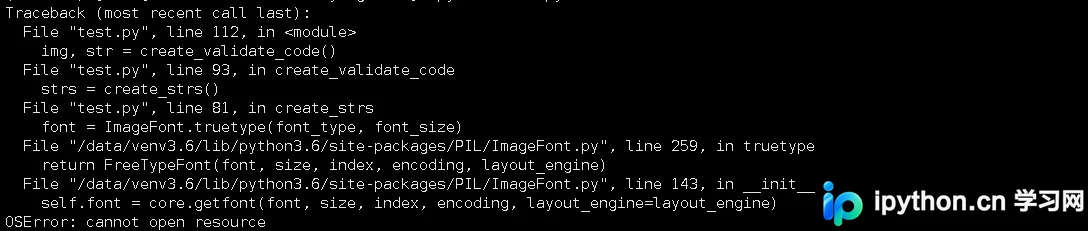
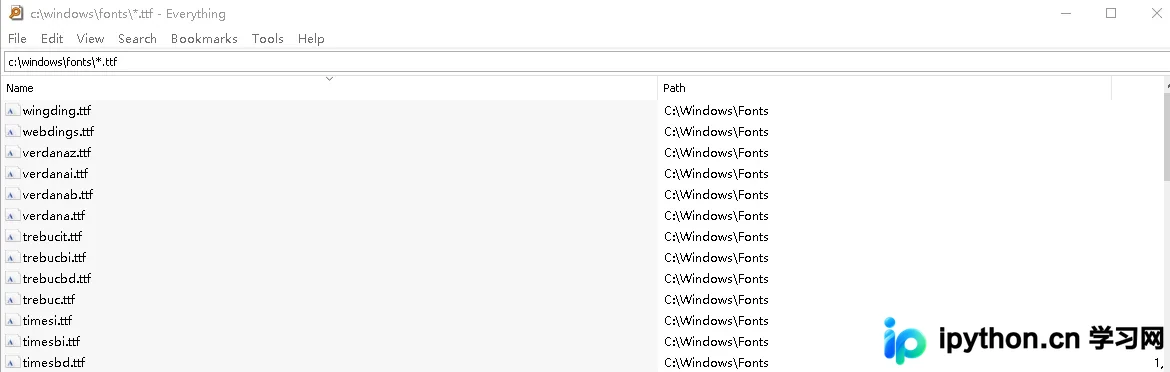
在CentOS系统中,字体文件通常位于/usr/share/fonts/dejavu/目录下。例如在CentOS 7.4环境下:

从中任选一个字体文件即可。Windows系统同理,只需将font_type设置为正确的字体路径,例如:
font_type=r"C:\Windows\Fonts\Arial.ttf"
2. 如何在网页中显示验证码
在前述代码中,验证码以文件形式保存。若在Web应用中使用,每次生成验证码都先保存至磁盘再返回前端,不仅增加磁盘IO开销,还会因频繁生成验证码占用大量磁盘空间。此时,可使用BytesIO模块,使验证码图片的读写直接在内存中进行,并直接返回给前端。同时,将正确的验证码字符串存储于Session中,当用户提交表单时,即可与Session中的正确字符串进行比对。
以Flask框架为例,以下是集成验证码的完整Demo代码:
#!/usr/bin/env python3
# -*- coding: utf-8 -*-
# @Author : Yang
# @Time  : 2017/11/08 15:35
import random
from PIL import Image, ImageDraw, ImageFont, ImageFilter
from io import BytesIO
from flask import Flask, session, request
_letter_cases = "abcdefghjkmnpqrstuvwxy" # 小写字母,去除可能干扰的i,l,o,z
_upper_cases = _letter_cases.upper() # 大写字母
_numbers = ''.join(map(str, range(10))) # 数字
init_chars = ''.join((_letter_cases, _upper_cases, _numbers))
def create_validate_code(size=(120, 30),
             chars=init_chars,
             img_type="GIF",
             mode="RGB",
             bg_color=(230, 230, 230),
             fg_color=(18, 18, 18),
             font_size=20,
             font_type='/usr/share/fonts/dejavu/DejaVuSans-Bold.ttf',
             length=4,
             draw_lines=True,
             n_line=(1, 2),
             draw_points=True,
             point_chance=1):
  '''
  @todo: 生成验证码图片
  @param size: 图片的大小,格式(宽,高),默认为(120, 30)
  @param chars: 允许的字符集合,格式字符串
  @param img_type: 图片保存的格式,默认为GIF,可选的为GIF,JPEG,TIFF,PNG
  @param mode: 图片模式,默认为RGB
  @param bg_color: 背景颜色,默认为白色
  @param fg_color: 前景色,验证码字符颜色,默认为蓝色#0000FF
  @param font_size: 验证码字体大小
  @param font_type: 验证码字体的详细路径,默认为 ae_AlArabiya.ttf
  @param length: 验证码字符个数
  @param draw_lines: 是否划干扰线
  @param n_lines: 干扰线的条数范围,格式元组,默认为(1, 2),只有draw_lines为True时有效
  @param draw_points: 是否画干扰点
  @param point_chance: 干扰点出现的概率,大小范围[0, 100]
  @return: [0]: PIL Image实例
  @return: [1]: 验证码图片中的字符串
  '''
  width, height = size # 宽, 高
  img = Image.new(mode, size, bg_color) # 创建图形
  draw = ImageDraw.Draw(img) # 创建画笔
  def get_chars():
    '''生成给定长度的字符串,返回列表格式'''
    return random.sample(chars, length)
  def create_lines():
    '''绘制干扰线'''
    line_num = random.randint(*n_line) # 干扰线条数
    for i in range(line_num):
      # 起始点
      begin = (random.randint(0, size[0]), random.randint(0, size[1]))
      # 结束点
      end = (random.randint(0, size[0]), random.randint(0, size[1]))
      draw.line([begin, end], fill=(0, 0, 0))
  def create_points():
    '''绘制干扰点'''
    chance = min(100, max(0, int(point_chance))) # 大小限制在[0, 100]
    for w in range(width):
      for h in range(height):
        tmp = random.randint(0, 100)
        if tmp > 100 - chance:
          draw.point((w, h), fill=(0, 0, 0))
  def create_strs():
    '''绘制验证码字符'''
    c_chars = get_chars()
    strs = ' %s ' % ' '.join(c_chars) # 每个字符前后以空格隔开
    font = ImageFont.truetype(font_type, font_size)
    font_width, font_height = font.getsize(strs)
    draw.text(((width - font_width) / 3, (height - font_height) / 3),
         strs, font=font, fill=fg_color)
    return ''.join(c_chars)
  if draw_lines:
    create_lines()
  if draw_points:
    create_points()
  strs = create_strs()
  # 图形扭曲参数
  params = [1 - float(random.randint(1, 2)) / 100,
       0,
       0,
       0,
       1 - float(random.randint(1, 10)) / 100,
       float(random.randint(1, 2)) / 500,
       0.001,
       float(random.randint(1, 2)) / 500
       ]
  img = img.transform(size, Image.PERSPECTIVE, params) # 创建扭曲
  img = img.filter(ImageFilter.EDGE_ENHANCE_MORE) # 滤镜,边界加强(阈值更大)
  return img, strs
app = Flask(__name__)
app.config.update(
  DEBUG=True,
  SECRET_KEY='...'
)
@app.route('/')
def index():
  return 'test'
@app.route('/code')
def get_code():
  # 把strs发给前端,或者在后台使用session保存
  code_img, strs = create_validate_code()
  buf = BytesIO()
  code_img.save(buf, 'jpeg')
  buf_str = buf.getvalue()
  response = app.make_response(buf_str)
  response.headers['Content-Type'] = 'image/gif'
  session['img'] = strs.upper()
  return response
@app.route("/login", methods=["POST", "GET"])
def login():
  if request.method == 'POST':
    if session.get('img') == request.form.get('img').upper():
      return 'OK'
    return 'Error'
  return """
  <form action="" method="post">
    <p>Name:<input type=text name=username>
    <p>Password:<input type=text name=password>
    <p>CAPTCHA:<input type=text name=img>
    <img id="verficode" src="./code" onclick="this.src='./code?'+Math.random()">    # onclick事件用于每次
点击时获取一个新的验证码
    <p><input type=submit value=Login>
  </form>
  """
if __name__ == "__main__":
  app.run(host="0.0.0.0", port=18888, debug=True)
最终运行效果如下:

总结
以上即为本文关于在Python Web中实现验证码图片的代码分享,希望能对大家有所帮助。感兴趣的朋友可继续参考本站其他文章,如python实现人脸识别代码、Python爬虫实例爬取网站搞笑段子、Python入门之三角函数全解【收藏】等。如有任何问题,欢迎随时留言,小编会及时回复。感谢朋友们对本站的支持!
免责声明:本文内容仅供参考,不代表本站观点。转载或引用请注明出处。









