

使用Python自动化设置PowerPoint幻灯片背景(纯色/渐变/图片)

本文详解如何使用Python配合Spire.Presentation组件,以代码方式批量修改PowerPoint文件的幻灯片背景。通过掌握纯色、渐变与图片三种填充模式的API调用流程,可实现演示文稿视觉风格的自动化统一,节省手动排版时间并保证输出一致性。
目标与准备条件
本教程旨在解决频繁修改多份PPT背景耗时的问题。需提前在Python环境中安装相关组件,执行命令行安装命令:pip install spire.presentation。操作前建议对原演示文稿进行备份,避免覆盖源文件导致内容丢失。
第1步:为幻灯片设置纯色背景
目的:快速统一单张或全部幻灯片的底色,提升视觉整洁度。
操作入口:实例化 Presentation 后访问 Slides 集合获取目标页,进而定位 SlideBackground 属性。
关键动作:将背景类型 Type 赋值为 BackgroundType.Custom;填充模式 Fill.FillType 设为 FillFormatType.Solid;通过 Fill.SolidColor.Color 指定颜色对象。
完成状态:保存后打开的新文件显示指定页面无任何贴图或图案,仅渲染设定的纯色图层。
完整代码参考:
from spire.presentation import *

# 初始化演示文稿对象并加载源文件
presentation = Presentation()
presentation.LoadFromFile("Sample.pptx")

# 获取第一张幻灯片
slide = presentation.Slides[0]
background = slide.SlideBackground

# 配置纯色背景参数
background.Type = BackgroundType.Custom
background.Fill.FillType = FillFormatType.Solid
background.Fill.SolidColor.Color = Color.get_LightSeaGreen()

# 安全保存结果
presentation.SaveToFile("output/SolidColorBackground.pptx", FileFormat.Auto)
presentation.Dispose()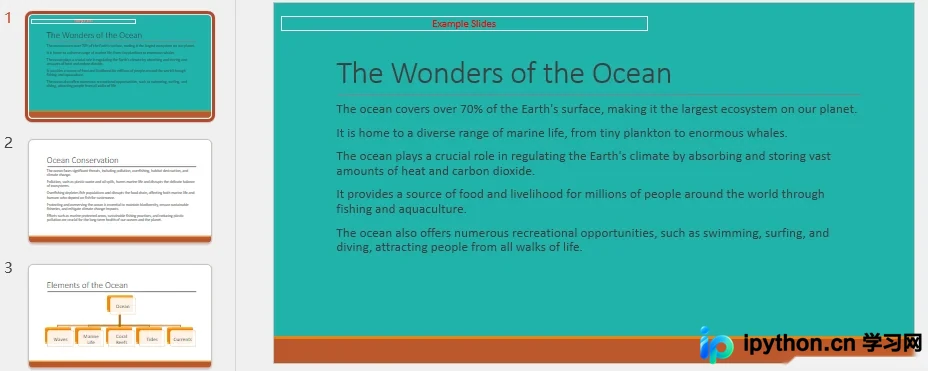
第2步:为幻灯片添加渐变背景
目的:通过平滑色彩过渡营造层次感和专业质感,适用于标题页或章节过渡页。
操作入口:同上,进入 SlideBackground.Fill.Gradient 节点。
关键动作:设置 FillType 为 Gradient;使用 GradientStops.AppendByColor() 追加至少两个色标并定义偏移量(0~1之间);通过 GradientShape 确定线性、矩形或辐射形状;按需调整 LinearGradientFill.Angle 控制光线角度。
完成状态:渲染页面呈现指定的双色或多色平滑过渡,无生硬边界线。
完整代码参考:
from spire.presentation import *

presentation = Presentation()
presentation.LoadFromFile("Sample.pptx")
slide = presentation.Slides[0]
background = slide.SlideBackground

background.Type = BackgroundType.Custom
background.Fill.FillType = FillFormatType.Gradient

# 定义渐变色标(偏移量, 颜色)
background.Fill.Gradient.GradientStops.AppendByColor(0.1, Color.get_LightYellow())
background.Fill.Gradient.GradientStops.AppendByColor(0.7, Color.get_LightPink())

# 设置渐变形态与方向
background.Fill.Gradient.GradientShape = GradientShapeType.Linear
background.Fill.Gradient.LinearGradientFill.Angle = 45

presentation.SaveToFile("output/GradientBackground.pptx", FileFormat.Auto)
presentation.Dispose()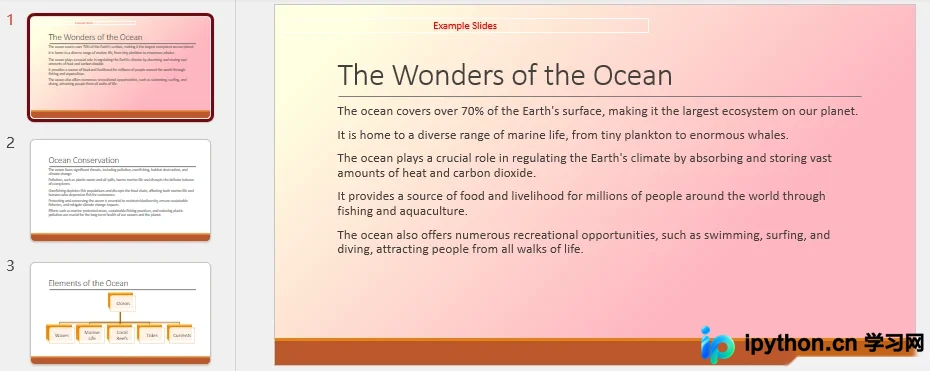
第3步:为幻灯片应用图片背景
目的:将企业Logo、品牌图或摄影素材直接嵌入底层,强化主题识别度。
操作入口:访问 SlideBackground.Fill.PictureFill 接口。
关键动作:将 FillType 设为 Picture;利用 Stream 读取图片文件并通过 Presentation.Images.AppendStream() 将图像资源注入演示文稿缓存;将缓存索引赋值给 EmbedImage;最后通过 PictureFill.FillType 决定拉伸、平铺或适应比例等裁切逻辑。
完成状态:页面底层显示完整图片,上层文本框可正常覆盖且不出现马赛克或错位。
完整代码参考:
from spire.presentation import *

presentation = Presentation()
presentation.LoadFromFile("Sample.pptx")
slide = presentation.Slides[0]
background = slide.SlideBackground

background.Type = BackgroundType.Custom
background.Fill.FillType = FillFormatType.Picture

# 读取图片并追加至文稿资源池
stream = Stream("BackgroundImage.jpg")
imageData = presentation.Images.AppendStream(stream)

# 配置图片填充模式并绑定资源
background.Fill.PictureFill.FillType = PictureFillType.Stretch
background.Fill.PictureFill.Picture.EmbedImage = imageData

presentation.SaveToFile("output/PictureBackground.pptx", FileFormat.Pptx2013)
presentation.Dispose()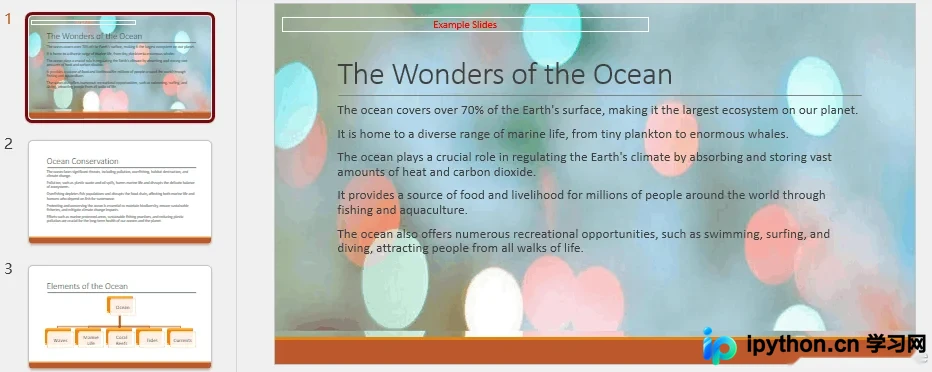
注意事项:不同版本的 Spire.Presentation API 对 Stream 构造参数的校验可能略有差异,若遇到类型报错,请确保传入路径字符串或已打开的二进制字节流。批量遍历幻灯片时,可将 presentation.Slides[0] 替换为 for i in range(presentation.Slides.Count): slide = presentation.Slides[i] 结构以实现全员更新。
以上就是使用Python自动设置PowerPoint幻灯片背景的详细内容,更多关于Python处理Office文档的资料请关注本站其它相关文章!
免责声明:本文内容仅供参考,不代表本站观点。转载或引用请注明出处。









