

Python+pandas编写命令行脚本操作excel的tips详情

发布时间:2026-10-15| 5人浏览过
本文介绍如何使用Python和pandas编写命令行脚本处理Excel文件。内容包括封装logging日志模块、接收操作目录、检测并读取唯一Excel文件、自动备份、异常处理、动态添加列以及进度展示与阶段保存等实用技巧,帮助开发者高效完成数据批量处理任务。
一、python logging日志模块简单封装
在项目根目录下创建 utils/logUtil.py 文件。
import logging
from logging.handlers import TimedRotatingFileHandler
from logging.handlers import RotatingFileHandler
class Log(object):
    STAND = "stand"   # 输出到控制台
    FILE = "file"     # 输出到文件
    ALL = "all"       # 输出到控制台和文件

    def __init__(self, mode=STAND):
        self.LOG_FORMAT = "%(asctime)s - %(levelname)s - %(message)s"
        self.logger = logging.getLogger()
        self.init(mode)
    def debug(self, msg):
        self.logger.debug(msg)
    def info(self, msg):
        self.logger.info(msg)
    def warning(self, msg):
        self.logger.warning(msg)
    def error(self, msg):
        self.logger.error(msg)
    def init(self, mode):
        self.logger.setLevel(logging.DEBUG)
        if mode == "stand":
            # 输出到控制台 ------
            self.stand_mode()
        elif mode == "file":
            # 输出到文件 --------
            self.file_mode()
        elif mode == "all":
            # 输出到控制台和文件
            self.stand_mode()
            self.file_mode()
    def stand_mode(self):
        stand_handler = logging.StreamHandler()
        stand_handler.setLevel(logging.DEBUG)
        stand_handler.setFormatter(logging.Formatter(self.LOG_FORMAT))
        self.logger.addHandler(stand_handler)

    def file_mode(self):
        '''
        filename:日志文件名的prefix;
        when:是一个字符串,用于描述滚动周期的基本单位,字符串的值及意义如下:
         “S”: Seconds
         “M”: Minutes
         “H”: Hours
         “D”: Days
         “W”: Week day (0=Monday)
         “midnight”: Roll over at midnight
        interval: 滚动周期,单位有when指定,比如:when='D',interval=1,表示每天产生一个日志文件;
        backupCount: 表示日志文件的保留个数;
        '''
        # 输出到文件 -----------------------------------------------------------
        # 按文件大小输出
        # file_handler = RotatingFileHandler(filename="my1.log", mode='a', maxBytes=1024 * 1024 * 5, backupCount=10, encoding='utf-8')  # 使用RotatingFileHandler类,滚动备份日志
        # 按时间输出
        file_handler = TimedRotatingFileHandler(filename="my.log", when="D", interval=1, backupCount=10,
                                                encoding='utf-8')
        file_handler.setLevel(logging.DEBUG)
        file_handler.setFormatter(logging.Formatter(self.LOG_FORMAT))
        self.logger.addHandler(file_handler)
log = Log(mode=Log.STAND)
具体使用方法如下:
from utils.logUtil import log
if __name__ == '__main__':
    log.debug("debug msg")
    log.info("info msg")
    log.warning("warning msg")
    log.error("error msg")
运行测试代码后的结果输出。
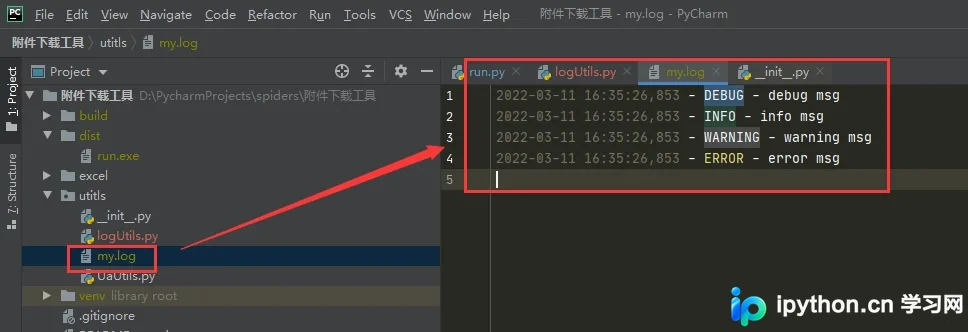
二、pandas编写命令行脚本操作excel的小tips
此处调用上述日志工具;若无需日志功能,可将相关代码替换为 print() 或直接移除。
1、tips
1.1使用说明格式
# 使用说明 -----------------------------------
time.sleep(1)
print('===========================================================')
print('简单说明:使用正则表达式拆分excel表中不规范的作者,初步提取对应需求字段')
print('PS:')
print('1.文件夹下需要有一个excel(只放一个,名称随意),其中一列“作者”保存着待拆分的作者')
print('2.拆分后的excel将新增几列拆分结果列,以 <作者>[拆分] 作为列名标记')
print('===========================================================')
time.sleep(1)
# ------------------------------------------
1.2接收操作目录方法
# 输入操作路径 ----------------------------------------------------------------
operate_dir = input('请输入excel目录(旺柴):')  # D:\PycharmProjects\spiders\图片下载工具\excel
operate_dir = os.path.abspath(operate_dir)
# operate_dir = os.path.abspath(r'C:\Users\cxstar46\Desktop\正则表达式题名拆分测试')
# -----------------------------------------------------------------------------
1.3检测并读取目录下的excel,并限制当前目录只能放一个excel
# 检测excel数量,只能放一个,当只有一个excel时,提取它的路径excel_path -------
log.info('检查路径下的文件格式...')
excel_name = None
excel_count = 0
file_list = os.listdir(operate_dir)
for file in file_list:
    if file.endswith('.xlsx') or file.endswith('.xlx'):
        excel_count += 1
        excel_name = file
if excel_count == 0:
    log.error('文件夹下没有excel')
    input('按任意键退出...')
    raise Exception(0)
if excel_count > 1:
    log.error("无法读取excel,文件夹下有多个excel,或者excel未关闭")
    input('按任意键退出...')
    raise Exception(0)

# print(excel_name)
# raise Exception(1212)
# ----------------------------------------------------------------------
# print(excel_path)
# print(img_dir)

# 读取excel ----------------------------------------
excel_path = os.path.join(operate_dir, excel_name)
# print(excel_path)
try:
    df = pd.read_excel(excel_path)
    df = df.where(df.notnull(), None)
except Exception as e:
    log.error(e)
    log.error('文件不存在或已损坏...')
    input('按任意键退出...')
    raise Exception(0)
# -------------------------------------------------

# 打印excel行数
print(df.shape[0])
1.4备份excel
# 备份原始excel表 --------------------------------------------------------------
log.info('备份excel...')
bak_dir = '封面上传前的备份'   # 备份文件夹的名称
file_list = os.listdir(operate_dir)
if bak_dir not in file_list:
    os.makedirs(os.path.join(operate_dir, bak_dir))
bak_excel_path = os.path.join(os.path.join(operate_dir, bak_dir), "{}_{}".format(datetime.datetime.now().strftime("%Y-%m-%d_%H-%M-%S"), excel_name))
shutil.copyfile(excel_path, bak_excel_path)
# -----------------------------------------------------------------------------
1.5报错暂停,并显示异常信息
try:
    raise Exception("执行业务报错")
except Exception as e:
    import traceback
    log.error(traceback.format_exc())	# 记录异常信息
input('执行完毕,按任意键继续...')
1.6判断excel是否包含某列,不包含就新建
cover_ruid_col_name = "封面ruid"

# 没有封面ruid这一列就创建
if cover_ruid_col_name not in df.columns.values:
    df.loc[:, cover_ruid_col_name] = None
1.7进度展示与阶段保存
# 读取excel
excel_path = './封面上传测试.xlsx'
df = pd.read_excel(excel_path)
review_col = "审核结果"
# 没有“审核结果”这一列就创建
if review_col not in df.columns.values:
    df.loc[:, review_col] = None
for i in range(df.shape[0]):

	# 打印进度 ---------------------------------------------
    log.info("----------------------------------")
    log.info("当前进度: {} / {}".format(i+1, df.shape[0]))
    # ----------------------------------------------------
	# 执行表格插入业务
	# 判断业务
	# 吧啦吧啦
	# 业务执行结果插入原表
	df.loc[i, "审核结果"] = "好耶"

    # 阶段性保存 ----------------------------
    save_space = 200	# 每执行两百行保存一次
    if i+1 % save_space == 0 and i != 0:
        df.to_excel(excel_path, index=0)
        log.info("阶段性保存...")
    # -------------------------------------
到此这篇关于Python+pandas编写命令行脚本操作excel的tips详情的文章就介绍到这了,更多相关Python操作excel的tips内容请搜索本站以前的文章或继续浏览下面的相关文章希望大家以后多多支持本站!
免责声明:本文内容仅供参考,不代表本站观点。转载或引用请注明出处。









