

Python pyecharts折线图实战:从基础配置到高级可视化技巧

本文深入解析Python中pyecharts库绘制折线图的多种高级配置。通过自定义标签显示、断点样式设置、双折线极值与平均值标记、面积图非紧贴Y轴以及3D旋转弹簧图等具体案例,展示如何根据业务场景灵活调整参数。文章提供完整代码模板,帮助开发者快速实现专业级数据可视化效果,适用于股票分析、用电量监控等实际应用场景。
前言
经过多个案例的演示,读者应当已经注意到每个图表都对应着特定的配置参数。官方文档虽然详尽,但阅读起来往往较为困难。通过具体案例来解析各项参数的配置方法,具有较高的参考价值和实用意义。正如古语所言“磨刀不误砍柴工”,要实现炉火纯青的可视化效果,仍需不断实践与积累。
说明:部分示例数据调用了相关库资源:,如需使用需自行添加数据,操作十分简单,无需担心。
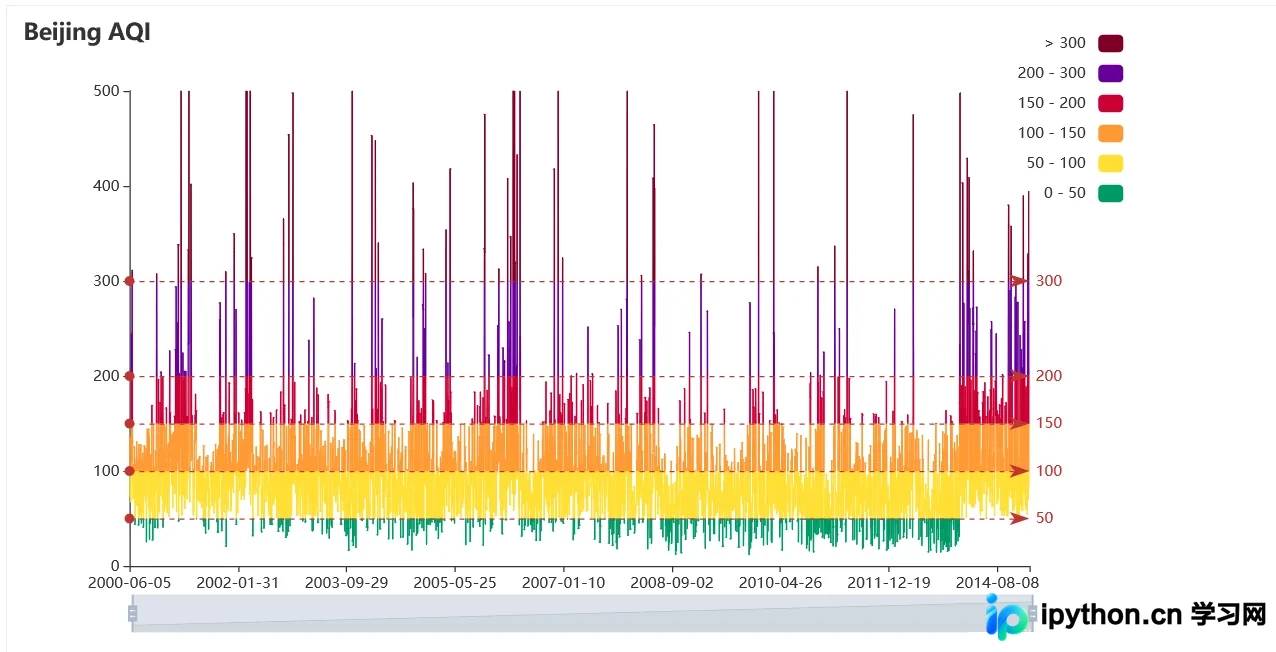
上述图形在普通日常场景中可能使用频率不高,但在股票分析等专业领域却颇具价值。
折线图模板系列
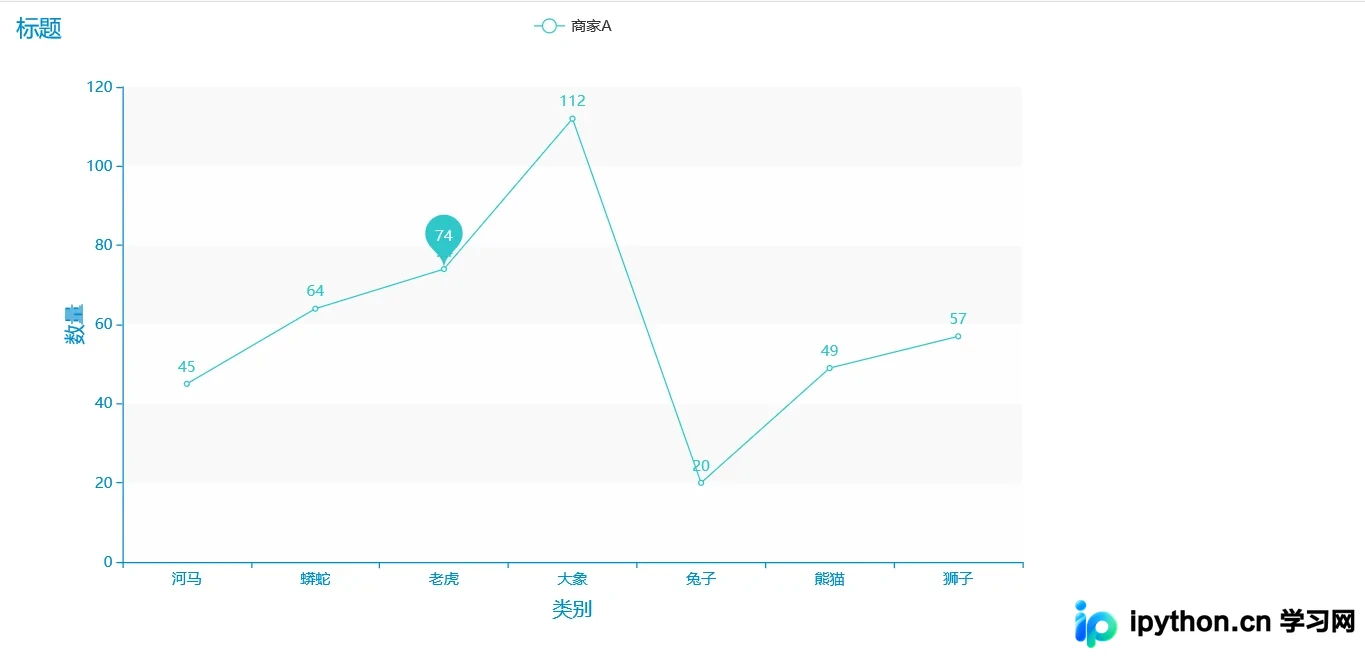
自定义标签数据折线图
有时我们并不希望显示所有数据标签,因为这样会导致图表过于繁杂。数据可视化的核心原则是在保持视觉效果炫酷的同时,准确清晰地向用户呈现数据。因此,我们需要根据特定场景选择合适的图形展示方式。
import pyecharts.options as opts
from pyecharts.charts import Line
from pyecharts.faker import Faker
from pyecharts.globals import ThemeType

x, y = Faker.choose(), Faker.values()#更改数据集即可
c = (
Line({"theme":ThemeType.MACARONS})#不添加默认红色
.add_xaxis(x)
.add_yaxis(
"商家A",
y,
markpoint_opts=opts.MarkPointOpts(
data=[opts.MarkPointItem(name="自定义标记点", coord=[x[2], y[2]], value=y[2])] # 这里定义要显示的标签数据
),
)
.set_global_opts(title_opts=opts.TitleOpts(title="标题"),
xaxis_opts=opts.AxisOpts(
name='类别',
name_location='middle',
name_gap=30, # 标签与轴线之间的距离,默认为20,最好不要设置20
name_textstyle_opts=opts.TextStyleOpts(
font_family='Times New Roman',
font_size=16 # 标签字体大小
)),
yaxis_opts=opts.AxisOpts(
name='数量',
name_location='middle',
name_gap=30,
name_textstyle_opts=opts.TextStyleOpts(
font_family='Times New Roman',
font_size=16
# font_weight='bolder',
)),
# toolbox_opts=opts.ToolboxOpts() # 工具选项
)
.render("自定义标签.html")
)
一天用电量折线图(特定场景)
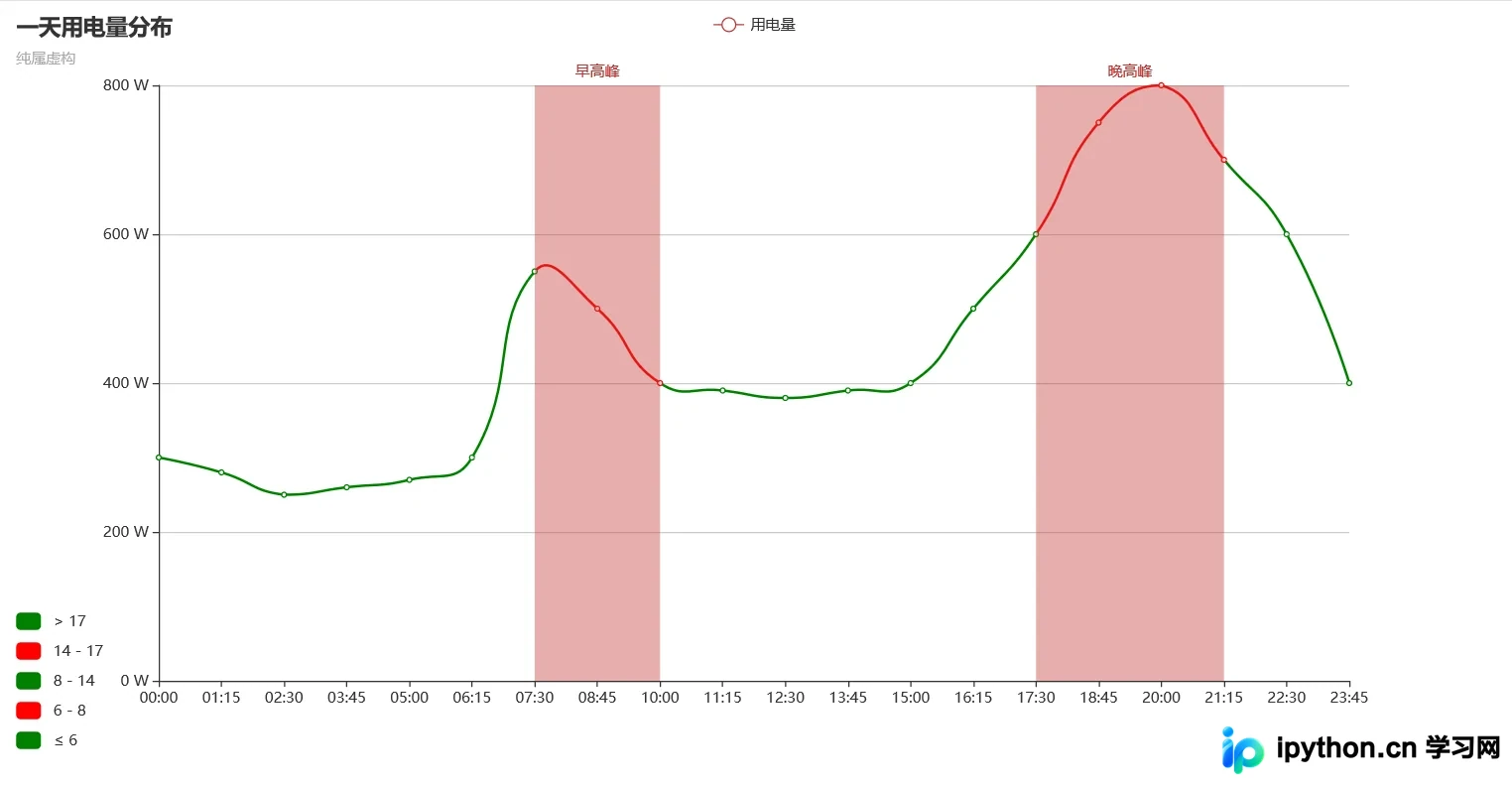
此模板可用于展示一天内的用电量分布,也可在此基础上进行修改,衍生出其他类别的折线图。该模板旨在提供基础框架,用户可根据自身应用场景进行调整以解决具体问题。
import pyecharts.options as opts
from pyecharts.charts import Line
x_data = [
"00:00",
"01:15",
"02:30",
"03:45",
"05:00",
"06:15",
"07:30",
"08:45",
"10:00",
"11:15",
"12:30",
"13:45",
"15:00",
"16:15",
"17:30",
"18:45",
"20:00",
"21:15",
"22:30",
"23:45",
]
y_data = [
300,
280,
250,
260,
270,
300,
550,
500,
400,
390,
380,
390,
400,
500,
600,
750,
800,
700,
600,
400,
]

(
Line(init_opts=opts.InitOpts(width="1200px", height="600px"))
.add_xaxis(xaxis_data=x_data)
.add_yaxis(
series_name="用电量",
y_axis=y_data,
is_smooth=True,
label_opts=opts.LabelOpts(is_show=False),
linestyle_opts=opts.LineStyleOpts(width=2),
)
.set_global_opts(
title_opts=opts.TitleOpts(title="一天用电量分布", subtitle="纯属虚构"),
tooltip_opts=opts.TooltipOpts(trigger="axis", axis_pointer_type="cross"),
xaxis_opts=opts.AxisOpts(boundary_gap=False),
yaxis_opts=opts.AxisOpts(
axislabel_opts=opts.LabelOpts(formatter="{value} W"),
splitline_opts=opts.SplitLineOpts(is_show=True),
),
visualmap_opts=opts.VisualMapOpts(
is_piecewise=True,
dimension=0,
pieces=[
{"lte": 6, "color": "green"},
{"gt": 6, "lte": 8, "color": "red"},
{"gt": 8, "lte": 14, "color": "green"},
{"gt": 14, "lte": 17, "color": "red"},
{"gt": 17, "color": "green"},
],
),
)
.set_series_opts(
markarea_opts=opts.MarkAreaOpts(
data=[
opts.MarkAreaItem(name="早高峰", x=("07:30", "10:00")),
opts.MarkAreaItem(name="晚高峰", x=("17:30", "21:15")),
]
)
)
.render("用电量折线图.html")
)
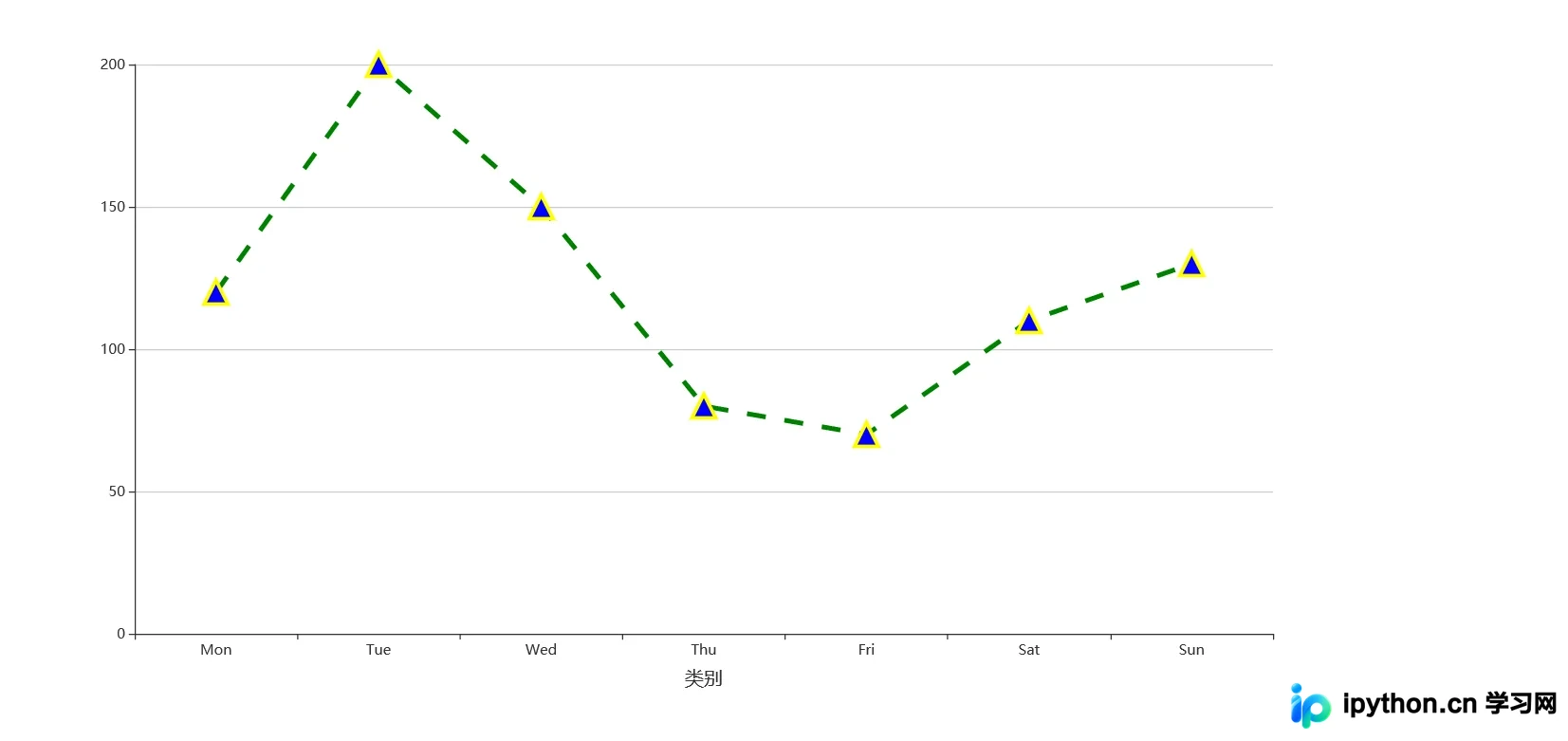
断点折线图(根据场景进行配置)
import pyecharts.options as opts
from pyecharts.charts import Line
(
Line(init_opts=opts.InitOpts(width="1200px", height="600px"))
.add_xaxis(xaxis_data=["Mon", "Tue", "Wed", "Thu", "Fri", "Sat", "Sun"])
.add_yaxis(
series_name="",
y_axis=[120, 200, 150, 80, 70, 110, 130],
symbol="triangle",
symbol_size=20,
linestyle_opts=opts.LineStyleOpts(color="green", width=4, type_="dashed"),
label_opts=opts.LabelOpts(is_show=False),
itemstyle_opts=opts.ItemStyleOpts(
border_width=3, border_color="yellow", color="blue"
),
)
.set_global_opts(
xaxis_opts=opts.AxisOpts(type_="category",
name='类别',
name_location='middle',
name_gap=30, # 标签与轴线之间的距离,默认为20,最好不要设置20
name_textstyle_opts=opts.TextStyleOpts(
font_family='Times New Roman',
font_size=16 # 标签字体大小
)
),
yaxis_opts=opts.AxisOpts(
type_="value",
axistick_opts=opts.AxisTickOpts(is_show=True),
splitline_opts=opts.SplitLineOpts(is_show=True),
),
tooltip_opts=opts.TooltipOpts(is_show=False),
)
.render("断点折线图.html")
)
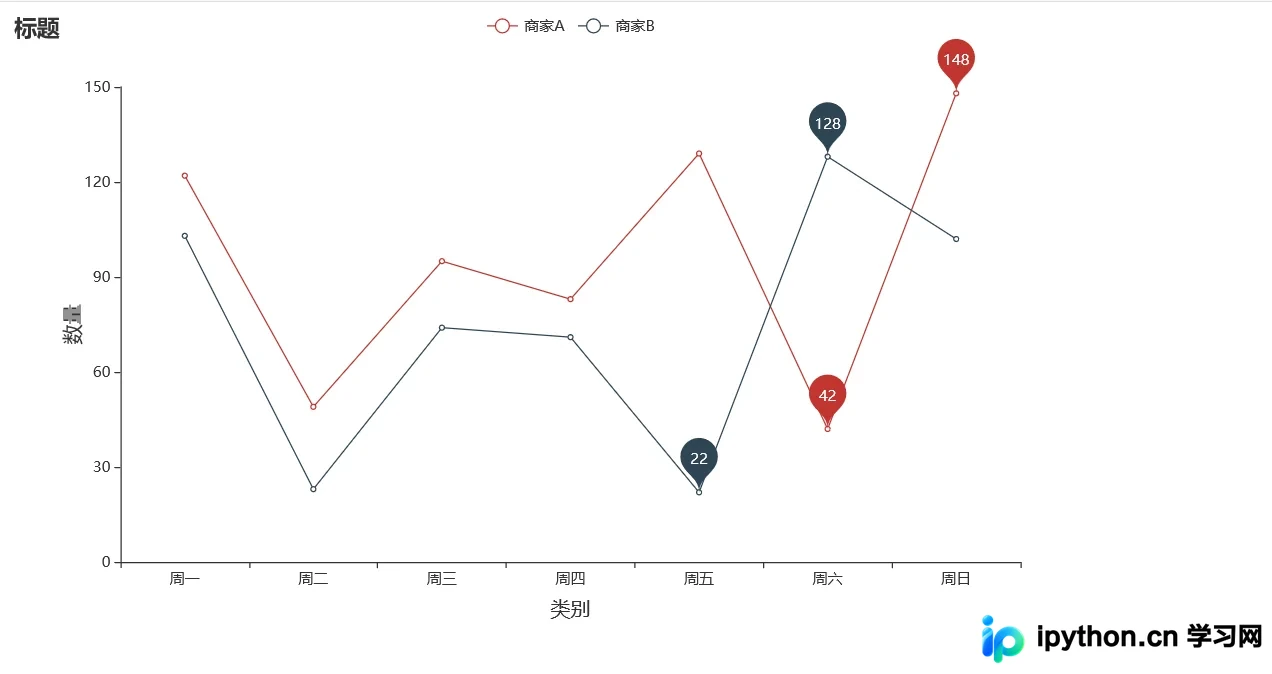
双折线图显示最低最高数据标签(不显示其他数据标签)
当折线图中的数据点过多时,若仅依赖鼠标悬停查看数值,在制作PPT或导出图片时将显得不够直观。此时,直接显示数据的最高点和最低点标签能提供更清晰的视觉信息。
import pyecharts.options as opts
from pyecharts.charts import Line
from pyecharts.faker import Faker

c = (
Line()
.add_xaxis(Faker.choose())
.add_yaxis(
"商家A",
Faker.values(),
label_opts=opts.LabelOpts(is_show=False),
markpoint_opts=opts.MarkPointOpts(data=[opts.MarkPointItem(type_="min"),
opts.MarkPointItem(type_="max")]),

)
.add_yaxis(
"商家B",
Faker.values(),
label_opts=opts.LabelOpts(is_show=False),
markpoint_opts=opts.MarkPointOpts(data=[opts.MarkPointItem(type_="min"),
opts.MarkPointItem(type_="max")]),
)
.set_global_opts(title_opts=opts.TitleOpts(title="标题"),
xaxis_opts=opts.AxisOpts(
name='类别',
name_location='middle',
name_gap=30, # 标签与轴线之间的距离,默认为20,最好不要设置20
name_textstyle_opts=opts.TextStyleOpts(
font_family='Times New Roman',
font_size=16 # 标签字体大小
)),
yaxis_opts=opts.AxisOpts(
name='数量',
name_location='middle',
name_gap=30,
name_textstyle_opts=opts.TextStyleOpts(
font_family='Times New Roman',
font_size=16
# font_weight='bolder',
)),
# toolbox_opts=opts.ToolboxOpts() # 工具选项
)
.render("双折线图显示最低最高.html")
)
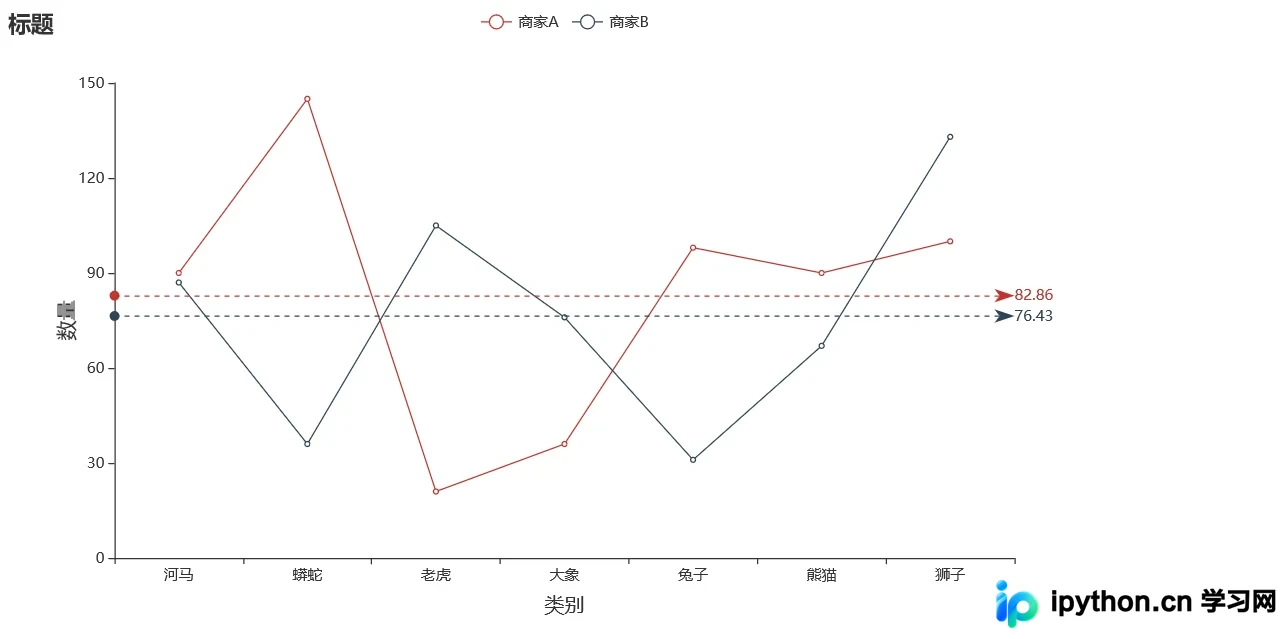
双折线图显示平均刻度数据标签(数据可显示)
该双折线图适用于需要展示一类数据集平均值的场景,通过配置相关参数即可实现。图中图例部分未显示具体数据,但根据需求也可选择显示数据标签。
import pyecharts.options as opts
from pyecharts.charts import Line
from pyecharts.faker import Faker

c = (
Line()
.add_xaxis(Faker.choose())
.add_yaxis(
"商家A",
Faker.values(),
label_opts=opts.LabelOpts(is_show=False),#允许显示数据
markline_opts=opts.MarkLineOpts(data=[opts.MarkLineItem(type_="average")]),
)
.add_yaxis(
"商家B",
Faker.values(),
label_opts=opts.LabelOpts(is_show=False),
markline_opts=opts.MarkLineOpts(data=[opts.MarkLineItem(type_="average")]),
)
.set_global_opts(title_opts=opts.TitleOpts(title="标题"),
xaxis_opts=opts.AxisOpts(
name='类别',
name_location='middle',
name_gap=30, # 标签与轴线之间的距离,默认为20,最好不要设置20
name_textstyle_opts=opts.TextStyleOpts(
font_family='Times New Roman',
font_size=16 # 标签字体大小
)),
yaxis_opts=opts.AxisOpts(
name='数量',
name_location='middle',
name_gap=30,
name_textstyle_opts=opts.TextStyleOpts(
font_family='Times New Roman',
font_size=16
# font_weight='bolder',
)),
# toolbox_opts=opts.ToolboxOpts() # 工具选项
)
.render("双折线图显示平均刻度.html")
)
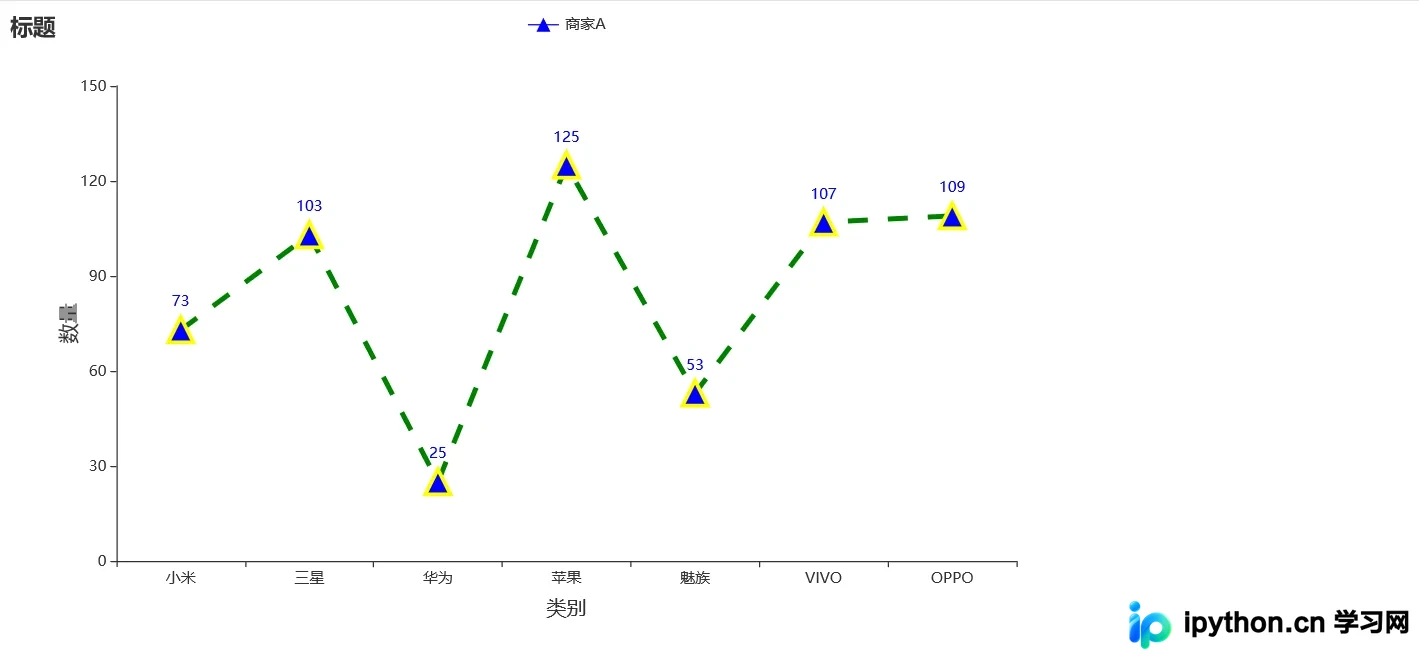
断点折线图(显示数据项)
前几个示例中未展示具体数据及标签,本例是对前述设计的改造与升级,旨在更直观地呈现数据项细节。
import pyecharts.options as opts
from pyecharts.charts import Line
from pyecharts.faker import Faker

c = (
Line()
.add_xaxis(xaxis_data=Faker.choose())
.add_yaxis(
"商家A",
Faker.values(),
symbol="triangle",
symbol_size=20,
linestyle_opts=opts.LineStyleOpts(color="green", width=4, type_="dashed"),
itemstyle_opts=opts.ItemStyleOpts(
border_width=3, border_color="yellow", color="blue"
),#可进行多维叠加
)
.set_global_opts(title_opts=opts.TitleOpts(title="标题"),
xaxis_opts=opts.AxisOpts(
name='类别',
name_location='middle',
name_gap=30, # 标签与轴线之间的距离,默认为20,最好不要设置20
name_textstyle_opts=opts.TextStyleOpts(
font_family='Times New Roman',
font_size=16 # 标签字体大小
)),
yaxis_opts=opts.AxisOpts(
name='数量',
name_location='middle',
name_gap=30,
name_textstyle_opts=opts.TextStyleOpts(
font_family='Times New Roman',
font_size=16
# font_weight='bolder',
)),
# toolbox_opts=opts.ToolboxOpts() # 工具选项
)
.render("断点显示数据.html")
)
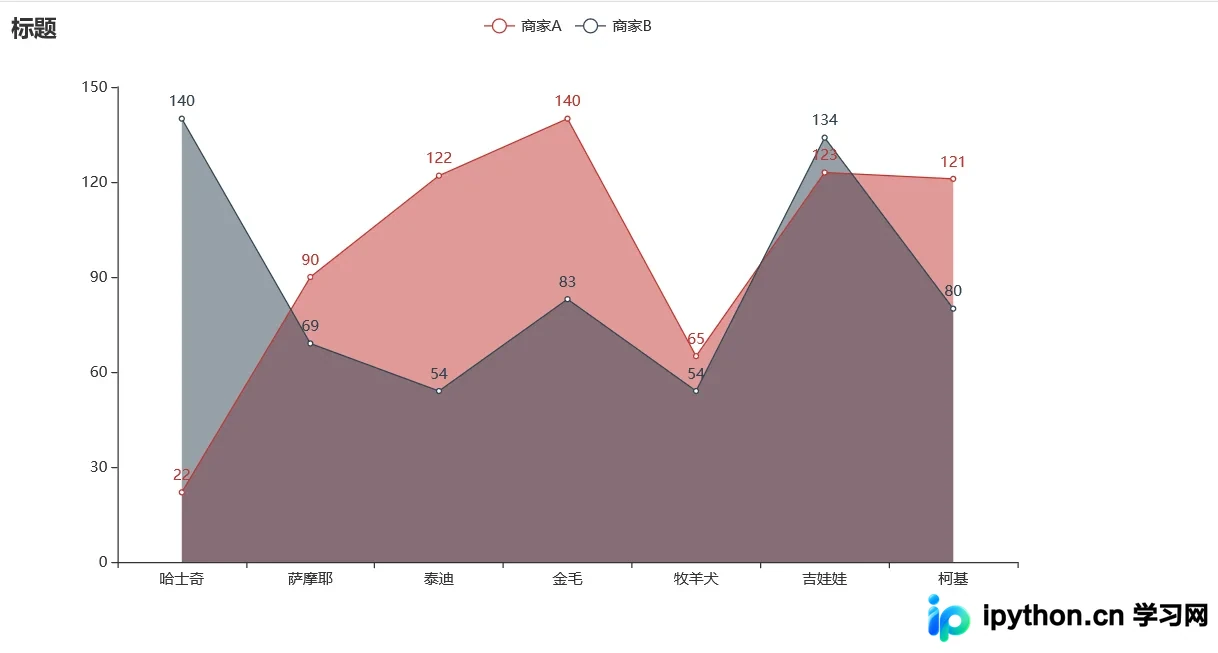
面积折线图(不紧贴)
前文曾展示过紧贴Y轴的曲线折线图,而此示例为不紧贴Y轴的折线形式,两者在视觉呈现上有所区别。
import pyecharts.options as opts
from pyecharts.charts import Line
from pyecharts.faker import Faker

c = (
Line()
.add_xaxis(Faker.choose())
.add_yaxis("商家A", Faker.values(), areastyle_opts=opts.AreaStyleOpts(opacity=0.5))
.add_yaxis("商家B", Faker.values(), areastyle_opts=opts.AreaStyleOpts(opacity=0.5))
.set_global_opts(title_opts=opts.TitleOpts(title="标题"))
.render("面积折线图不紧贴.html")
)
3D旋转弹簧图
运行生成后,图形会自动旋转。许多用户好奇此类炫酷图形的实现原理。通过查看代码可知,其实现并不复杂,代码量适中,主要基于算法与数学设计,这也印证了“几何之美”的概念。
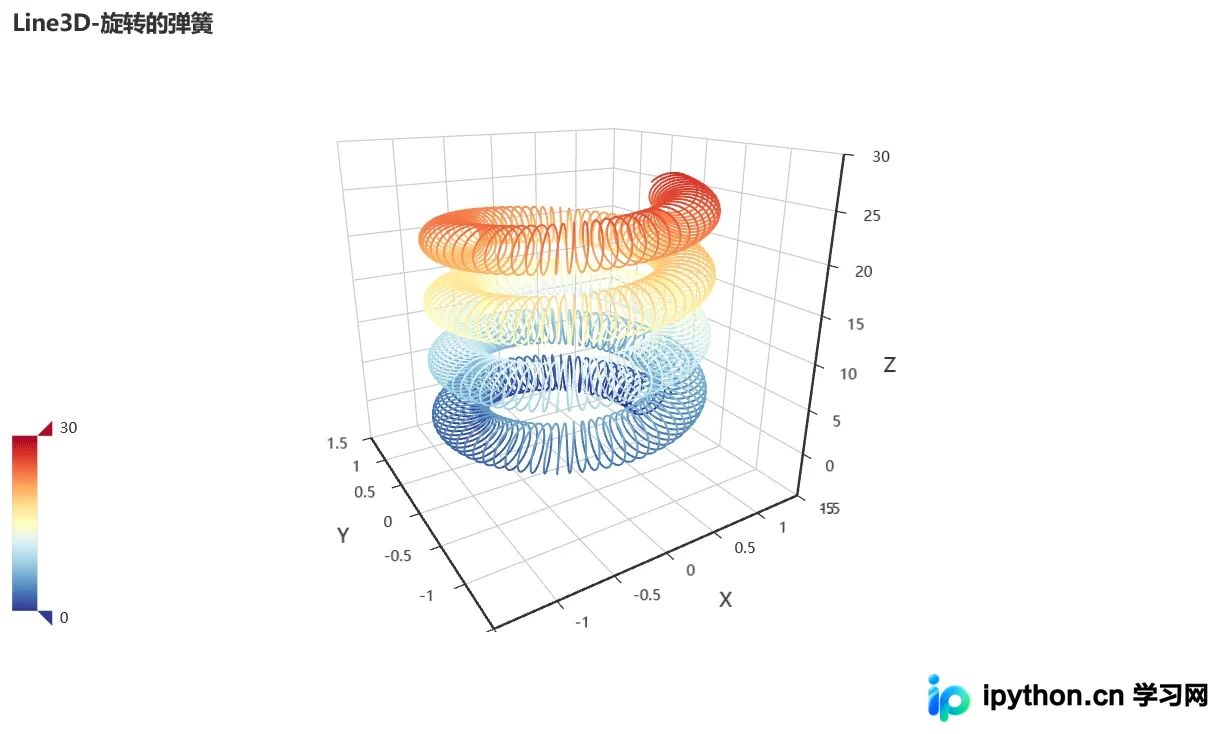
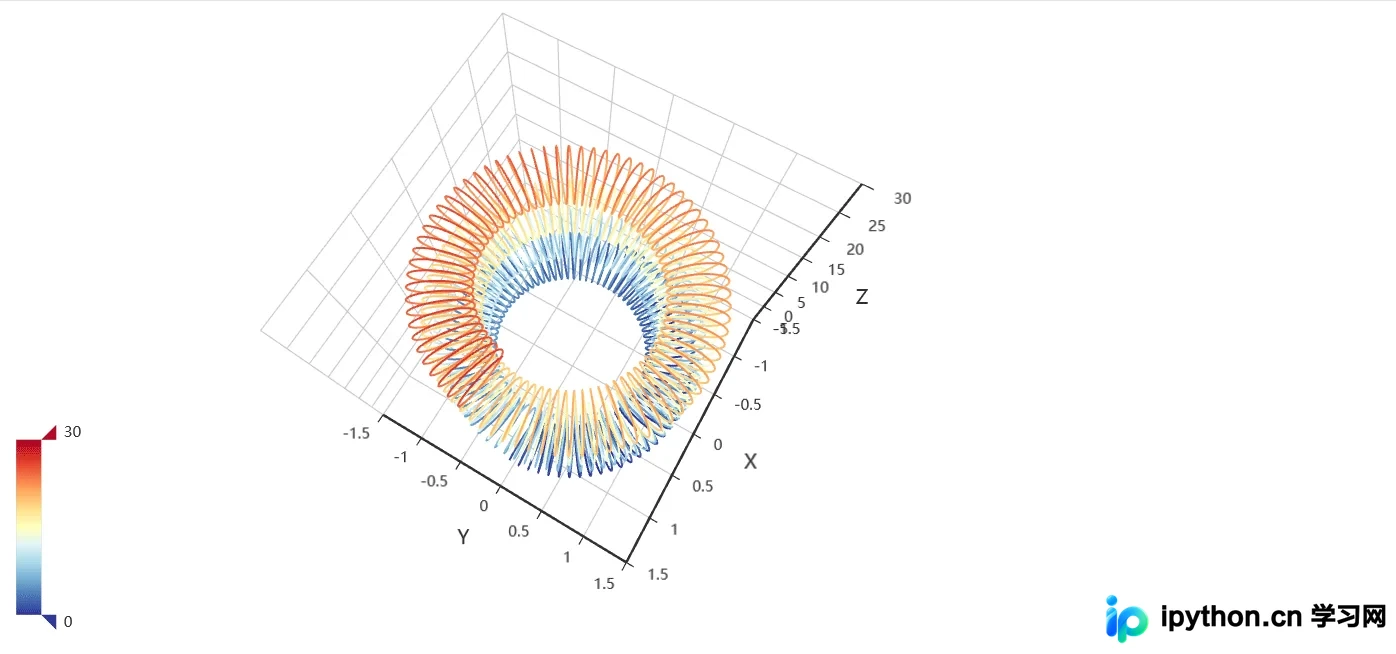
到此这篇关于Python绘制折线图可视化神器pyecharts的文章就介绍到这了,更多相关Python pyecharts内容请搜索本站以前的文章或继续浏览下面的相关文章希望大家以后多多支持本站!
免责声明:本文内容仅供参考,不代表本站观点。转载或引用请注明出处。









