

Python使用python-docx设置Word全局与文本样式详解

本文介绍如何使用Python的python-docx库设置Word文档的全局样式和文本样式。通过修改styles对象集,可统一设置字体、颜色和大小;针对标题和段落,可单独调整对齐方式、斜体、粗体及下划线。代码示例展示了具体实现方法,帮助生成美观的Word文档。
在上一章节中,我们学习了如何生成Word文档并在文档行中添加各种内容。今天,我们将在此基础上进一步操作,对内容进行样式设置,使文档外观更加美观。
全局样式的定义
通过设置全局样式,可以使Word全文继承该样式效果。
使用方法如下:
style = document_obj.styles['Normal']
通过Document对象调用styles对象集,使用中括号选择全局样式,从而获得样式对象。
for style in document_obj.styles:	# 通过 for 循环可以查看 styles 对象集
    print(style)
styles对象集包含以下内容:
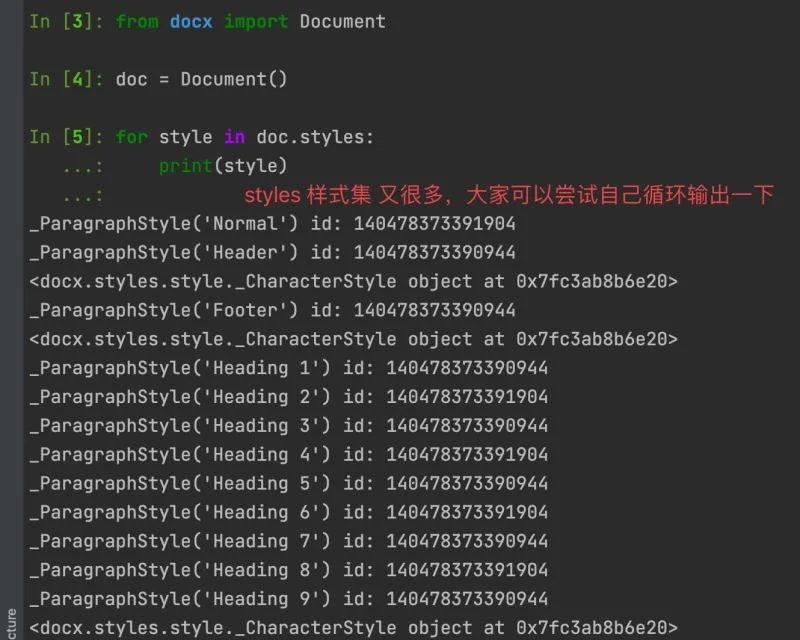
以下是全局定义的基本样式示例:
字体设置:style.font.name = '微软雅黑'
字体颜色设置:style.font.color.rgb = RGBColor(255, 0, 0)
通过from docx.shared import RGBColor调用docx包的三原色模块。
字体大小设置:style.font.size = Pt(20)
通过from docx.shared import Pt调用docx包的字体大小设置模块。
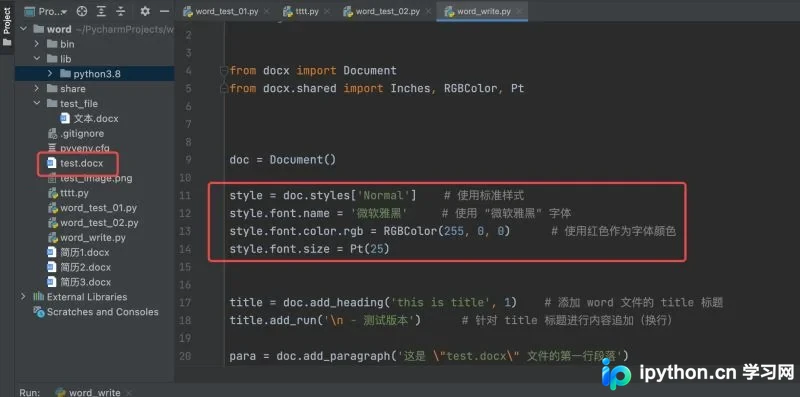
代码示例如下(基于上一章节的代码进行全局样式演示):
# coding:utf-8

from docx import Document
from docx.shared import Inches, RGBColor, Pt

doc = Document()

style = doc.styles['Normal']    # 使用标准样式
style.font.name = '微软雅黑'     # 使用 "微软雅黑" 字体
style.font.color.rgb = RGBColor(255, 0, 0)      # 使用红色作为字体颜色
style.font.size = Pt(25)

title = doc.add_heading('this is title', 1)    # 添加 word 文件的 title 标题
title.add_run('\n - 测试版本')      # 针对 title 标题进行内容追加(换行)

para = doc.add_paragraph('这是 \"test.docx\" 文件的第一行段落')
para.add_run('\n这是 \"test.docx\" 文件追加的的第二行段落')

image = doc.add_picture('test_image.png', width=Inches(3), height=Inches(1.5))      # 添加图片

table_title = ['name', 'age', 'sex']    # 定义表格的第一行的标题
table = doc.add_table(rows=1, cols=3)   # 定义表格的行数、列数
table_cells = table.rows[0].cells       # 将 table_title 的每列的名称写入表格
table_cells[0].text = table_title[0]
table_cells[1].text = table_title[1]
table_cells[2].text = table_title[2]

data = [            # 定义 data 的内容,准备将其追加写入表格
    ('Neo', '18', 'man'),
    ('Adem', '17', 'man'),
    ('Lily', '18', 'women')
]

for i in data:      # 利用 for 循环将 data 追加写入表格
    row_cells = table.add_row().cells
    row_cells[0].text = i[0]
    row_cells[1].text = i[1]
    row_cells[2].text = i[2]

doc.add_page_break()        # 添加 word 文件的分页
title = doc.add_heading('this is page_2 title', 1)    # 添加 word 文件的第二分页的 title 标题

doc.save('test.docx')
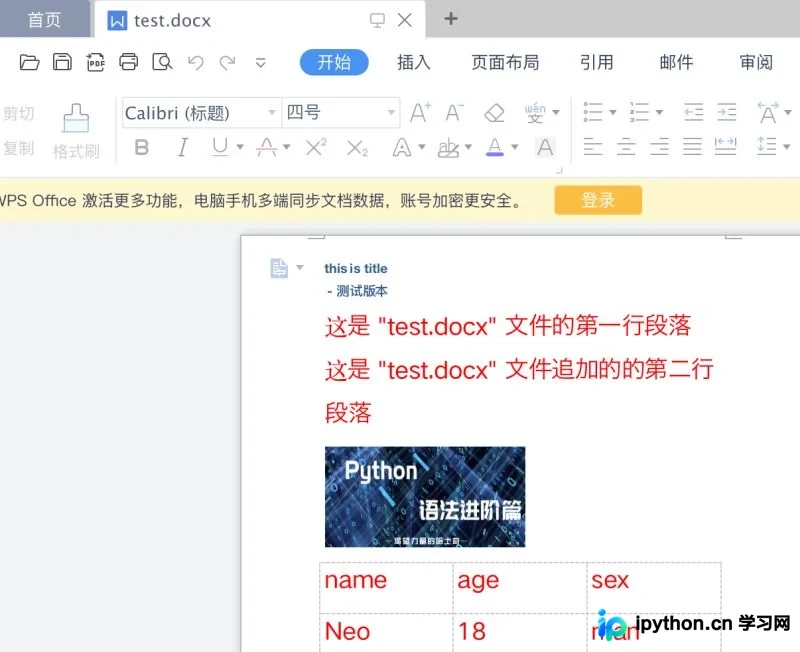
运行结果如下:
文本样式的定义
标题与段落
从上述截图可以看出,当设置全局字体的颜色和大小后,只有段落受到影响,而标题未受影响。这引出了文本样式的概念。
字体设置:
obj.font.name = "微软雅黑"中的obj表示标题与段落的对象,与设置全局字体的方式一致。
字体颜色设置:
obj.font.color.rgb = RGBColor(255, 0, 0)
字体大小设置:
obj.font.size = Pt(20)
标题居中设置:
obj.alignment = WD_PARAGRAPH_ALIGNMENT.CENTER需要导入:from docx.enum.text import WD_PARAGRAPH_ALIGNMENT。
注:除了居中,还可以设置居左或居右:left 或者 right。
字体斜体设置:
obj.italic = True
设置为True时为斜体,为False时为正常字体。
字体粗体设置:
obj.blod = True
设置为True时为粗体,为False时为正常字体。
字体下划线设置:
obj.underline = True
设置为True时增加下划线,为False时为正常字体。
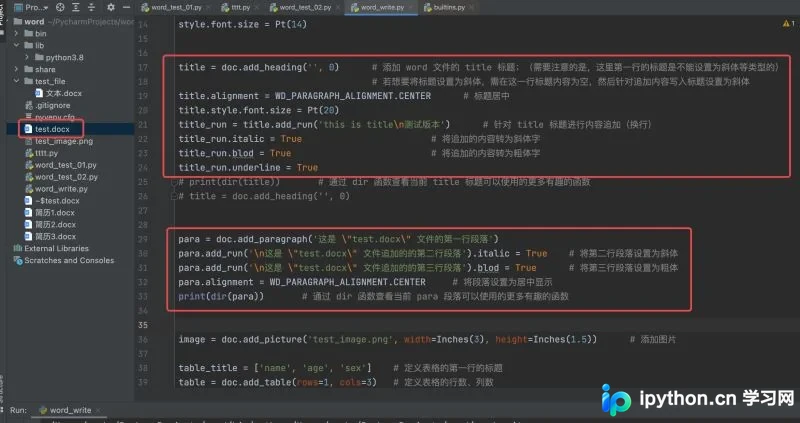
代码示例如下:
# coding:utf-8

from docx import Document
from docx.shared import Inches, RGBColor, Pt
from docx.enum.text import WD_PARAGRAPH_ALIGNMENT

doc = Document()

style = doc.styles['Normal']    # 使用标准样式
style.font.name = '微软雅黑'     # 使用 "微软雅黑" 字体
# style.font.color.rgb = RGBColor(255, 0, 0)      # 使用红色作为字体颜色
style.font.size = Pt(14)

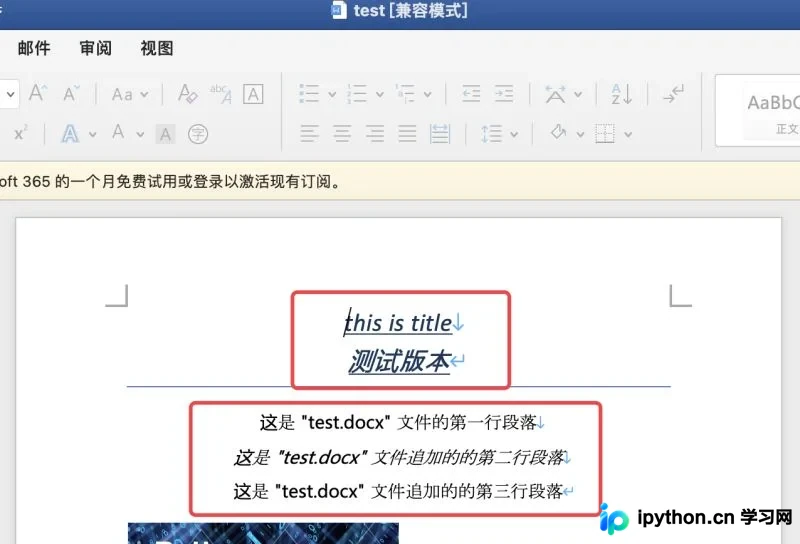
title = doc.add_heading('', 0)      # 添加 word 文件的 title 标题;(需要注意的是,这里第一行的标题是不能设置为斜体等类型的)
                                    # 若想要将标题设置为斜体,需在这一行标题内容为空,然后针对追加内容写入标题设置为斜体
title.alignment = WD_PARAGRAPH_ALIGNMENT.CENTER      # 标题居中
title.style.font.size = Pt(20)
title_run = title.add_run('this is title\n测试版本')      # 针对 title 标题进行内容追加(换行)
title_run.italic = True                        # 将追加的内容转为斜体字
title_run.blod = True                          # 将追加的内容转为粗体字
title_run.underline = True
# print(dir(title))       # 通过 dir 函数查看当前 title 标题可以使用的更多有趣的函数

para = doc.add_paragraph('这是 \"test.docx\" 文件的第一行段落')
para.add_run('\n这是 \"test.docx\" 文件追加的的第二行段落').italic = True    # 将第二行段落设置为斜体
para.add_run('\n这是 \"test.docx\" 文件追加的的第三行段落').blod = True      # 将第三行段落设置为粗体
para.alignment = WD_PARAGRAPH_ALIGNMENT.CENTER     # 将段落设置为居中显示
print(dir(para))       # 通过 dir 函数查看当前 para 段落可以使用的更多有趣的函数

image = doc.add_picture('test_image.png', width=Inches(3), height=Inches(1.5))      # 添加图片

table_title = ['name', 'age', 'sex']    # 定义表格的第一行的标题
table = doc.add_table(rows=1, cols=3)   # 定义表格的行数、列数
table_cells = table.rows[0].cells       # 将 table_title 的每列的名称写入表格
table_cells[0].text = table_title[0]
table_cells[1].text = table_title[1]
table_cells[2].text = table_title[2]

data = [            # 定义 data 的内容,准备将其追加写入表格
    ('Neo', '18', 'man'),
    ('Adem', '17', 'man'),
    ('Lily', '18', 'women')
]

for i in data:      # 利用 for 循环将 data 追加写入表格
    row_cells = table.add_row().cells
    row_cells[0].text = i[0]
    row_cells[1].text = i[1]
    row_cells[2].text = i[2]

doc.add_page_break()        # 添加 word 文件的分页
title = doc.add_heading('this is page_2 title', 1)    # 添加 word 文件的第二分页的 title 标题

doc.save('test.docx')
运行结果如下:
到此,关于Python设置Word全局样式和文本样式的示例代码文章介绍完毕。更多相关Python Word样式内容请搜索本站以前的文章或继续浏览下面的相关文章,希望大家以后多多支持本站!
免责声明:本文内容仅供参考,不代表本站观点。转载或引用请注明出处。









