

利用Python处理Excel数据并通过ECharts实现网页可视化

发布时间:2026-10-15| 4人浏览过
本文介绍如何使用Python读取Excel文件中的历史房价数据,通过xlrd模块进行数据清洗与分割,并结合ECharts库在HTML页面中实现交互式可视化展示。
一、需求背景
近期,数据可视化课程要求对广州历史房价数据进行可视化处理。老师提供了名为“广州历史房价.xls”的文件,由于数据量较大,手动复制粘贴效率低下,因此决定使用Python脚本对数据进行预处理,以便生成便于直接复制粘贴的格式。
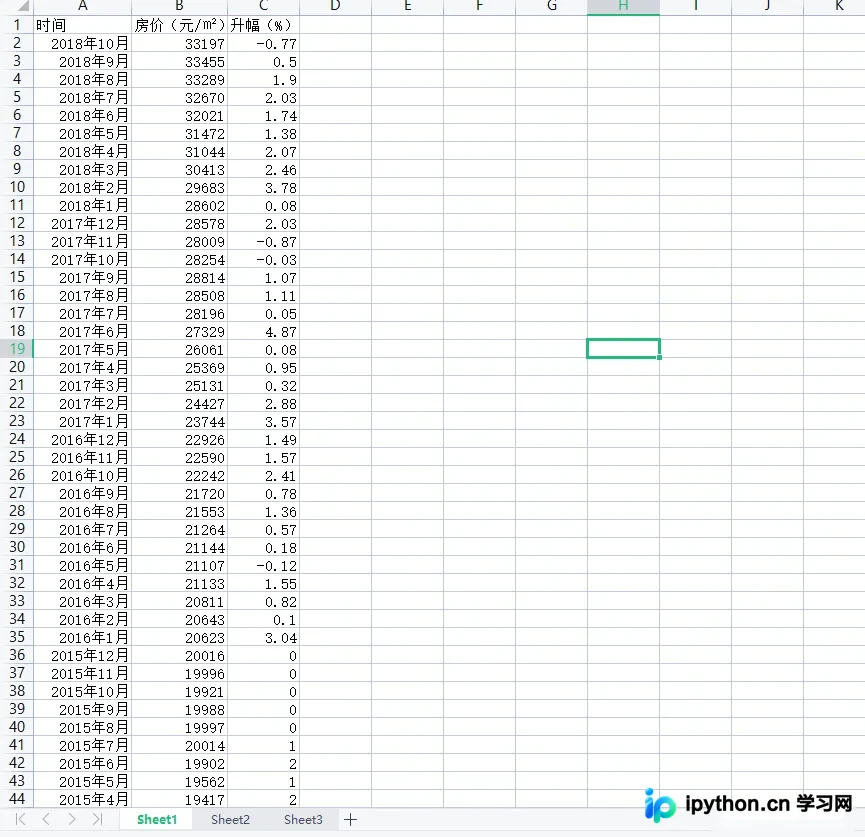
二、环境配置:安装xlrd模块
pip install xlrd大多数开发环境中已预装pip工具,只需在代码中导入xlrd模块即可使用,无需额外复杂配置。
以下是实现将一年12个月数据切割提取的方法代码。
import xlrd
path = r'E:\数据分析\07广州历史房价.xls'
#sheetName是你这个excel文件中的表,如Sheet1(注意大小写问题)
sheetName = 'Sheet1'
data = xlrd.open_workbook(path)
table = data.sheet_by_name(sheetName)

# 行数
rowAmount = table.nrows
# 列数
colAmount = table.ncols
# 显示第n列中所有格中的内容
datas=[]
for rowIndex in range(1,rowAmount):
    datas.append(table.cell_value(rowIndex, 1))

datas.reverse()
index1=0
index2=12
time=2009
while index2<len(datas):
    print(str(time)+"年")
    time=time+1
    # print(str(index1)+"   "+str(index2))
    print(datas[index1:index2])
    index1=index2
    index2=index2+12
print(str(time)+"年")
print(datas[index1:index2-2])
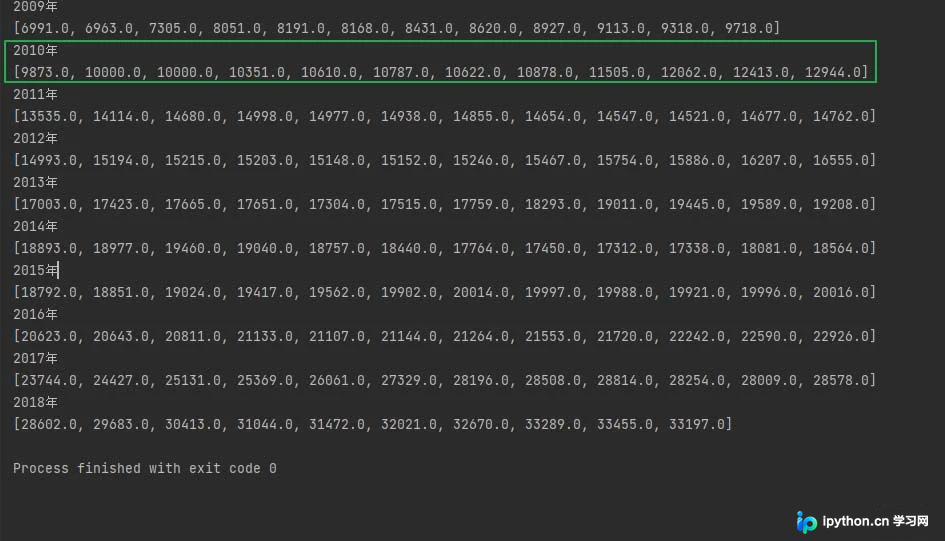
运行上述代码后得到的数据输出结果如下。
三、使用ECharts在HTML中展示数据
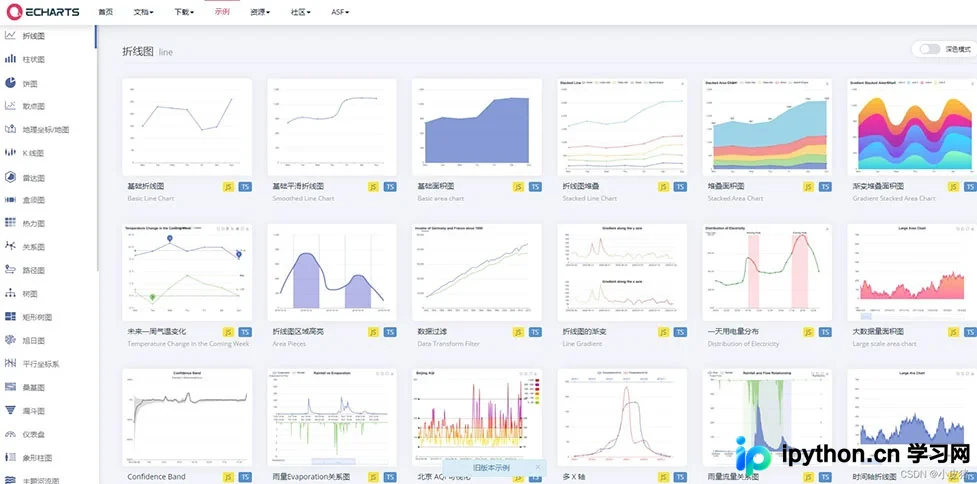
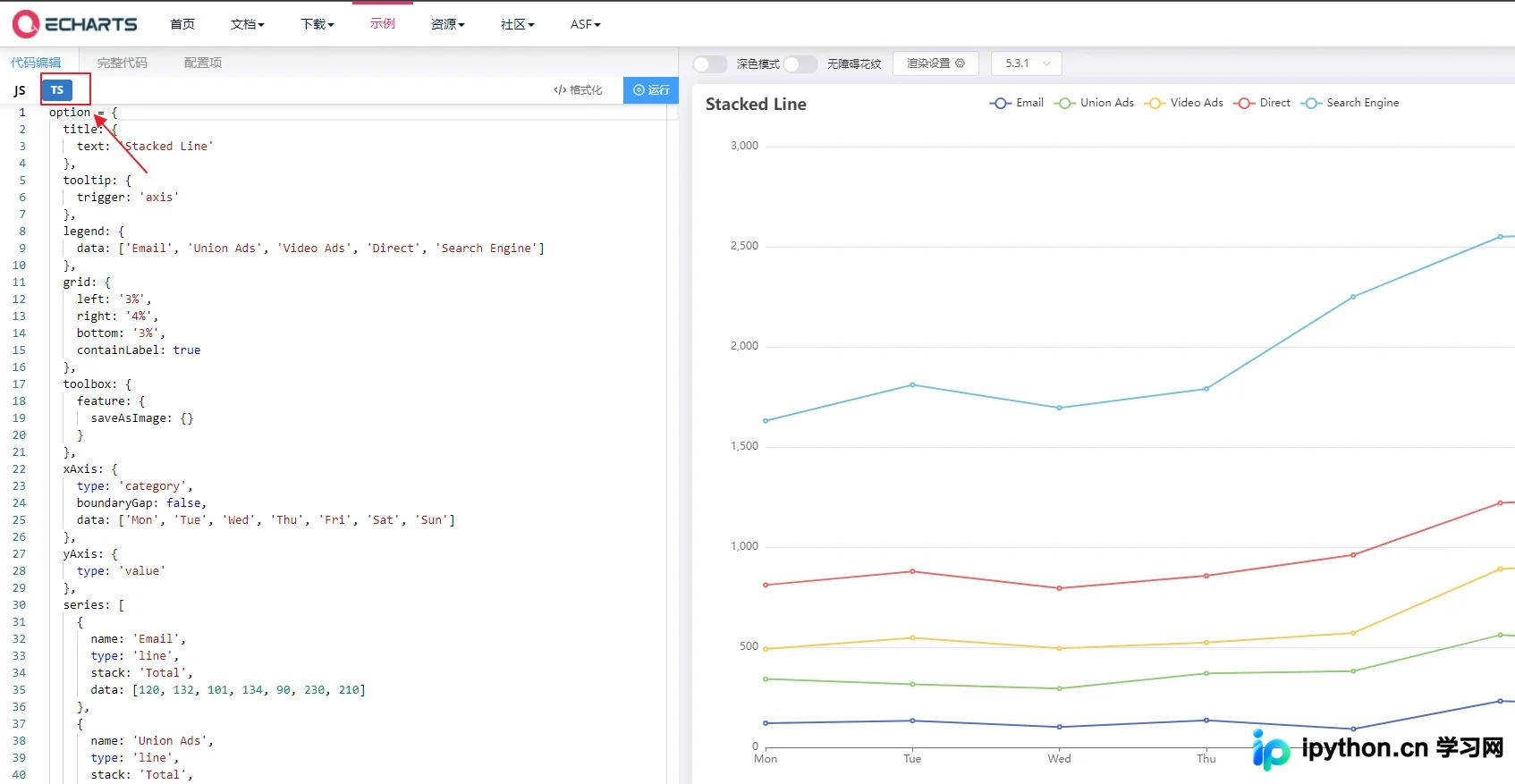
访问相关文档链接以选择所需的图表样式,并确保在HTML文件中引入echarts.js脚本库。
官方示例页面地址:Examples - Apache ECharts
ECharts是一个功能强大且交互性强的浏览器端图表与可视化库。
具体示例参考链接:https://echarts.apache.org/examples/zh/index.html
<!DOCTYPE html>
<html>
	<head>
		<meta charset="utf-8">
		<title>广州历史房价</title>
		<script src="echarts.js"></script>
	</head>
	<script>
	window.onload = function(){
		// 在<head>中写浮现窗口
		var a = echarts.init(document.getElementById("main"));
		var b =option = {
  title: {
    text: '广州历史房价',

  },
  tooltip: {
    trigger: 'axis'
  },
  legend: {
    data: ['2009年', '2010年', '2011年', '2012年', '2013年','2014年', '2015年', '2016年', '2017年', '2018年']
  },
  grid: {
    left: '3%',
    right: '4%',
    bottom: '3%',
    containLabel: true
  },
  toolbox: {
    feature: {
      saveAsImage: {}
    }
  },
  xAxis: {
    type: 'category',
    boundaryGap: false,
    data: ['一月', '二月', '三月', '四月', '五月', '六月', '七月','八月', '九月', '十月', '十一月','十二月']
  },
  yAxis: {
    type: 'value'
  },
  series: [
    {
      name: '2009年',
      type: 'line',
      stack: 'Total',
      data: [6991.0, 6963.0, 7305.0, 8051.0, 8191.0, 8168.0, 8431.0, 8620.0, 8927.0, 9113.0, 9318.0, 9718.0]
    },
    {
      name: '2010年',
      type: 'line',
      stack: 'Total',
      data: [9873.0, 10000.0, 10000.0, 10351.0, 10610.0, 10787.0, 10622.0, 10878.0, 11505.0, 12062.0, 12413.0, 12944.0]
    },
    {
      name: '2011年',
      type: 'line',
      stack: 'Total',
      data: [13535.0, 14114.0, 14680.0, 14998.0, 14977.0, 14938.0, 14855.0, 14654.0, 14547.0, 14521.0, 14677.0, 14762.0]
    },
    {
      name: '2012年',
      type: 'line',
      stack: 'Total',
      data: [14993.0, 15194.0, 15215.0, 15203.0, 15148.0, 15152.0, 15246.0, 15467.0, 15754.0, 15886.0, 16207.0, 16555.0]
    },
    {
      name: '2013年',
      type: 'line',
      stack: 'Total',
      data: [17003.0, 17423.0, 17665.0, 17651.0, 17304.0, 17515.0, 17759.0, 18293.0, 19011.0, 19445.0, 19589.0, 19208.0]
    },
    {
      name: '2014年',
      type: 'line',
      stack: 'Total',
      data: [18893.0, 18977.0, 19460.0, 19040.0, 18757.0, 18440.0, 17764.0, 17450.0, 17312.0, 17338.0, 18081.0, 18564.0]
    },
	{
      name: '2015年',
      type: 'line',
      stack: 'Total',
      data: [18792.0, 18851.0, 19024.0, 19417.0, 19562.0, 19902.0, 20014.0, 19997.0, 19988.0, 19921.0, 19996.0, 20016.0]
    },
	{
	  name: '2016年',
	  type: 'line',
	  stack: 'Total',
	  data: [20623.0, 20643.0, 20811.0, 21133.0, 21107.0, 21144.0, 21264.0, 21553.0, 21720.0, 22242.0, 22590.0, 22926.0]
	},
	{
	  name: '2017年',
	  type: 'line',
	  stack: 'Total',
	  data: [23744.0, 24427.0, 25131.0, 25369.0, 26061.0, 27329.0, 28196.0, 28508.0, 28814.0, 28254.0, 28009.0, 28578.0]
	},
	{
	  name: '2018年',
	  type: 'line',
	  stack: 'Total',
	  data: [28602.0, 29683.0, 30413.0, 31044.0, 31472.0, 32021.0, 32670.0, 33289.0, 33455.0, 33197.0]
	},
  ]
};


					a.setOption(b);
				}
	</script>
	<body> <!-- 在<body>处完善窗口尺寸 -->
		<div id="main" style="width: 1100px;height: 800px;"></div>
	</body>
</html>
四、最终效果展示
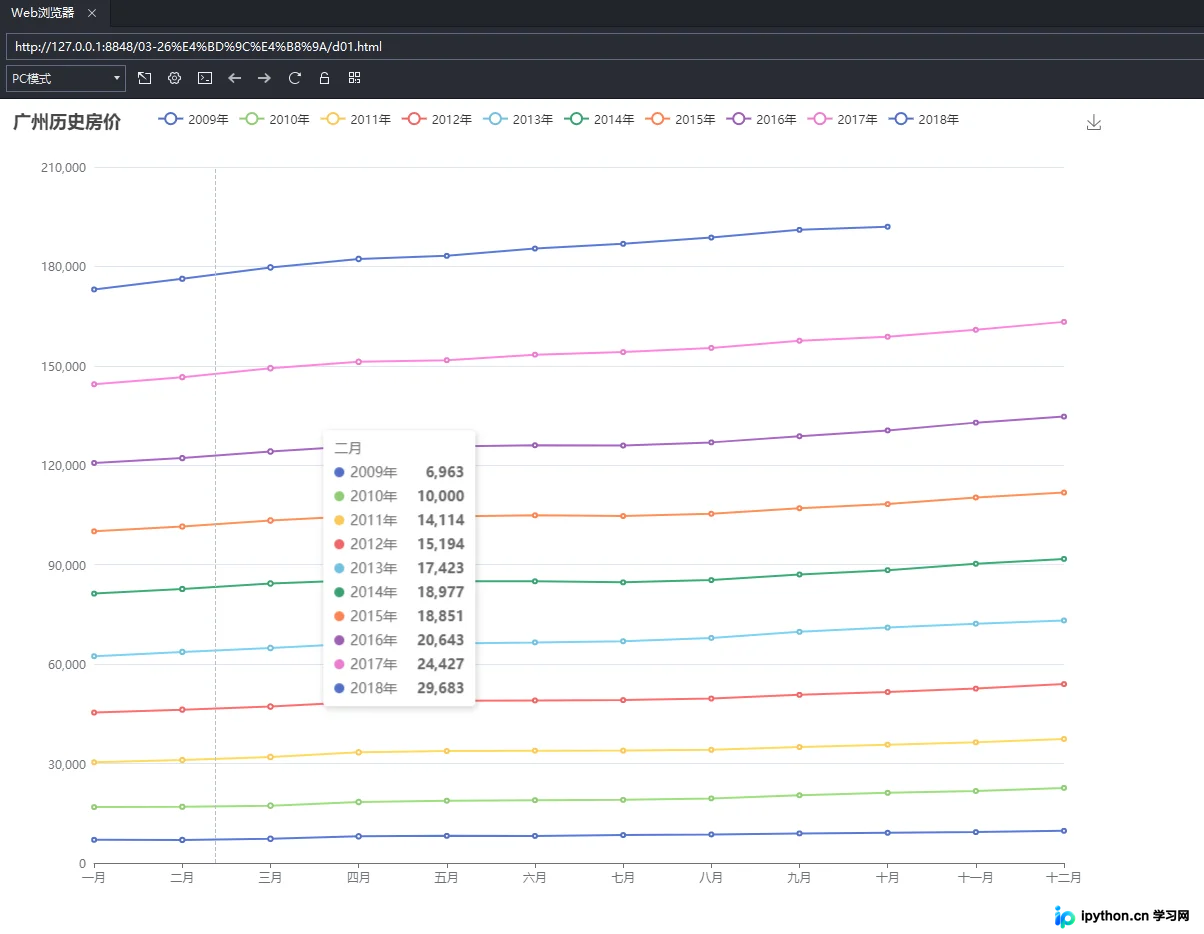
总结
至此,关于使用Python处理Excel数据并在网页中进行可视化的教程介绍完毕。如需了解更多Python与Excel数据可视化的相关内容,可搜索本站往期文章或继续浏览后续文章,感谢大家的支持。
免责声明:本文内容仅供参考,不代表本站观点。转载或引用请注明出处。









