

Python GUI开发实战:使用Tkinter构建界面与PyInstaller打包exe详解

本文详细介绍如何利用Python的Tkinter库开发图形用户界面,涵盖窗口创建、图片浏览及按钮交互等核心功能实现。同时,深入讲解使用PyInstaller将Python脚本打包为Windows下独立exe可执行文件的全过程,包括安装配置、常用参数解析及常见问题处理,帮助开发者快速完成从代码到独立应用的转换。
一、GUI(图形用户接口)开发基础
首先,需要导入程序运行所需的各类依赖包。
import tkinter as tk
import tkinter.messagebox
import copy
import os
接着,编写逻辑以获取指定文件夹内所有的图片资源。
def get_picture(dirs):
    '''获得所有图片'''
    picture_list = []
    for dir, dir_abs, files in os.walk(dirs):
        for file in files:
            if file.endswith('.png'):  # 注意检查分析数据格式
                picture_list.append(os.path.join(dir, file))
    return picture_list
随后,定义一个名为Window的类来封装窗口相关的状态与行为。
class Window:
    button_list = []
    object_list = []
    pictures = get_picture("F:\\pic\\class-1\\classresnet\\data\\dangerous")
    file = pictures[0]
    is_show = True
    index = 0
    image_file = ''
在类的初始化方法中,创建主窗口及Frame容器,并设置标题与几何尺寸。
    def __init__(self):
        '''创建窗口和frame'''
        self.window = tk.Tk()
        self.window.title('护目镜安全检测')
        self.window.geometry('600x400')
        self.frame = tk.Frame(self.window)
        self.frame.pack()
        self.frame_l = tk.Frame(self.frame)
        self.frame_r = tk.Frame(self.frame)
        self.frame_l.pack(side='left')
        self.frame_r.pack(side='right')
        self.frame_ll = tk.Frame(self.frame_r)
        self.frame_rr = tk.Frame(self.frame_r)
        self.frame_ll.pack(side='left')
        self.frame_rr.pack(side='right')
进一步定义实现翻页功能(如上一页、下一页)及其他交互所需的函数逻辑。
    def next_picture(self):
        '''下一张图片'''
        self.index = self.pictures.index(self.file)
        self.index += 1
        if self.index < len(self.pictures):
            self.checkout_button()
            self.file = self.pictures[self.index]
            self.create_canvas(self.file)
        else:
            self.index = len(self.pictures) - 1
            tkinter.messagebox.showinfo('提示', '已近是最后一张了')

    def checkout_button(self):
        '''判断列表中是否只有button对象'''
        object_list_copy = copy.copy(self.object_list)
        for ob in self.object_list:
            if ob in self.button_list:
                pass
            else:
                b = object_list_copy.pop(self.object_list.index(ob))
                b.destroy()
        self.object_list = object_list_copy

    def pre_picture(self):
        '''上一页'''
        self.index = self.pictures.index(self.file)
        self.index -= 1
        if self.index >= 0:
            self.checkout_button()
            self.file = self.pictures[self.index]
            self.create_canvas(self.file)
        else:
            self.index = 0
            tkinter.messagebox.showinfo('提示', '已经是第一张了')

    def show_picture(self):
        '''展示图片和翻页按钮'''
        self.file = self.pictures[0]
        if self.is_show:
            self.is_show = False
            self.create_canvas(self.file)
            button1 = tk.Button(self.frame_ll, text='上一张', font=('Arial', 12), width=10, height=1, bg='orange',
                                command=self.pre_picture, relief='ridge', )
            button1.pack()
            button2 = tk.Button(self.frame_rr, text='下一张', font=('Arial', 12), width=10, height=1, bg='orange',
                                command=self.next_picture, relief='ridge', )
            button2.pack()
            self.button_list.append(button1)
            self.button_list.append(button2)
            self.object_list.extend(self.button_list)
        else:
            self.is_show = True
            while self.object_list:
                o = self.object_list.pop()
                o.destroy()
最后,实例化按钮与画布组件,并调用主程序运行循环以展示界面。
    def new_button(self):
        '''创建展示按钮'''"开始检测和显示结果可在此处新添加tk.button"
        tk.Button(self.frame_l, text='开始读取', font=('Arial Black', 12), width=10, height=1, bg='green',
                  command=self.show_picture, relief='ridge').pack()
        # tk.Button(self.frame_l, text='开始检测', font=('Arial Black', 12), width=10, height=1, bg='blue',command=classresnet, relief='ridge').pack()

    def create_canvas(self, file):
        '''用画布展示图片'''
        self.image_file = tk.PhotoImage(file=file)
        canvas = tk.Canvas(self.frame_r, height=500, width=600, bg='gray')
        canvas.create_image(1, 1, anchor='nw', image=self.image_file)
        canvas.pack()
        self.object_list.append(canvas)

    def run(self):
        '''主程序调用'''
        self.window.mainloop()

if __name__ == '__main__':

    w = Window()
    w.new_button()
    w.run()
界面运行效果展示
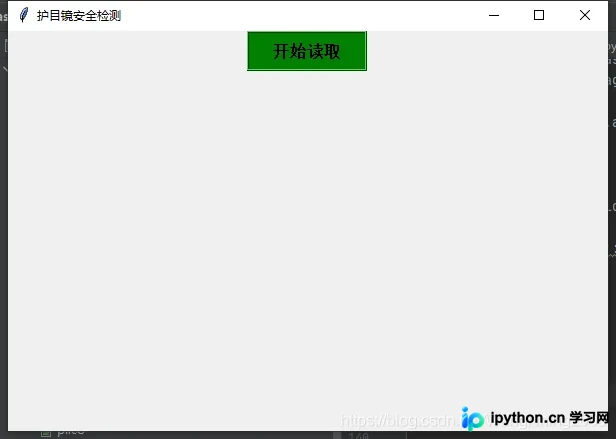
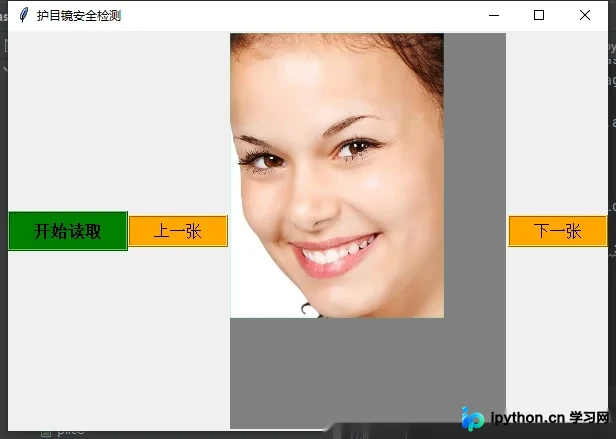
完整的源代码实现
import tkinter as tk
import tkinter.messagebox
import copy
import os
# from glob2 import glob
# import main

"""Graphical User Interface(图形用户接口)"""
def get_picture(dirs):
    '''获得所有图片'''
    picture_list = []
    for dir, dir_abs, files in os.walk(dirs):
        for file in files:
            if file.endswith('.png'):  # 注意检查分析数据格式
                picture_list.append(os.path.join(dir, file))
    return picture_list


class Window:
    button_list = []
    object_list = []

    # for pngfile in glob("F:\\pic\\class-1\\classresnet\\datas\\*.png"):
    #     main.image_demo()
    #     output_dir = "F:\\pic\\class-1\\classresnet\\data\\try"  # 保存截取的图像目录
    #     print('图片获取完成 。。。!')
    #
    # main.classresnet()

    pictures = get_picture("F:\\pic\\class-1\\classresnet\\data\\dangerous")
    file = pictures[0]
    is_show = True
    index = 0
    image_file = ''

    def __init__(self):
        '''创建窗口和frame'''
        self.window = tk.Tk()
        self.window.title('护目镜安全检测')
        self.window.geometry('600x400')
        self.frame = tk.Frame(self.window)
        self.frame.pack()
        self.frame_l = tk.Frame(self.frame)
        self.frame_r = tk.Frame(self.frame)
        self.frame_l.pack(side='left')
        self.frame_r.pack(side='right')
        self.frame_ll = tk.Frame(self.frame_r)
        self.frame_rr = tk.Frame(self.frame_r)
        self.frame_ll.pack(side='left')
        self.frame_rr.pack(side='right')

    def next_picture(self):
        '''下一张图片'''
        self.index = self.pictures.index(self.file)
        self.index += 1
        if self.index < len(self.pictures):
            self.checkout_button()
            self.file = self.pictures[self.index]
            self.create_canvas(self.file)
        else:
            self.index = len(self.pictures) - 1
            tkinter.messagebox.showinfo('提示', '已近是最后一张了')

    def checkout_button(self):
        '''判断列表中是否只有button对象'''
        object_list_copy = copy.copy(self.object_list)
        for ob in self.object_list:
            if ob in self.button_list:
                pass
            else:
                b = object_list_copy.pop(self.object_list.index(ob))
                b.destroy()
        self.object_list = object_list_copy

    def pre_picture(self):
        '''上一页'''
        self.index = self.pictures.index(self.file)
        self.index -= 1
        if self.index >= 0:
            self.checkout_button()
            self.file = self.pictures[self.index]
            self.create_canvas(self.file)
        else:
            self.index = 0
            tkinter.messagebox.showinfo('提示', '已经是第一张了')

    def show_picture(self):
        '''展示图片和翻页按钮'''
        self.file = self.pictures[0]
        if self.is_show:
            self.is_show = False
            self.create_canvas(self.file)
            button1 = tk.Button(self.frame_ll, text='上一张', font=('Arial', 12), width=10, height=1, bg='orange',
                                command=self.pre_picture, relief='ridge', )
            button1.pack()
            button2 = tk.Button(self.frame_rr, text='下一张', font=('Arial', 12), width=10, height=1, bg='orange',
                                command=self.next_picture, relief='ridge', )
            button2.pack()
            self.button_list.append(button1)
            self.button_list.append(button2)
            self.object_list.extend(self.button_list)
        else:
            self.is_show = True
            while self.object_list:
                o = self.object_list.pop()
                o.destroy()

    # def code_button(self):
    #     tk.Button(self.frame_l, text='开始检测', font=('Arial Black', 12), width=10, height=1, bg='blue',
    #               command=main.classresnet, relief='ridge').pack()

    def new_button(self):
        '''创建展示按钮'''"开始检测和显示结果可在此处新添加tk.button"
        tk.Button(self.frame_l, text='开始读取', font=('Arial Black', 12), width=10, height=1, bg='green',
                  command=self.show_picture, relief='ridge').pack()
        # tk.Button(self.frame_l, text='开始检测', font=('Arial Black', 12), width=10, height=1, bg='blue',command=classresnet, relief='ridge').pack()

    def create_canvas(self, file):
        '''用画布展示图片'''
        self.image_file = tk.PhotoImage(file=file)
        canvas = tk.Canvas(self.frame_r, height=500, width=600, bg='gray')
        canvas.create_image(1, 1, anchor='nw', image=self.image_file)
        canvas.pack()
        self.object_list.append(canvas)

    def run(self):
        '''主程序调用'''
        self.window.mainloop()

if __name__ == '__main__':


    w = Window()
    w.new_button()
    w.run()
二、生成exe可执行文件
在Windows操作系统环境下,可以使用PyInstaller工具将Python程序打包为exe可执行程序。
第一步:安装PyInstaller依赖库。
打开CMD命令行窗口,执行以下命令进行安装:
pip install pyinstaller
第二步:打包Python程序。
进入Python源文件所在的目录,执行以下打包命令:
pyinstaller -F xxx.py -w
注意:若不加-w参数,生成的exe文件运行时会同时弹出命令行窗口。
第三步:运行生成的exe文件。
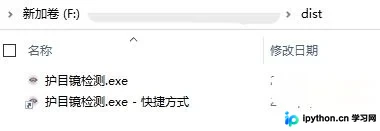
打包完成后,在对应目录会出现build和dist文件夹,exe文件就出现在dist文件夹,直接运行即可。
第四步:常用命令参数详解。
(1) -F 指定打包后只生成一个exe格式的文件(dist文件只有一个exe格式的文件T1)
pyinstaller -F T1.py
(2) -i 改变生成程序的icon图标
pyinstaller -F -i ./my.ico T1.py
(3) -n NAME,–name=NAME 设置产生文件的名字(mypy)
pyinstaller -F -n mypy -i ./my.ico T1.py
打包效果展示
执行exe应用
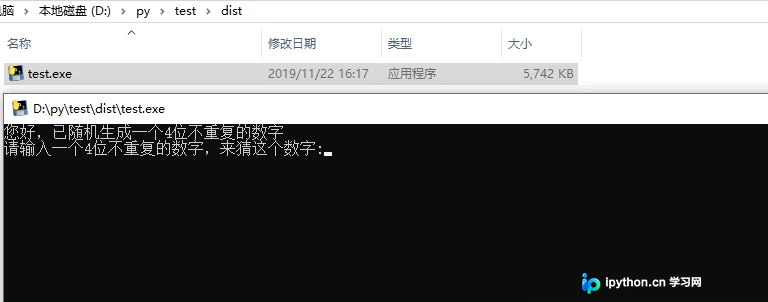
因为是exe应用,是可执行文件了,所以直接双击运行即可,运行效果如下图所示:
总结
到此这篇关于如何利用python写GUI及生成.exe可执行文件的文章就介绍到这了,更多相关python写GUI及生成.exe内容请搜索本站以前的文章或继续浏览下面的相关文章希望大家以后多多支持本站!
免责声明:本文内容仅供参考,不代表本站观点。转载或引用请注明出处。









