

Python OpenCV 实现简易绘图板:滑块调色与鼠标交互

发布时间:2026-10-14| 4人浏览过
本文介绍使用 Python 和 OpenCV 库开发简易绘画板的方法。通过 cv2.createTrackbar 创建 RGB 颜色滑块,结合 cv2.setMouseCallback 监听鼠标点击、移动和释放事件,实现矩形填充与圆形绘制功能。代码包含完整的窗口初始化、颜色获取及键盘快捷键切换模式逻辑,适合 OpenCV 基础交互学习。
Python OpenCV 简易绘画板实现
本文分享一个基于 Python 和 OpenCV 库实现的简易绘画板代码示例,供读者参考学习。
核心代码实现
import numpy as np
import cv2
def nothing(x):
  pass
cv2.namedWindow('image')
img = np.zeros((512,512,3),np.uint8)
cv2.createTrackbar('R','image',0,255,nothing)
cv2.createTrackbar('G','image',0,255,nothing)
cv2.createTrackbar('B','image',0,255,nothing)
drawing = False
mode = True
ix,iy = -1,-1
def drawing_fragment(event,x,y,flags,param):
  r = cv2.getTrackbarPos('R','image')
  g = cv2.getTrackbarPos('G','image')
  b = cv2.getTrackbarPos('B','image')
  color = (b,g,r)
  global drawing,ix,iy,mode
  if event == cv2.EVENT_LBUTTONDOWN:
    drawing = True
    ix = x
    iy = y
  elif event == cv2.EVENT_MOUSEMOVE:
    if drawing:
      if mode:
        cv2.rectangle(img,(ix,iy),(x,y),color,-1)
      else:
        cv2.circle(img,(x,y),5,color,-1)
  elif event == cv2.EVENT_LBUTTONUP:
    drawing = False

cv2.setMouseCallback('image',drawing_fragment)
while True:
  cv2.imshow('image',img)
  k = cv2.waitKey(2)
  if k == 27:
    break
  elif k == ord('q'):
    mode = not mode
cv2.destroyAllWindows()
测试效果展示
运行效果预览
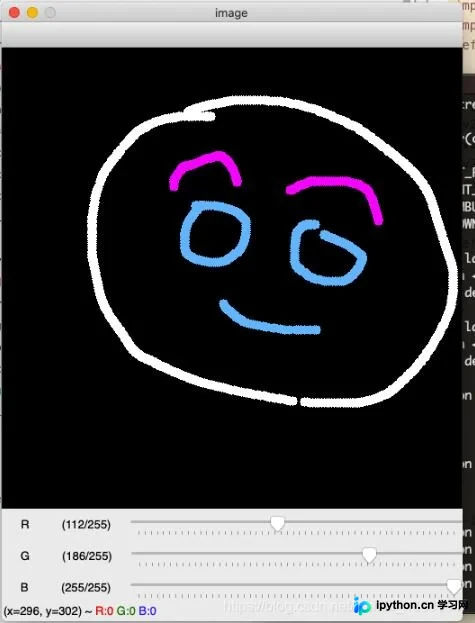
以上就是本文的全部内容,希望能为各位的学习提供有益帮助,同时也欢迎大家继续支持本站。
免责声明:本文内容仅供参考,不代表本站观点。转载或引用请注明出处。









