

Python3 基于 face_recognition 库的离线人脸识别实战

本文介绍如何在 Python3 环境中利用 face_recognition 开源库实现离线人脸识别。通过配置 Ubuntu 和 OpenCV 环境,演示了人脸身份比对、位置定位(CNN与HOG模式)、面部裁剪及关键点检测等核心功能,代码基于 dlib 深度学习模型,准确率高达 99.38%。
前言与环境配置
前言
此前曾尝试过 face++ 的在线人脸识别服务,本次旨在探索离线版本的实现方案。GitHub 上已有丰富的 face_recognition 相关资料,本文主要作为实践搬运,整理部分文档内容并实现相关示例代码。
官方描述:
face_recognition 是一款功能强大、简单易用且易于上手的开源人脸识别项目,提供了完整的开发文档与应用案例,并特别兼容树莓派系统。该项目号称世界上最简洁的人脸识别库,支持使用 Python 和命令行工具进行人脸的提取、识别与操作。其底层基于业内领先的 C++ 开源库 dlib 中的深度学习模型,在 Labeled Faces in the Wild 人脸数据集测试中准确率高达 99.38%。不过需注意,该模型对儿童及亚洲人脸的识别准确率仍有提升空间。
(关于兼容树莓派,后续若有开发板将另行实践)
以下两个链接为关键参考资料:
https://github.com/ageitgey/face_recognition/blob/master/README_Simplified_Chinese.md https://face-recognition.readthedocs.io/en/latest/face_recognition.html
环境配置
- Ubuntu 16.04(其他操作系统的安装方法可参考第一个链接,官方文档中有详细说明)。
- PyCharm(可选,根据个人开发习惯选择即可)。
- Python 3。
- OpenCV(本文使用的是 4.1.2 版本,3.x 系列版本通常也能兼容)。
实际上只需安装 face_recognition,但若未安装 OpenCV 也需一并安装以支持图像处理功能。
pip3 install face_recognition图片准备
由于需要进行图片比对,需提前准备测试图片。本文使用的图片来源于以下链接:
https://www.zhihu.com/question/314169580/answer/872770507
图片准备与操作指南
接下来开始具体操作。
官方虽提供了命令行操作方式(本文未涉及),但重点在于如何在 Python 代码中调用 face_recognition,因此此处聚焦于 Python API 的使用。

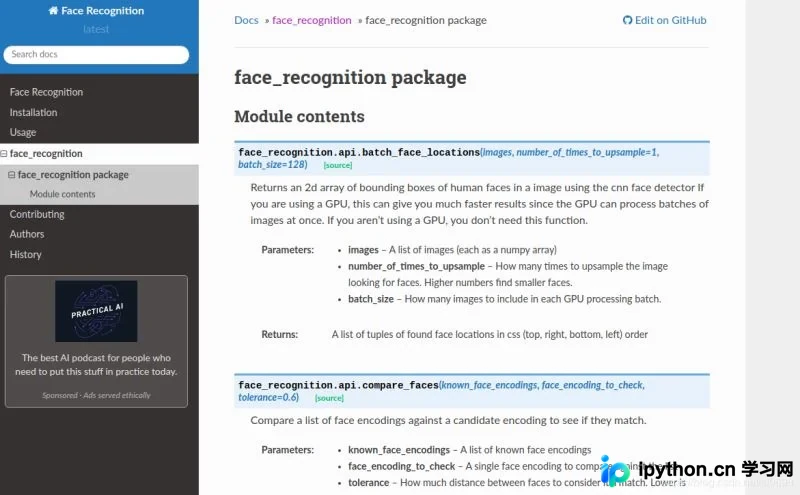
API 文档地址即上述第二个链接。进入后可见如下内容:
人脸身份识别与定位
Part 1. 识别图片中的人是谁
代码
# part1
# 识别图片中的人是谁
import face_recognition
known_image = face_recognition.load_image_file("lyf1.jpg")
unknown_image = face_recognition.load_image_file("lyf2.jpg")

lyf_encoding = face_recognition.face_encodings(known_image)[0]
unknown_encoding = face_recognition.face_encodings(unknown_image)[0]

results = face_recognition.compare_faces([lyf_encoding], unknown_encoding)
# A list of True/False values indicating which known_face_encodings match the face encoding to check

print(type(results))
print(results)

if results[0] == True:
  print("yes")
else:
  print("no")
结果
<class 'list'> [True] yes
Part 2. 从图片中找到人脸
代码
# part2
# 从图片中找到人脸(定位人脸位置)

import face_recognition
import cv2

image = face_recognition.load_image_file("lyf1.jpg")

face_locations_useCNN = face_recognition.face_locations(image,model='cnn')
# model – Which face detection model to use. “hog” is less accurate but faster on CPUs.
# “cnn” is a more accurate deep-learning model which is GPU/CUDA accelerated (if available). The default is “hog”.

face_locations_noCNN=face_recognition.face_locations(image)
# A list of tuples of found face locations in css (top, right, bottom, left) order
# 因为返回值的顺序是这样子的,因此在后面的for循环里面赋值要注意按这个顺序来

print("face_location_useCNN:")
print(face_locations_useCNN)
face_num1=len(face_locations_useCNN)
print(face_num1)    # The number of faces


print("face_location_noCNN:")
print(face_locations_noCNN)
face_num2=len(face_locations_noCNN)
print(face_num2)    # The number of faces
# 到这里为止,可以观察两种情况的坐标和人脸数,一般来说,坐标会不一样,但是检测出来的人脸数应该是一样的
# 也就是说face_num1 = face_num2; face_locations_useCNN 和 face_locations_noCNN 不一样


org = cv2.imread("lyf1.jpg")
img = cv2.imread("lyf1.jpg")
cv2.imshow("lyf1.jpg",img) # 原始图片

# Go to get the data and draw the rectangle
# use CNN
for i in range(0,face_num1):
  top = face_locations_useCNN[i][0]
  right = face_locations_useCNN[i][1]
  bottom = face_locations_useCNN[i][2]
  left = face_locations_useCNN[i][3]

  start = (left, top)
  end = (right, bottom)

  color = (0,255,255)
  thickness = 2
  cv2.rectangle(img, start, end, color, thickness)  # opencv 里面画矩形的函数

# Show the result
cv2.imshow("useCNN",img)


# for face_location in face_locations_noCNN:
#
#   # Print the location of each face in this image
#   top, right, bottom, left = face_location
# # 等价于下面的这种写法

for i in range(0,face_num2):
  top = face_locations_noCNN[i][0]
  right = face_locations_noCNN[i][1]
  bottom = face_locations_noCNN[i][2]
  left = face_locations_noCNN[i][3]

  start = (left, top)
  end = (right, bottom)

  color = (0,255,255)
  thickness = 2
  cv2.rectangle(org, start, end, color, thickness)

cv2.imshow("no cnn ",org)

cv2.waitKey(0)
cv2.destroyAllWindows()
结果
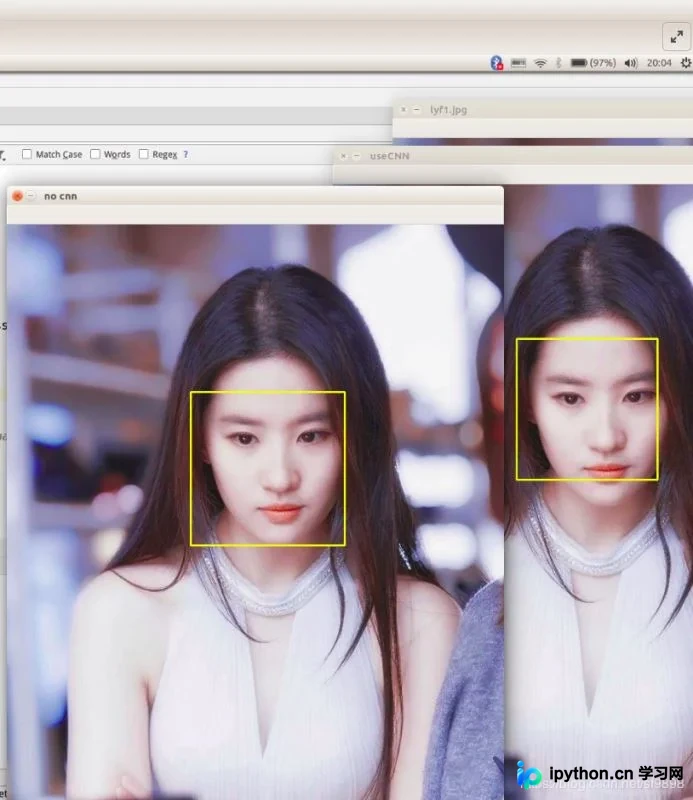
face_location_useCNN: [(223, 470, 427, 266)] 1 face_location_noCNN: [(242, 489, 464, 266)] 1
图片效果大致如下:
人脸裁剪与关键点检测
Part 3. 找到人脸并将其裁剪打印出来(使用 CNN 定位人脸)
代码
# part3
# 找到人脸并将其裁剪打印出来(使用cnn定位人脸)

from PIL import Image
import face_recognition

# Load the jpg file into a numpy array
image = face_recognition.load_image_file("lyf1.jpg")

face_locations = face_recognition.face_locations(image, number_of_times_to_upsample=0, model="cnn")

print("I found {} face(s) in this photograph.".format(len(face_locations)))

for face_location in face_locations:
  top, right, bottom, left = face_location
  print("A face is located at pixel location Top: {}, Left: {}, Bottom: {}, Right: {}".format(top, left, bottom, right))

  face_image = image[top:bottom, left:right]
  pil_image = Image.fromarray(face_image)
  pil_image.show()
结果
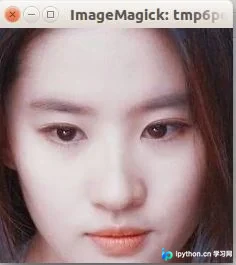
I found 1 face(s) in this photograph. A face is located at pixel location Top: 205, Left: 276, Bottom: 440, Right: 512
图片效果大致如下:
Part 4. 识别单张图片中人脸的关键点
代码
# part4 识别单张图片中人脸的关键点

from PIL import Image, ImageDraw
import face_recognition

# Load the jpg file into a numpy array
image = face_recognition.load_image_file("lyf1.jpg")

# Find all facial features in all the faces in the image
face_landmarks_list = face_recognition.face_landmarks(image)
# print(face_landmarks_list)

print("I found {} face(s) in this photograph.".format(len(face_landmarks_list)))

# Create a PIL imagedraw object so we can draw on the picture
pil_image = Image.fromarray(image)
d = ImageDraw.Draw(pil_image)

for face_landmarks in face_landmarks_list:

  # Print the location of each facial feature in this image
  for facial_feature in face_landmarks.keys():
    print("The {} in this face has the following points: {}".format(facial_feature, face_landmarks[facial_feature]))

  # Let's trace out each facial feature in the image with a line!
  for facial_feature in face_landmarks.keys():
    d.line(face_landmarks[facial_feature], width=5)

# Show the picture
pil_image.show()
结果
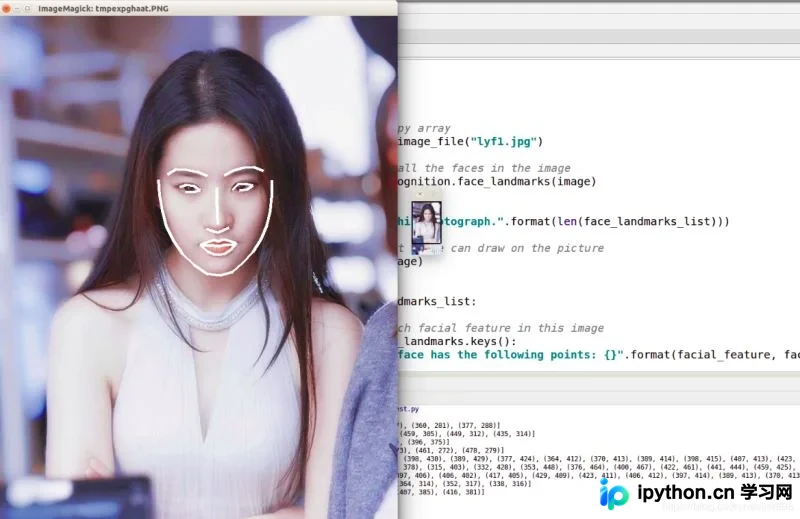
I found 1 face(s) in this photograph. The left_eyebrow in this face has the following points: [(305, 285), (321, 276), (340, 277), (360, 281), (377, 288)] The right_eye in this face has the following points: [(422, 313), (432, 303), (446, 302), (459, 305), (449, 312), (435, 314)] The nose_bridge in this face has the following points: [(394, 309), (394, 331), (395, 354), (396, 375)] The right_eyebrow in this face has the following points: [(407, 287), (424, 278), (442, 273), (461, 272), (478, 279)] The bottom_lip in this face has the following points: [(429, 409), (419, 421), (408, 428), (398, 430), (389, 429), (377, 424), (364, 412), (370, 413), (389, 414), (398, 415), (407, 413), (423, 411)] The chin in this face has the following points: [(289, 295), (291, 323), (296, 351), (303, 378), (315, 403), (332, 428), (353, 448), (376, 464), (400, 467), (422, 461), (441, 444), (459, 425), (473, 403), (484, 377), (490, 351), (493, 323), (493, 296)] The top_lip in this face has the following points: [(364, 412), (377, 407), (389, 403), (397, 406), (406, 402), (417, 405), (429, 409), (423, 411), (406, 412), (397, 414), (389, 413), (370, 413)] The left_eye in this face has the following points: [(327, 308), (339, 304), (353, 306), (364, 314), (352, 317), (338, 316)] The nose_tip in this face has the following points: [(375, 383), (386, 387), (396, 390), (407, 385), (416, 381)]
图片效果:
到此这篇关于 Python3 利用 face_recognition 实现人脸识别的方法的文章就介绍到这了,更多相关 Python3 人脸识别内容请搜索本站以前的文章或继续浏览下面的相关文章,希望大家以后多多支持本站!
免责声明:本文内容仅供参考,不代表本站观点。转载或引用请注明出处。









