

Python后端集成极验滑动验证码完整教程

本文详细介绍如何在Python Django项目中集成极验(Geetest)滑动验证码。内容涵盖从安装依赖模块、配置后端API接口,到前端HTML/JS弹窗模式的实现。重点解析Ajax请求处理、验证逻辑对接及注册页面的二次验证配置,提供完整的代码示例与注意事项,帮助开发者快速实现安全的人机验证功能。
环境准备与项目获取
首先,需要安装项目中依赖的相关模块。
pip install social-auth-app-django
安装完成后,在终端执行pip list命令,确认已安装的依赖列表中包含相关库。
social-auth-app-django 3.1.0
social-auth-core    3.0.0
随后,访问GitHub仓库下载滑动验证码的Demo示例:https://github.com/Edward66/slide_auth_code。
下载完成后,启动该项目环境。
python manage.py runserver
项目启动后,访问主页即可看到验证码示例界面。
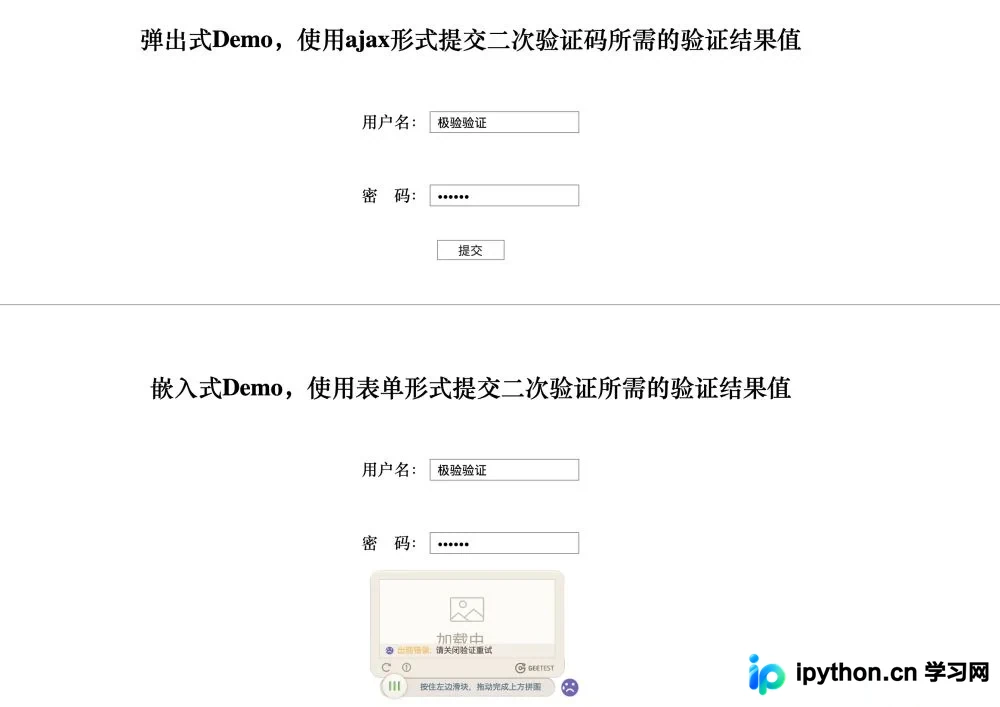
前端集成与配置
前端部分实现
在示例中任选一种展示样式(底部为移动端,若无需移动端支持请勿选择)。这里以弹出式为例,复制对应的HTML和JS代码。需注意修改Ajax请求的目标URL,将其指向你自己编写的视图函数地址,并在其中实现具体的业务逻辑。例如,若用于用户登录验证,逻辑应包含获取用户输入的账号和密码,并与数据库中的记录进行匹配。
登录页面HTML代码
<!DOCTYPE html>
<html lang="en">
<head>
  <meta charset="UTF-8">
  <title>登陆页面</title>
  <link rel="stylesheet" href="/static/blog/css/slide_auth_code.css" rel="external nofollow" >
  <link rel="stylesheet" href="/static/blog/bs/css/bootstrap.css" rel="external nofollow" >
</head>
<body>
<h3>登陆页面</h3>
<div class="container">
  <div class="row">
    <div class="col-md-6 col-md-offset-3">
      <div class="popup">
        <form id="fm">
          {% csrf_token %}
          <div class="form-group">
            <label for="id_user">用户名:</label>
            <input name="user" id="id_user" class="form-control" type="text">
          </div>
          <div class="form-group">
            <label for="id_pwd">密码:</label>
            <input name="pwd" id="id_pwd" class="form-control" type="password">
          </div>
          <input class="btn btn-default" id="popup-submit" type="button" value="提交">
          <span id="error-info"></span>
          <a href="{% url 'blog:register' %}" rel="external nofollow" class="btn btn-success pull-right">注册</a>
        </form>
        <div id="popup-captcha"></div>
      </div>
    </div>
  </div>
</div>

<script src="/static/blog/js/jquery-3.3.1.js"></script>
<script src="/static/blog/js/gt.js"></script>
<script src="/static/blog/js/slide_auth_code.js"></script>
前端JS逻辑代码
let handlerPopup = function (captchaObj) {
  // 成功的回调
  captchaObj.onSuccess(function () {
    let validate = captchaObj.getValidate();
    $.ajax({
      url: "", // 进行二次验证
      type: "post",
      dataType: "json",
      data: $('#fm').serialize(),

      success: function (data) {
        if (data.user) {
          location.href = '/index/'
        } else {
          $('#error-info').text(data.msg).css({'color': 'red', 'margin-left': '10px'});
          setTimeout(function () {
            $('#error-info').text('');
          }, 3000)
        }
      }
    });
  });
  $("#popup-submit").click(function () {
    captchaObj.show();
  });
  // 将验证码加到id为captcha的元素里
  captchaObj.appendTo("#popup-captcha");
  // 更多接口参考:http://www.geetest.com/install/sections/idx-client-sdk.html
};
// 验证开始需要向网站主后台获取id,challenge,success(是否启用failback)
$.ajax({
  url: "/pc-geetest/register?t=" + (new Date()).getTime(), // 加随机数防止缓存
  type: "get",
  dataType: "json",
  success: function (data) {
    // 使用initGeetest接口
    // 参数1:配置参数
    // 参数2:回调,回调的第一个参数验证码对象,之后可以使用它做appendTo之类的事件
    initGeetest({
      gt: data.gt,
      challenge: data.challenge,
      product: "popup", // 产品形式,包括:float,embed,popup。注意只对PC版验证码有效
      offline: !data.success // 表示用户后台检测极验服务器是否宕机,一般不需要关注
      // 更多配置参数请参见:http://www.geetest.com/install/sections/idx-client-sdk.html#config
    }, handlerPopup);
  }
});
注意:此处将Ajax请求的URL修改为了当前页面的视图函数。原始代码将所有逻辑写在HTML中,此处进行了前后端解耦处理。此外,原始代码使用的是jquery-1.12.3版本,此处已替换为jquery-3.3.1,经测试可正常运行。
后端逻辑与路由配置
后端部分实现
路由配置文件urls.py
由于后端业务逻辑由开发者自定义,此处仅需保留pcgetcaptcha相关的代码片段,用于处理验证码的验证请求。
首先,在urls.py文件中添加相应的路径配置。
from django.urls import path, re_path
from blog.views import slide_code_auth
# 滑动验证码
path('login/', views.login),
re_path(r'^pc-geetest/register', slide_code_auth, name='pcgetcaptcha'),
# slide_auth_code是我自己写的名字,原名是pcgetcaptcha
将pcgetcaptcha的具体逻辑封装至utils/slide_auth_code.py文件中,以便作为工具模块复用。
工具模块slide_auth_code.py代码
from blog.geetest import GeetestLib
pc_geetest_id = "b46d1900d0a894591916ea94ea91bd2c"
pc_geetest_key = "36fc3fe98530eea08dfc6ce76e3d24c4"
def pcgetcaptcha(request):
  user_id = 'test'
  gt = GeetestLib(pc_geetest_id, pc_geetest_key)
  status = gt.pre_process(user_id)
  request.session[gt.GT_STATUS_SESSION_KEY] = status
  request.session["user_id"] = user_id
  response_str = gt.get_response_str()
  return response_str
# pc_geetest_id和pc_geetest_key不可省略,如果做移动端要加上mobile_geetest_id和mobile_geetest_key
视图函数views.py代码
from django.contrib import auth
from django.shortcuts import render, HttpResponse
from django.http import JsonResponse
from blog.utils.slide_auth_code import pcgetcaptcha
def login(request):
  if request.method == "POST":
    response = {'user': None, 'msg': None}
    user = request.POST.get('user')
    pwd = request.POST.get('pwd')
    user = auth.authenticate(username=user, password=pwd)
    if user:
      auth.login(request, user)
      response['user'] = user.username
    else:
      response['msg'] = '用户名或密码错误'
    return JsonResponse(response)
  return render(request, 'login.html')
# 滑动验证码
def slide_code_auth(request):
  response_str = pcgetcaptcha(request)
  return HttpResponse(response_str)
def index(request):
  return render(request, 'index.html')
注意:具体实现无需完全照搬示例,可根据实际业务需求选择相应功能并进行修改。
注册页面二次验证应用
修改相关代码,将滑动验证功能集成到注册页面
注册页面JS逻辑代码
// 头像预览功能
$('#id_avatar').change(function () {  // 图片发生了变化,所以要用change事件
  // 获取用户选中的文件对象
  let file_obj = $(this)[0].files[0];
  // 获取文件对象的路径
  let reader = new FileReader(); // 等同于在python里拿到了实例对象
  reader.readAsDataURL(file_obj);
  reader.onload = function () {
    // 修改img的src属性,src = 文件对象的路径
    $("#avatar_img").attr('src', reader.result); // 这个是异步,速度比reader读取路径要快,
                           // 所以要等reader加载完后在执行。
  };
});
// 基于Ajax提交数据
let handlerPopup = function (captchaObj) {
  // 成功的回调
  captchaObj.onSuccess(function () {
    let validate = captchaObj.getValidate();
    let formdata = new FormData(); // 相当于python里实例化一个对象
    let request_data = $('#fm').serializeArray();
    $.each(request_data, function (index, data) {
      formdata.append(data.name, data.value)
    });
    formdata.append('avatar', $('#id_avatar')[0].files[0]);
    $.ajax({
      url: '',
      type: 'post',
      contentType: false,
      processData: false,
      data: formdata,
      success: function (data) {
        if (data.user) {
          // 注册成功
          location.href = '/login/'
        } else {
          // 注册失败
          // 清空错误信息,每次展示错误信息前,先把之前的清空了。
          $('span.error-info').html("");
          $('.form-group').removeClass('has-error');
          // 展示此次提交的错误信息
          $.each(data.msg, function (field, error_list) {
            if (field === '__all__') { // 全局错误信息,在全局钩子里自己定义的
              $('#id_re_pwd').next().html(error_list[0]);
            }
            $('#id_' + field).next().html(error_list[0]);
            $('#id_' + field).parent().addClass('has-error'); // has-error是bootstrap提供的
          });
        }
      }
    })
  });
  $("#popup-submit").click(function () {
    captchaObj.show();
  });
  // 将验证码加到id为captcha的元素里
  captchaObj.appendTo("#popup-captcha");
  // 更多接口参考:http://www.geetest.com/install/sections/idx-client-sdk.html
};
// 验证开始需要向网站主后台获取id,challenge,success(是否启用failback)
$.ajax({
  url: "/pc-geetest/register?t=" + (new Date()).getTime(), // 加随机数防止缓存
  type: "get",
  dataType: "json",
  success: function (data) {
    // 使用initGeetest接口
    // 参数1:配置参数
    // 参数2:回调,回调的第一个参数验证码对象,之后可以使用它做appendTo之类的事件
    initGeetest({
      gt: data.gt,
      challenge: data.challenge,
      product: "popup", // 产品形式,包括:float,embed,popup。注意只对PC版验证码有效
      offline: !data.success // 表示用户后台检测极验服务器是否宕机,一般不需要关注
      // 更多配置参数请参见:http://www.geetest.com/install/sections/idx-client-sdk.html#config
    }, handlerPopup);
  }
});
注册视图views.py代码
根据具体业务需求,自行编写验证通过后的处理逻辑。
总结:滑动验证码的核心在于前端JS部分的实现,只需确保Ajax传递的参数正确,后台验证逻辑由开发者自行编写即可。
以上介绍了在Python中实现滑动验证码功能的完整流程,希望能为读者提供帮助。如有疑问,欢迎留言,作者将及时回复。感谢大家的支持!若觉得本文有用,欢迎转载,请注明出处,谢谢!
免责声明:本文内容仅供参考,不代表本站观点。转载或引用请注明出处。









