

Python3基于Tkinter实现小球旋转抽奖游戏开发详解

本文介绍如何使用Python3和Tkinter库开发一款小球旋转抽奖小游戏。通过Canvas绘制蓝色背景球与红色运动球,利用坐标获取与边界检测控制小球沿四角路径运动。文章详细解析了Ball类的实现逻辑、界面刷新机制(tk.update()替代mainloop)及奖品判定方法,并提供完整代码参考,适合Python初学者学习GUI编程与动画控制。
项目背景与效果展示
近期课程涉及Tkinter模块,因此作者尝试制作了一个简单的抽奖互动程序。
一、效果展示
首先查看运行效果。画面中红色小球围绕蓝色中心球进行环形轨迹运动。程序设定四个角落区域为中奖区,其余区域则显示“再接再厉”。
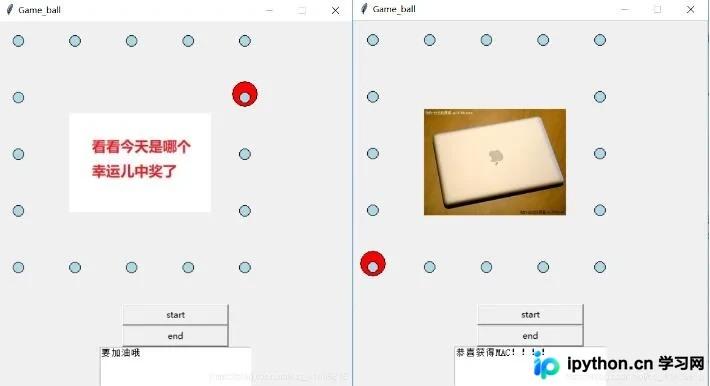
核心技术与类设计
二、技术实现
核心依赖Tkinter中的Button、Text组件,结合PIL图像处理库及time时间模块,利用Canvas画布功能完成绘制。
drawPath()函数负责绘制静态的蓝色小球。
Ball类用于初始化画布环境、定义运动小球的尺寸及初始坐标位置。
Ball类中的draw()方法控制小球的动态行为。此处关键使用了canvas.coords()函数,该函数返回包含小球左上角和右下角坐标的数组。例如通过pos=self.canvas.coords获取坐标后,pos[0]代表左侧X坐标,pos[2]代表右侧X坐标,pos[1]代表顶部Y坐标,pos[3]代表底部Y坐标。结合if条件判断与这些坐标值,即可精确控制小球在画布上的上下左右移动逻辑。
 self.canvas.move(self.id,self.x,self.y)
 #获取某个对象在画布的坐标,返回一个数组(两个坐标,左上角的坐标和右下角的两个坐标)
   pos = self.canvas.coords(self.id)
   getNowPoint(pos[0],pos[1],pos[2],pos[3])
   #打印获取的坐标

   #如果最上面的纵轴坐标在顶上,则往下移动一个像素
   if pos[1] <=30 and self.y==-80:
    self.x = 80
    self.y=0
    print("pos1" + str(self.x) + ":pos1:" + str(self.y))
   #如果最下面的纵轴坐标在底上,则向左移动
   elif pos[3] > 300 and self.x==0 and self.y==80:
    self.x = -80
    self.y=0
    print("pos3" + str(self.x) + ":pos3:" + str(self.y))
   #宽度控制#
   #如果在左边框了,那么向右边移动3像素
   elif pos[0] <30 and self.x== -80:
    self.x = 0
    self.y= -80
    print("pos0" + str(self.x) + ":pos0:" + str(self.y))
   #如果到右边框了,左移动3像素
   elif pos[2] > 300 and self.y==0:

    self.x = 0
    self.y=80
    print("pos2:" + str(self.x) + "pos2:" + str(self.y))
getNowPoint()函数用于实时获取红色运动小球的当前坐标位置。
图片加载与显示函数实现如下:
img44 = Image.open("px.jpg")
img_file44 = ImageTk.PhotoImage(img44)
canvas.create_image(200, 200, image=img_file44)(参数1,2 图片的位置x,y,参数3是图片)
界面刷新机制与问题排查
三、常见问题与解决
教程中通常建议使用mainloop()来显示Canvas内容,这导致初期难以让小球持续运动。经过查阅资料发现,无需强制使用mainloop,可通过调用tk.update()来刷新Tk界面内容。因此,实现方案是采用while循环,每次小球移动后调用tk.update()刷新窗口,并配合time.sleep()控制运动速度,从而实现流畅的动画效果。
代码实现与参考
四、完整代码
from tkinter import *
import random
import time
from PIL import Image, ImageTk
#
#创建一个类,这个类含有两个参数,一个是画布,一个是球的颜色
#
count = 0
#a = eval(input('time:'))
#b = a
global isStop
global num
isStop=0

def stopplay():
  global isStop
  isStop=1
def startplay():
 global isStop
 isStop = 0
class Ball:
 def __init__(self,canvas,color):
  self.canvas = canvas
  self.id = canvas.create_oval(0,0,35,35,fill=color)
  self.canvas.move(self.id,10,5)
  self.x = 80
  self.y = 0
 def draw(self):
  if isStop==0:
   self.canvas.move(self.id,self.x,self.y)
   #获取某个对象在画布的坐标,返回一个数组(两个坐标,左上角的坐标和右下角的两个坐标)
   pos = self.canvas.coords(self.id)
   getNowPoint(pos[0],pos[1],pos[2],pos[3])
   #打印获取的坐标

   #如果最上面的纵轴坐标在顶上,则往下移动一个像素
   if pos[1] <=30 and self.y==-80:
    self.x = 80
    self.y=0
    print("pos1" + str(self.x) + ":pos1:" + str(self.y))
   #如果最下面的纵轴坐标在底上,则向左移动
   elif pos[3] > 300 and self.x==0 and self.y==80:
    self.x = -80
    self.y=0
    print("pos3" + str(self.x) + ":pos3:" + str(self.y))
   #宽度控制#
   #如果在左边框了,那么向右边移动3像素
   elif pos[0] <30 and self.x== -80:
    self.x = 0
    self.y= -80
    print("pos0" + str(self.x) + ":pos0:" + str(self.y))
   #如果到右边框了,左移动3像素
   elif pos[2] > 300 and self.y==0:

    self.x = 0
    self.y=80
    print("pos2:" + str(self.x) + "pos2:" + str(self.y))
  if isStop==1:
   print("停止")
   self.canvas.move(self.id, self.x, self.y)
   # 获取某个对象在画布的坐标,返回一个数组(两个坐标,左上角的坐标和右下角的两个坐标)
   pos = self.canvas.coords(self.id)
   print(pos)

def getNowPoint(x1,y1,x2,y2):
 global num
 print("现在在")
 print(x1,y1,x2,y2)
 row=(x1-10)/80
 line=(y1-5)/80
 num=str(int(row))+str(int(line))
 print("点"+str(int(row))+str(int(line)))
 #return num

def drawPath():
 for i in range(5):
  for j in range(5):
   if i==0 or i==4:
    point = (20+80*j, 20+ 80 * i, 35+80*j, 35+ 80 * i)
    oil = canvas.create_oval(point, fill='lightblue')
   elif j==0 or j==4:
    # print("$")
    point = (20+80*j,20+ 80 * i, 35+80*j , 35+ 80 * i)
    oil = canvas.create_oval(point, fill='lightblue')


 #创建画布

tk = Tk()

tk.title("Game_ball")
tk.resizable(0,0)
tk.wm_attributes("-topmost",1)
#bd=0,highlightthickness=0 画布之外没有边框

canvas = Canvas(tk,width=500,height=400,bd=0,highlightthickness=0)

canvas.pack()

tk.update()

point=(30,30,45,45)


#创建对象
ball = Ball(canvas,'red')
drawPath()
#一直保持循环
btn_start = Button(tk,text='start',width='20',command=startplay)
btn_start.pack()
btn_end=Button(tk,text='end',width='20',command=stopplay)
btn_end.pack()
global txt
txt=""
text1=Text(tk,width=30,height=4)
while 1:
 if isStop==0:
  txt = " "
  text1.insert(INSERT, txt)
  text1.delete(0.0,INSERT)
  imgtt = Image.open("tt.jpg")
  img_filett = ImageTk.PhotoImage(imgtt)
  canvas.create_image(200, 200, image=img_filett)
  while 1:
   ball.draw()
   #快速刷新屏幕
   tk.update_idletasks()
   tk.update()
   time.sleep(0.1)
   if isStop==1:
    break
 if isStop==1:
  txt="要加油哦"
  print("num" + num)
  print(type(num))
  print(type("04"))
  if num=="00" or num=="40" or num== "04" or num== "44":
    if num=="00":
     img00=Image.open("3.jpg")
     img_file00=ImageTk.PhotoImage(img00)
     canvas.create_image(200,200,image=img_file00)
     text1.insert(INSERT,"恭喜获得键盘!!!!")
     text1.tag_configure('bold',font=('Arial', 20, 'bold', 'italic'))
    elif num=="40":
     img40 = Image.open("4.jpg")
     img_file40 = ImageTk.PhotoImage(img40)
     canvas.create_image(200, 200, image=img_file40)
     text1.insert(INSERT, "恭喜获得耳机!!!!")
     text1.tag_configure('bold', font=('Arial', 20, 'bold', 'italic'))
     text1.pack()
    elif num=="04":
     img04 = Image.open("mac.jpg")
     img_file04 = ImageTk.PhotoImage(img04)
     canvas.create_image(200, 200, image=img_file04)
     text1.insert(INSERT, "恭喜获得MAC!!!!")
     text1.tag_configure('bold', font=('Arial', 20, 'bold', 'italic'))
     text1.pack()
    elif num=="44":
     img44 = Image.open("px.jpg")
     img_file44 = ImageTk.PhotoImage(img44)
     canvas.create_image(200, 200, image=img_file44)
     text1.insert(INSERT, "恭喜获得IPHONE XS MAX!!!!")
     text1.tag_configure('bold', font=('Arial', 20, 'bold', 'italic'))
     text1.pack()
  else:
   #L1 = Label(tk, text=txt, font=('宋体', '28'))
   #L1.pack()

   text1.insert(INSERT,txt)
   text1.tag_configure('bold', font=('Arial', 20, 'bold', 'italic'))
   text1.pack()
  while 1:
   #ball.draw()
   # 快速刷新屏幕
   tk.update_idletasks()
   tk.update()
   time.sleep(0.1)
   #print("num"+num)
   if isStop == 0:
    break
如需深入了解抽奖功能的具体实现,可参考相关专题:抽奖功能。
本文内容旨在为读者提供学习参考,感谢支持。
免责声明:本文内容仅供参考,不代表本站观点。转载或引用请注明出处。









