

Python办公自动化:使用python-docx批量处理Word文档与转换PDF

本文介绍如何利用Python的python-docx库实现Word文档的读写操作,包括添加段落、表格、图片及格式设置。同时演示使用docx2pdf库将单个或目录下的Word文件批量转换为PDF,提升办公效率。
面对简单且重复的工作任务,尝试使用Python进行自动化处理是明智之选。正如那句名言所说:人生苦短,你需要Python。
Word是日常办公中使用频率极高的软件。假设你需要统一调整100个Word文档的格式,或者将这100个文档全部转换为PDF格式,此时Python便能发挥重要作用,帮助你高效完成这些任务。
python-docx库简介
python-docx是一个用于对Word文档进行读写操作的第三方Python库。它支持读取Word内容,并允许向文档中添加段落、表格、图片及标题等功能。此外,该库还支持应用段落样式、设置粗体和斜体以及字符样式等格式操作。
执行以下安装命令即可完成该库的安装:
pip install python-docx
官方文档地址为:https://python-docx.readthedocs.io/
读取Word文档
首先,我创建了一个包含标题、正文和表格的示例文档,用于后续操作演示。
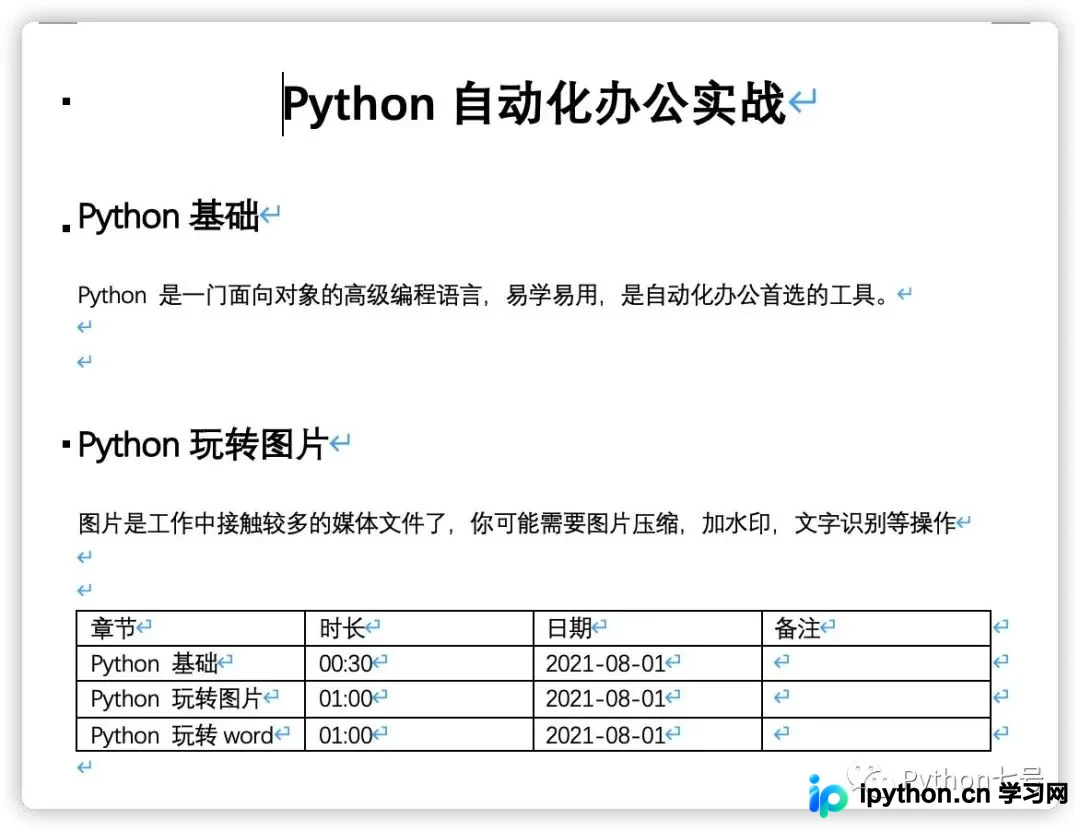
读取Word文档内容的代码如下:
from docx import Document
def view_docs(docx_file):
    # 打开文档1
    doc = Document(docx_file)
    # 读取每段内容
    pl = [ paragraph.text for paragraph in doc.paragraphs]
    # 输出读取到的内容
    for i in pl:
        print(i)
def view_docs_table(docx_file):
    # 打开文档1
    doc = Document(docx_file)
    # 读取每段内容
    tables = [table for table in doc.tables]
    for table in tables:
        for row in table.rows:
            for cell in row.cells:
                print(cell.text, end='  ')
            print()
        print('\n')
 if __name__ == '__main__':
    view_docs("Python自动化办公实战课.docx")
    view_docs_table("Python自动化办公实战课.docx")
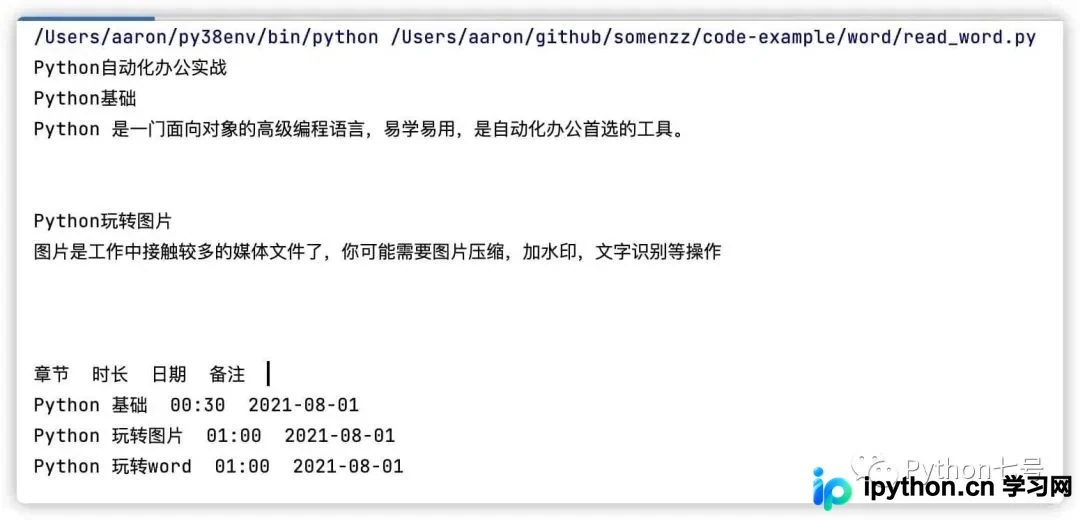
运行上述代码后的结果如下所示:
写入Word文档
接下来,使用Python创建一个与前述示例结构相同的Word文档:
from docx import Document
from docx.shared import Pt, RGBColor
from docx.oxml.ns import qn
from docx.enum.text import WD_PARAGRAPH_ALIGNMENT
from docx.table import _Cell
from docx.oxml import OxmlElement
def set_cell_border(cell: _Cell, **kwargs):
    """
    Set cell`s border
    Usage:
    set_cell_border(
        cell,
        top={"sz": 12, "val": "single", "color": "#FF0000", "space": "0"},
        bottom={"sz": 12, "color": "#00FF00", "val": "single"},
        start={"sz": 24, "val": "dashed", "shadow": "true"},
        end={"sz": 12, "val": "dashed"},
    )
    """
    tc = cell._tc
    tcPr = tc.get_or_add_tcPr()

    # check for tag existnace, if none found, then create one
    tcBorders = tcPr.first_child_found_in("w:tcBorders")
    if tcBorders is None:
        tcBorders = OxmlElement('w:tcBorders')
        tcPr.append(tcBorders)
    # list over all available tags
    for edge in ('start', 'top', 'end', 'bottom', 'insideH', 'insideV'):
        edge_data = kwargs.get(edge)
        if edge_data:
            tag = 'w:{}'.format(edge)
             # check for tag existnace, if none found, then create one
            element = tcBorders.find(qn(tag))
            if element is None:
                element = OxmlElement(tag)
                tcBorders.append(element)
             # looks like order of attributes is important
            for key in ["sz", "val", "color", "space", "shadow"]:
                if key in edge_data:
                    element.set(qn('w:{}'.format(key)), str(edge_data[key]))
document = Document()
document.styles['Normal'].font.name = u'宋体'
document.styles['Normal']._element.rPr.rFonts.set(qn('w:eastAsia'), u'宋体')
##标题
def add_header(text, level, align='center'):
    title_ = document.add_heading(level=level)
    if align == 'center':
        title_.alignment = WD_PARAGRAPH_ALIGNMENT.CENTER  # 标题居中
    elif align == 'right':
        title_.alignment = WD_PARAGRAPH_ALIGNMENT.RIGHT  # 标题居中
    title_run = title_.add_run(text)  # 添加标题内容
    # title_run.font.size = Pt(24)  # 设置标题字体大小
    title_run.font.name = 'Times New Roman'  # 设置标题西文字体
    title_run.font.color.rgb = RGBColor(0, 0, 0)  # 字体颜色
    title_run.element.rPr.rFonts.set(qn('w:eastAsia'), '微软雅黑')  # 设置标题中文字体
add_header(text='Python自动化办公实战', level=1)
add_header(text='Python基础', level=2, align='left')
document.add_paragraph('Python 是一门面向对象的高级编程语言,易学易用,是自动化办公首选的工具。')
add_header('Python玩转图片', level=2, align='left')
document.add_paragraph('图片是工作中接触较多的媒体文件了,你可能需要图片压缩,加水印,文字识别等操作')
records = (
    ('Python 基础', '00:30', '2021-08-01', ''),
    ('Python 玩转图片', '01:00', '2021-08-01', ''),
    ('Python 玩转 Word', '01:00', '2021-08-01', ''),
)
table = document.add_table(rows=1, cols=4)
hdr_cells = table.rows[0].cells
hdr_cells[0].text = '章节'
hdr_cells[1].text = '时长'
hdr_cells[2].text = '日期'
hdr_cells[3].text = '备注'
for cell in hdr_cells:
    set_cell_border(cell,
                    top={"sz": 12, "val": "single", "color": "#FF0000", "space": "0"},
                    bottom={"sz": 12, "val": "single", "color": "#FF0000", "space": "0"},
                    start={"sz": 12, "val": "single", "color": "#FF0000", "space": "0"},
                    end={"sz": 12, "val": "single", "color": "#FF0000", "space": "0"},
                    )
for chapter, time, date, note in records:
    row_cells = table.add_row().cells
    row_cells[0].text = chapter
    row_cells[1].text = time
    row_cells[2].text = date
    row_cells[3].text = note
    for cell in row_cells:
        set_cell_border(cell,
                        top={"sz": 12, "val": "single", "color": "#FF0000", "space": "0"},
                        bottom={"sz": 12, "val": "single", "color": "#FF0000", "space": "0"},
                        start={"sz": 12, "val": "single", "color": "#FF0000", "space": "0"},
                        end={"sz": 12, "val": "single", "color": "#FF0000", "space": "0"},
                        )
document.save('Python自动化办公实战.docx')
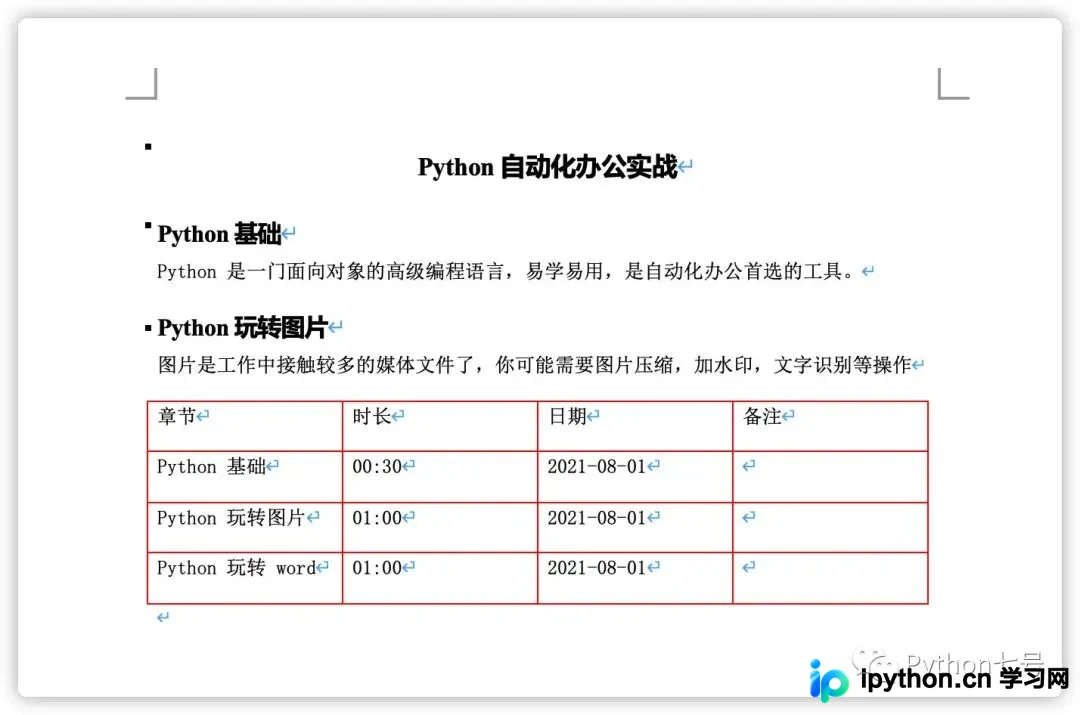
由于为表格添加边框的代码逻辑较为复杂,这里将其封装为一个独立的函数进行调用。
生成的Word文档效果如下,其中表格边框颜色、标题颜色、字体大小及样式均可根据需求进行设置:
其他常用操作
添加分页符的方法如下:
document.add_page_break()
向文档中添加图片的代码示例:
document.add_picture('monty-truth.png', width=Inches(1.25))
设置表格的列宽和行高:
'''
设置列宽
可以设置每个单元格的宽,同列单元格宽度相同,如果定义了不同的宽度将以最大值准
'''
table.cell(0,0).width=Cm(10)
#设置行高
table.rows[0].height=Cm(2)
设定表格内字体的属性:
from docx.enum.text import WD_PARAGRAPH_ALIGNMENT
#设置整个表格字体属性
table.style.font.size=Pt(18)
table.style.font.color.rgb=RGBColor(255, 0, 0)
table.style.paragraph_format.alignment=WD_PARAGRAPH_ALIGNMENT.CENTER
合并单元格的操作:
cell_1=table.cell(1, 0)
cell_2=table.cell(2, 1)
cell_1.merge(cell_2)
修改文档整体字体的设置:
from docx import Document
from docx.shared import Pt  #设置像素、缩进等
from docx.shared import RGBColor #设置字体颜色
from docx.oxml.ns import qn
doc = Document("xxx.docx")
for paragraph in doc.paragraphs:
    for run in paragraph.runs:
        run.font.bold = True
        run.font.italic = True
        run.font.underline = True
        run.font.strike = True
        run.font.shadow = True
        run.font.size = Pt(18)
        run.font.color.rgb = RGBColor(255,0,255)
        run.font.name = "黑体"
        # 设置像黑体这样的中文字体,必须添加下面 2 行代码
        r = run._element.rPr.rFonts
        r.set(qn("w:eastAsia"),"黑体")
doc.save("xxx.docx")
调整行间距的代码:
paragraph.paragraph_format.line_spacing = 5.0
调整段前与段后间距的方法:
#段前
paragraph.paragraph_format.space_before = Pt(12)

#段后
paragraph.paragraph_format.space_after = Pt(10)
Word转PDF
仅需两行代码即可实现Word到PDF的转换,这里使用的是第三方库 docx2pdf。使用前需先执行 pip install docx2pdf 进行安装。
具体转换代码如下:
from docx2pdf import convert
convert("Python自动化办公实战.docx", "Python自动化办公实战.docx.pdf")
若需将指定目录下的所有Word文件批量转换为PDF,可采用以下方式:
from docx2pdf import convert
convert("目录路径/")
批量转换为PDF的过程是否显得十分便捷?
掌握这些基础操作后,可以组合成更复杂的自动化流程。例如,后续可以使用Python将Word转换为PDF后,作为附件自动发送邮件给相关人员。
最后的话
本文分享了一种读写Word文档的方法。在日常工作中,若遇到重复性的Word操作,建议考虑使用Python进行自动化处理。如有任何问题,欢迎留言交流。阅读原文可查看Gitee仓库中的完整代码。
以上就是Python办公自动化解决Word批量转换的详细内容,更多关于Python办公自动化的资料请关注本站其它相关文章!
免责声明:本文内容仅供参考,不代表本站观点。转载或引用请注明出处。









